Analyze Again And Again: Easily Reuse Metrics With Saved Views





**Giving this blog post a bump up as an excuse to point out this great discussion thread about how to use the Schedule emailing of this dashboard feature in tandem with rules set within your email client — like Microsoft Outlook or Google Gmail — to automatically forward PDFs of dashboards to others at your organization. Check it out!**
In Analyze, you can quickly gauge and assess your organization's fundraising efforts across several areas, such as campaigns and funds, donor lifecycle, and actions. To analyze specific data or trends, you can apply filters to include only records that meet the criteria. If you frequently choose the same filters for analysis again and again, you can save their "view" for your own personal use or schedule regular emails to easily analyze the metrics in the future!
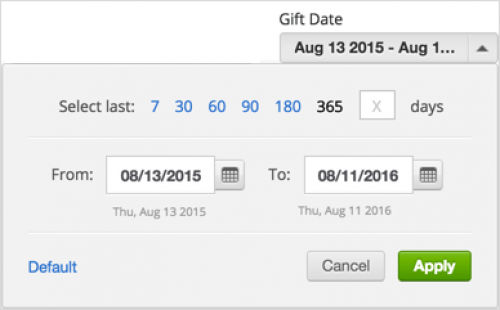 Filter the metrics. To fine-tune your analysis, apply filters to narrow the focus of metrics to specific records. For example, to stay on top of giving trends, you can filter the Giving metrics under Overview to include only gifts toward specific campaigns or funds, acquired through specific appeals, or received during a specific time period.
The Gift Date filter — and the similar Action Date filter, for actions — can be particularly useful when you save them for later reuse. With these filters, you can then easily include records based on a specific number of days in context of whenever you use the view again in the future.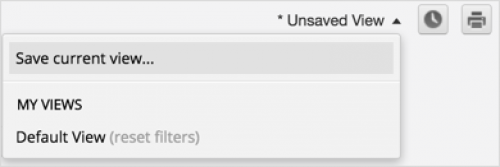 Save the view. To save the filters applied to metrics for later reuse, select Unsaved View, Save current view and then give the view a name, confirm which of the filters to include, and select Save. (Note that any filters you don't include in the saved view use their default values, and filters set to "All" or no value aren't included.) The next time you — and only you, as your saved views won't appear for others — want to apply those same filters to the metrics, simply select their view from the View menu!
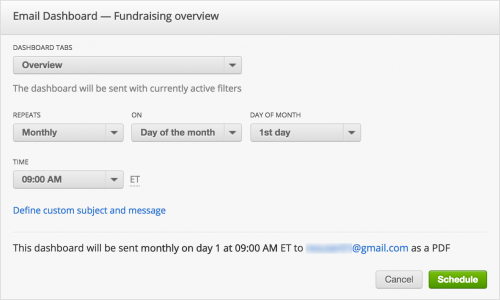 Schedule an email. If you use a view or specific filter selections on a consistent basis, you can also receive a PDF of the metrics as an email on a daily, weekly, or monthly basis. For example, if you apply a saved view with a sliding time frame date filter applied, you can then choose to automatically receive a PDF as a monthly update of giving or actions from the previous 30 days. (And, as pointed out in the aforementioned discussion thread, you can set rules within your email client to automatically forward the PDF to others at your organization!)
To set up the email, select Schedule emailing of this dashboard (the clock next to the View menu), choose when to receive the PDF, and select Schedule. You can also customize the subject line and message to best identify the metrics included in the email. (To no longer receive the PDF, you can simply select Unsubscribe in the email.)
For more information, see the Analyze Help.
In Analyze, you can quickly gauge and assess your organization's fundraising efforts across several areas, such as campaigns and funds, donor lifecycle, and actions. To analyze specific data or trends, you can apply filters to include only records that meet the criteria. If you frequently choose the same filters for analysis again and again, you can save their "view" for your own personal use or schedule regular emails to easily analyze the metrics in the future!
 Filter the metrics. To fine-tune your analysis, apply filters to narrow the focus of metrics to specific records. For example, to stay on top of giving trends, you can filter the Giving metrics under Overview to include only gifts toward specific campaigns or funds, acquired through specific appeals, or received during a specific time period.
The Gift Date filter — and the similar Action Date filter, for actions — can be particularly useful when you save them for later reuse. With these filters, you can then easily include records based on a specific number of days in context of whenever you use the view again in the future.
- For a simple time period such as the last week or month, select its number of days in the Select last field.
- To use a calendar to quickly choose the number of days worth to include, such as three weeks or four months, select the start and end dates in the From and To fields.
 Save the view. To save the filters applied to metrics for later reuse, select Unsaved View, Save current view and then give the view a name, confirm which of the filters to include, and select Save. (Note that any filters you don't include in the saved view use their default values, and filters set to "All" or no value aren't included.) The next time you — and only you, as your saved views won't appear for others — want to apply those same filters to the metrics, simply select their view from the View menu!
 Schedule an email. If you use a view or specific filter selections on a consistent basis, you can also receive a PDF of the metrics as an email on a daily, weekly, or monthly basis. For example, if you apply a saved view with a sliding time frame date filter applied, you can then choose to automatically receive a PDF as a monthly update of giving or actions from the previous 30 days. (And, as pointed out in the aforementioned discussion thread, you can set rules within your email client to automatically forward the PDF to others at your organization!)
To set up the email, select Schedule emailing of this dashboard (the clock next to the View menu), choose when to receive the PDF, and select Schedule. You can also customize the subject line and message to best identify the metrics included in the email. (To no longer receive the PDF, you can simply select Unsubscribe in the email.)
For more information, see the Analyze Help.
0
Categories
- All Categories
- New K-12 Community Home (TEST)
- New Higher Education Home Page (Test)
- New Impact Edge Community TEST
- New YourCause Community TEST
- New SKY Community TEST
- New Grantmaking TEST Community
- New Altru Test Community
- New bbcon Community - TEST
- 12 Blackbaud Agents for Good™
- New Raiser's Edge NXT Community
- 8 Blackbaud Community Help
- 222 bbcon®
- 1.4K Blackbaud Altru®
- 410 Blackbaud Award Management™ and Blackbaud Stewardship Management™
- 1.2K Blackbaud CRM™ and Blackbaud Internet Solutions™
- 16 donorCentrics®
- 361 Blackbaud eTapestry®
- 2.7K Blackbaud Financial Edge NXT®
- 687 Blackbaud Grantmaking™
- 604 Blackbaud Education Management Solutions for Higher Education
- 3.3K Blackbaud Education Management Solutions for K-12 Schools
- 954 Blackbaud Luminate Online® and Blackbaud TeamRaiser®
- 85 JustGiving® from Blackbaud®
- 7K Blackbaud Raiser's Edge NXT®
- 4K SKY Developer
- 258 ResearchPoint™
- 123 Blackbaud Tuition Management™
- 165 Organizational Best Practices
- 248 Member Lounge (Just for Fun)
- 40 Blackbaud Community Challenges
- 37 PowerUp Challenges
- 3 (Closed) PowerUp Challenge: Grid View Batch
- 3 (Closed) PowerUp Challenge: Chat for Blackbaud AI
- 3 (Closed) PowerUp Challenge: Data Health
- 3 (Closed) Raiser's Edge NXT PowerUp Challenge: Product Update Briefing
- 3 (Closed) Raiser's Edge NXT PowerUp Challenge: Standard Reports+
- 3 (Closed) Raiser's Edge NXT PowerUp Challenge: Email Marketing
- 3 (Closed) Raiser's Edge NXT PowerUp Challenge: Gift Management
- 4 (Closed) Raiser's Edge NXT PowerUp Challenge: Event Management
- 3 (Closed) Raiser's Edge NXT PowerUp Challenge: Home Page
- 4 (Closed) Raiser's Edge NXT PowerUp Challenge: Standard Reports
- 4 (Closed) Raiser's Edge NXT PowerUp Challenge: Query
- 829 Community News
- 3.1K Jobs Board
- 57 Blackbaud SKY® Reporting Announcements
- 47 Blackbaud CRM Higher Ed Product Advisory Group (HE PAG)
- 19 Blackbaud CRM Product Advisory Group (BBCRM PAG)