Time To Clean Up Your Inbox Messages

Derek Nichols
Blackbaud Employee




In this update, we've completely overhauled the look and functionality of the Messages area in the Education management products. Here's everything that's changes and what you need to know!Communication is a key component for any group or organization. For schools, the Education management suite of products has a messages feature that can be accessed at the top of the screen. While it served its purpose well, allowing people to send messages to one another, we thought it was time to clean things up.
That’s why the Messages section has gotten a complete overhaul, modernizing it, adding important functionality, and making it much easier to find what you need from the experience. Let’s take a closer look at how Messages are finally leveling up.
Thankfully, the location hasn’t changed as all you need to do is to select Messages at the top of the Education management window, regardless of which product persona is currently selected.
The Message Center
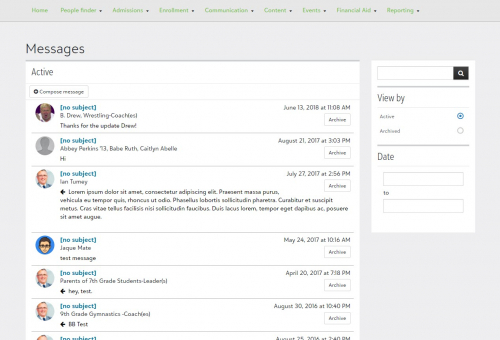
Messages are now displayed in a list style, with Active messages sorted by the most recent ones received. From the list, you can see the Subject line, who the message is from, as well as a short glimpse at the message itself. There’s even an Archive button for messages that no longer need to remain active.
On the right-hand side, you can change the view to display archived messages, search for a specific correspondence, or use the Date field to only display messages within a certain date range.
Composing a Message
The real fun begins when selecting Compose Message. The To field, while required, now displays a list that attempts to match the name or group you’re adding. The list will continue to narrow and become more specific with the more letters that are added to the To field.
In addition, there’s a new field to Enable Reply to All. When selected, this gives people on the message the ability to reply to everyone included rather than just responding to the last person who sent the latest message. If this option is not enabled during this message creation process, only the Reply option appears.
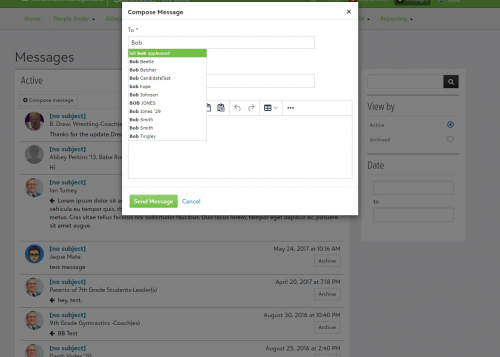
From there, add a Subject line if desired, and then compose the message below with style and formatting options available through the editor. Options include changing the font size, text color, bold, italicize, print, adding links, and much, much more.
One more thing to note is that message threads are based not only on the recipient list but the subject, so that you can have multiple threads with the same group of people instead of one rolling history. This is great for things like an educator sending a weekly agenda to a class, project updates, and more. Instead of one colossal thread, it makes finding a specific message easier.
Viewing Messages
Selecting a message will open it in a new modal window. From here, the entire message history can be seen from oldest to newest similarly to what you’d see from a chat log. Each correspondence has a time stamp so you know when it was received to better help you keep track of the conversation history.
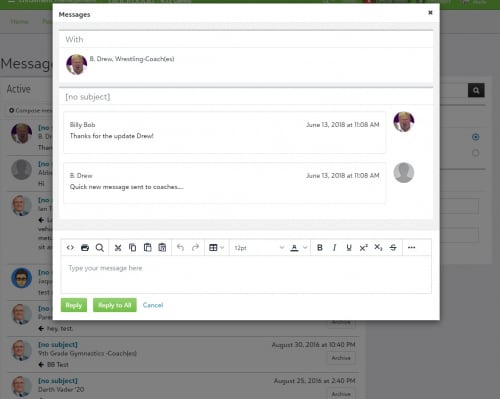
At the top if the With field, displaying who is currently involved in this message chain and can receive any additional correspondence.
A WYSIWYG (What You See Is What You Get) editor is at the bottom of the message log with a full suite of text editing tools. These include standard options like bold, cut, copy, italicize, underline, and more. In addition, you can change the font size and color as needed. Any links or videos added to the message are automatically formatted using the tinyMCE editor and open in a new tab when clicked on after being sent.
We hope you enjoy these changes to the Messages area of the product and find the whole thing much easier to use.
Thanks for stopping in this week and don’t forget to pop back in next week as we take a look about an upcoming virtual conference. See you then!
That’s why the Messages section has gotten a complete overhaul, modernizing it, adding important functionality, and making it much easier to find what you need from the experience. Let’s take a closer look at how Messages are finally leveling up.
Thankfully, the location hasn’t changed as all you need to do is to select Messages at the top of the Education management window, regardless of which product persona is currently selected.

The Message Center
Messages are now displayed in a list style, with Active messages sorted by the most recent ones received. From the list, you can see the Subject line, who the message is from, as well as a short glimpse at the message itself. There’s even an Archive button for messages that no longer need to remain active.
On the right-hand side, you can change the view to display archived messages, search for a specific correspondence, or use the Date field to only display messages within a certain date range.
Composing a Message
The real fun begins when selecting Compose Message. The To field, while required, now displays a list that attempts to match the name or group you’re adding. The list will continue to narrow and become more specific with the more letters that are added to the To field.
In addition, there’s a new field to Enable Reply to All. When selected, this gives people on the message the ability to reply to everyone included rather than just responding to the last person who sent the latest message. If this option is not enabled during this message creation process, only the Reply option appears.

From there, add a Subject line if desired, and then compose the message below with style and formatting options available through the editor. Options include changing the font size, text color, bold, italicize, print, adding links, and much, much more.
One more thing to note is that message threads are based not only on the recipient list but the subject, so that you can have multiple threads with the same group of people instead of one rolling history. This is great for things like an educator sending a weekly agenda to a class, project updates, and more. Instead of one colossal thread, it makes finding a specific message easier.
Viewing Messages
Selecting a message will open it in a new modal window. From here, the entire message history can be seen from oldest to newest similarly to what you’d see from a chat log. Each correspondence has a time stamp so you know when it was received to better help you keep track of the conversation history.

At the top if the With field, displaying who is currently involved in this message chain and can receive any additional correspondence.
A WYSIWYG (What You See Is What You Get) editor is at the bottom of the message log with a full suite of text editing tools. These include standard options like bold, cut, copy, italicize, underline, and more. In addition, you can change the font size and color as needed. Any links or videos added to the message are automatically formatted using the tinyMCE editor and open in a new tab when clicked on after being sent.
We hope you enjoy these changes to the Messages area of the product and find the whole thing much easier to use.
Thanks for stopping in this week and don’t forget to pop back in next week as we take a look about an upcoming virtual conference. See you then!
0
Categories
- All Categories
- New eTapestry Home Community
- New K-12 Community Home (TEST)
- New Higher Education Home Page (Test)
- New Impact Edge Community TEST
- New YourCause Community TEST
- New SKY Community TEST
- New Grantmaking TEST Community
- New Altru Test Community
- New bbcon Community - TEST
- 12 Blackbaud Agents for Good™
- New Raiser's Edge NXT Community
- 8 Blackbaud Community Help
- 223 bbcon®
- 1.4K Blackbaud Altru®
- 411 Blackbaud Award Management™ and Blackbaud Stewardship Management™
- 1.2K Blackbaud CRM™ and Blackbaud Internet Solutions™
- 16 donorCentrics®
- 361 Blackbaud eTapestry®
- 2.7K Blackbaud Financial Edge NXT®
- 688 Blackbaud Grantmaking™
- 604 Blackbaud Education Management Solutions for Higher Education
- 3.3K Blackbaud Education Management Solutions for K-12 Schools
- 954 Blackbaud Luminate Online® and Blackbaud TeamRaiser®
- 85 JustGiving® from Blackbaud®
- 7.1K Blackbaud Raiser's Edge NXT®
- 4K SKY Developer
- 258 ResearchPoint™
- 124 Blackbaud Tuition Management™
- 165 Organizational Best Practices
- 249 Member Lounge (Just for Fun)
- 40 Blackbaud Community Challenges
- 37 PowerUp Challenges
- 3 (Closed) PowerUp Challenge: Grid View Batch
- 3 (Closed) PowerUp Challenge: Chat for Blackbaud AI
- 3 (Closed) PowerUp Challenge: Data Health
- 3 (Closed) Raiser's Edge NXT PowerUp Challenge: Product Update Briefing
- 3 (Closed) Raiser's Edge NXT PowerUp Challenge: Standard Reports+
- 3 (Closed) Raiser's Edge NXT PowerUp Challenge: Email Marketing
- 3 (Closed) Raiser's Edge NXT PowerUp Challenge: Gift Management
- 4 (Closed) Raiser's Edge NXT PowerUp Challenge: Event Management
- 3 (Closed) Raiser's Edge NXT PowerUp Challenge: Home Page
- 4 (Closed) Raiser's Edge NXT PowerUp Challenge: Standard Reports
- 4 (Closed) Raiser's Edge NXT PowerUp Challenge: Query
- 829 Community News
- 3.1K Jobs Board
- 57 Blackbaud SKY® Reporting Announcements
- 47 Blackbaud CRM Higher Ed Product Advisory Group (HE PAG)
- 19 Blackbaud CRM Product Advisory Group (BBCRM PAG)