Introducing Event Management!

Derek Nichols
Blackbaud Employee




It's time to unveil the newest addition to Blackbaud's Enrollment Management product. Introducing your brand-new event management experience!Over these past few months, the Enrollment management team has been hard at work behind the scenes working on a brand-new experience for managing your events. Thankfully, today is the day when we can finally unveil this new feature for our EMS users.
Keep in mind that we have extensive documentation on this for all the nitty gritty details, but let’s go ahead and introduce the new Event management experience, shall we?
What is Event management?
While you may be familiar with the current Event registration content inside of the Enrollment management product, the big problem is that it was on the older side and let’s face it, it’s not exactly the prettiest looking thing.
Enter Event management. This is a brand-new event registration experience that was created from the ground up specifically for admissions managers. Not only can admissions managers expect a more modern administrator experience (with easy-to-use check in and reporting features), but candidates will have an easy to fill out form with plenty of reminders.
Where can I find it?
Ah yes, the big question.
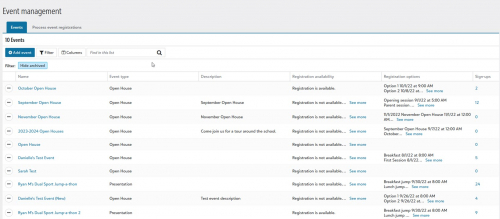
Thankfully, finding it is super easy as it doesn’t live too far away from the previous Event Registration forms location. From the Enrollment management product, head to Events, and then Event registration.
Okay great, but how do I get started?
So, you’ve found your way to Event registration but aren’t sure how to get started. Got it.
Best thing to do first is press Add event, which will open a new modal allowing you to set up your first (or latest) event! You can add things like a name, a short description for attendees, the type of event it is, and a whole lot more options. If you want notifications, you can even set those up for people who sign up.
Once set, your new event will appear within the main list, and from there you can continue to tinker with it. Either select the event name from the list or use the context menu to select Edit event details to add Registration options, see who’s signed up, and other event specific details.
I made my event, so what’s next?
When you’ve fine tuned everything, Event management also makes it easy to share your upcoming event. Use the Share option from the context menu to get shareable links (Authenticated and Public URLs) as well as HTML that can be embedded on your website.
People are signing up! What do I do!?
Okay, don’t panic.
You can use the Process event registrations section to see those who have registered and all of their details. Candidates can have a checklist and staff member assigned to them, and staff have additional options to create a new user account if needed. Select Process to confirm the changes or Print Registration Form if needed. Better yet, as they’re processed, corresponding candidate checklists are automatically updated.
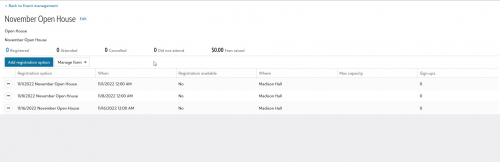
At this point feel free to select your event from the main list to bring up a new detailed view including details like when it’s happening, where, if there is a max capacity, as well as stats like who has registered, cancelled, and the number of fees raised.
_________________________________________________________
That, my friends, is just the tip of the iceberg. If you want to learn more about this new EMS feature, why not check out our documentation? I’ll also have a video up soon showing off Event management, so make sure to stay tuned to our YouTube channel for when that drops.
Thanks for stopping by this week and we hope you enjoy the new Event experience. See you right back here next week!
Keep in mind that we have extensive documentation on this for all the nitty gritty details, but let’s go ahead and introduce the new Event management experience, shall we?
What is Event management?
While you may be familiar with the current Event registration content inside of the Enrollment management product, the big problem is that it was on the older side and let’s face it, it’s not exactly the prettiest looking thing.
Enter Event management. This is a brand-new event registration experience that was created from the ground up specifically for admissions managers. Not only can admissions managers expect a more modern administrator experience (with easy-to-use check in and reporting features), but candidates will have an easy to fill out form with plenty of reminders.

Where can I find it?
Ah yes, the big question.
Thankfully, finding it is super easy as it doesn’t live too far away from the previous Event Registration forms location. From the Enrollment management product, head to Events, and then Event registration.
Okay great, but how do I get started?
So, you’ve found your way to Event registration but aren’t sure how to get started. Got it.
Best thing to do first is press Add event, which will open a new modal allowing you to set up your first (or latest) event! You can add things like a name, a short description for attendees, the type of event it is, and a whole lot more options. If you want notifications, you can even set those up for people who sign up.
Once set, your new event will appear within the main list, and from there you can continue to tinker with it. Either select the event name from the list or use the context menu to select Edit event details to add Registration options, see who’s signed up, and other event specific details.

I made my event, so what’s next?
When you’ve fine tuned everything, Event management also makes it easy to share your upcoming event. Use the Share option from the context menu to get shareable links (Authenticated and Public URLs) as well as HTML that can be embedded on your website.
People are signing up! What do I do!?
Okay, don’t panic.
You can use the Process event registrations section to see those who have registered and all of their details. Candidates can have a checklist and staff member assigned to them, and staff have additional options to create a new user account if needed. Select Process to confirm the changes or Print Registration Form if needed. Better yet, as they’re processed, corresponding candidate checklists are automatically updated.
At this point feel free to select your event from the main list to bring up a new detailed view including details like when it’s happening, where, if there is a max capacity, as well as stats like who has registered, cancelled, and the number of fees raised.
_________________________________________________________
That, my friends, is just the tip of the iceberg. If you want to learn more about this new EMS feature, why not check out our documentation? I’ll also have a video up soon showing off Event management, so make sure to stay tuned to our YouTube channel for when that drops.
Thanks for stopping by this week and we hope you enjoy the new Event experience. See you right back here next week!
2
Comments
-
solitaire bliss Great news.
0


Categories
- All Categories
- New K-12 Community Home (TEST)
- New Higher Education Home Page (Test)
- New Impact Edge Community TEST
- New YourCause Community TEST
- New SKY Community TEST
- New Grantmaking TEST Community
- New Altru Test Community
- New bbcon Community - TEST
- 12 Blackbaud Agents for Good™
- New Raiser's Edge NXT Community
- 8 Blackbaud Community Help
- 222 bbcon®
- 1.4K Blackbaud Altru®
- 411 Blackbaud Award Management™ and Blackbaud Stewardship Management™
- 1.2K Blackbaud CRM™ and Blackbaud Internet Solutions™
- 16 donorCentrics®
- 361 Blackbaud eTapestry®
- 2.7K Blackbaud Financial Edge NXT®
- 688 Blackbaud Grantmaking™
- 604 Blackbaud Education Management Solutions for Higher Education
- 3.3K Blackbaud Education Management Solutions for K-12 Schools
- 954 Blackbaud Luminate Online® and Blackbaud TeamRaiser®
- 85 JustGiving® from Blackbaud®
- 7.1K Blackbaud Raiser's Edge NXT®
- 4K SKY Developer
- 258 ResearchPoint™
- 123 Blackbaud Tuition Management™
- 165 Organizational Best Practices
- 249 Member Lounge (Just for Fun)
- 40 Blackbaud Community Challenges
- 37 PowerUp Challenges
- 3 (Closed) PowerUp Challenge: Grid View Batch
- 3 (Closed) PowerUp Challenge: Chat for Blackbaud AI
- 3 (Closed) PowerUp Challenge: Data Health
- 3 (Closed) Raiser's Edge NXT PowerUp Challenge: Product Update Briefing
- 3 (Closed) Raiser's Edge NXT PowerUp Challenge: Standard Reports+
- 3 (Closed) Raiser's Edge NXT PowerUp Challenge: Email Marketing
- 3 (Closed) Raiser's Edge NXT PowerUp Challenge: Gift Management
- 4 (Closed) Raiser's Edge NXT PowerUp Challenge: Event Management
- 3 (Closed) Raiser's Edge NXT PowerUp Challenge: Home Page
- 4 (Closed) Raiser's Edge NXT PowerUp Challenge: Standard Reports
- 4 (Closed) Raiser's Edge NXT PowerUp Challenge: Query
- 829 Community News
- 3.1K Jobs Board
- 57 Blackbaud SKY® Reporting Announcements
- 47 Blackbaud CRM Higher Ed Product Advisory Group (HE PAG)
- 19 Blackbaud CRM Product Advisory Group (BBCRM PAG)