Discussion Post How-to and Tips






The core of the Blackbaud Community are the discussions, where you can ask questions and share your expertise. Here are instructions for using the various posting features available and tips for how to create an engaging post.
Posting 101
To ask a question or start a discussion, go to the category your question relates to and click the “New Post” button and select “New Topic.”
Posting Features
Adding Photos to Your Posts
Visuals can be helpful if you are describing something complex in the product. Here is how to add photos:
From the editor, click the photo icon at the bottom.

From there you can select the photo you want to use from your computer.
Once uploaded you can check out the many options you may need on top of the uploaded photo. They include:
- Centered: align your photo in the editor as desired (left, centered, right)
- Size: you can change the photo size to be inline, small, medium or large
- Accessibility: set the alt text title of the image
- Delete: upload the wrong photo? You can delete it.

Linking URLs in Your Posts
Embedding a URL in your discussion post is easy. Type the URL in the discussion post, highlight it, and then click the link chain icon that pops up. You can also change what the link says. For example if you put a link in and instead of the link you want to it to say click here, you can change the “text to display.”
Inserting Media in Your Posts
You can put a video embed into your discussion post by clicking the “insert media” button on the editor at the bottom. Paste the url or embed code of the media you want to display. The video should appear in the editor as a clickable thumbnail.
Inserting a File in Your Posts
You can insert a file into your discussion post by clicking the paperclip icon at the bottom of the text box and selecting the file you’d like to upload from your computer.
Sharing Code
You can share code via a purpose-built code editor feature that provides syntax highlighting and auto-indentation, making it easy to read and troubleshoot. You can access the code editor by clicking on the paragraph icon to the left of the text box, then clicking the quotation mark Special Formats icon, then Code Block.
Using @ Mentions
You can @mention fellow members in your posts by entering @ + their community user name and selecting them from the list that pops up. Mentioning a fellow Community member is a great way to respond to them or even attract their attention to a discussion you think they might be able to assist in.
Bookmarking Content
If you're interested in a particular discussion and want to save it so you can either refer to it later or easily follow the activity on it, you can bookmark it!

Simply click the bookmark icon in the top right of an individual discussion and it will be saved your bookmarks. You can then access it from the My Bookmarks option in your Quick Links.
Tips for Creating Engaging Posts
Every day the Blackbaud Community sees a lot of discussions and our members are always there ready to answer! But, for someone who is new to the community, starting a discussion or even sharing an answer can be a daunting task.
We’re here to help! There are basically three steps to composing a helpful discussion. Let's break them down:
1. Be human. When you decide to become active in the community (either asking or answering questions), I suggest you make sure you have a profile picture uploaded and a little bit of profile information in place.
2. Be concise. When you are asking questions and/or sharing tips, make sure that your discussion/response has enough detail to be helpful, but not so much detail that it becomes overwhelming. Whenever possible, include pictures. Nothing breaks up a wall of text like some strategically placed screenshots or other relevant images.
3. Be linked. I love seeing links in a response in the community. Links mean that we are broadening the knowledge of the site and that you are either helping other community members learn about or be reminded of other resources to help them succeed. If you cite a blog, link to the post. If you cite another part of the community, link to it. If you took a Blackbaud University training that you’d like to suggest to someone, consider providing the direct link so they can easily access it.
And while the community is a great place to ask questions and get help, it’s also a fantastic opportunity to share tips that may help others! Here are some suggested prompts for best practice sharing:
- My best practice for ....
- I learned this helpful trick in my product recently...
- This has really saved me some time in my day-to-day tasks...
- This new product feature is helpful to me because...
Posting Jobs in the Blackbaud Community
Did you know you can post a job opening or share that you are looking for a job opportunity in Community? This is a great feature of our community, as we are all connected by a shared knowledge of Blackbaud products/solutions.
To post, click on "jobs board" in the top navigation. You can post a job opening or for job seekers, you can utilize the search feature to narrow down your results. I recommend putting the job title & location in the headline (as well as whether the job is on-site, hybrid, or remote). In your post, include 3-4 sentences describing the organization, job, job location, job requirements, and how to apply.
If you are looking for a job, you can attach a resume or link out to a Linkedin profile. Just remember, all postings in the Community are public, so be aware of what information you share.
Reporting Content and Spam
As with any online site, occasionally content or users pop-up that are not in keeping with the culture of our space. In those cases, you can report the content by clicking on the three dots on the discussion and click "report." Once you click "report" a box will pop up asking you why you are reporting the content and will allow you to leave any additional comments. Reporting content sends a notification to the Community Manager at Blackbaud and they will assess the report and respond accordingly.
Comments
-
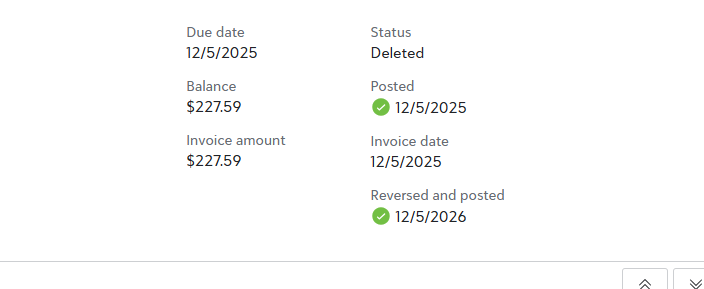
Hi, how do I fix the reversed and posted date from 12/5/2026 to 12/5/2025 please? Thank you!
0 -
@Crystal Bruce - not sure where to share this suggestion, but wondering if we can request the ability to search 🔎 👀 for emojis from the platform provider?
Strategically placed emojis are helpful for creating an engaging post - or responding to one - and scrolling through them is tedious because they are so tiny!
Thanks 👊 for considering.0





Categories
- All Categories
- New K-12 Community Home (TEST)
- New Higher Education Home Page (Test)
- New Impact Edge Community TEST
- New YourCause Community TEST
- New SKY Community TEST
- New Grantmaking TEST Community
- New Altru Test Community
- New bbcon Community - TEST
- 12 Blackbaud Agents for Good™
- New Raiser's Edge NXT Community
- 8 Blackbaud Community Help
- 222 bbcon®
- 1.4K Blackbaud Altru®
- 410 Blackbaud Award Management™ and Blackbaud Stewardship Management™
- 1.2K Blackbaud CRM™ and Blackbaud Internet Solutions™
- 16 donorCentrics®
- 361 Blackbaud eTapestry®
- 2.7K Blackbaud Financial Edge NXT®
- 687 Blackbaud Grantmaking™
- 603 Blackbaud Education Management Solutions for Higher Education
- 3.3K Blackbaud Education Management Solutions for K-12 Schools
- 954 Blackbaud Luminate Online® and Blackbaud TeamRaiser®
- 85 JustGiving® from Blackbaud®
- 7K Blackbaud Raiser's Edge NXT®
- 4K SKY Developer
- 258 ResearchPoint™
- 123 Blackbaud Tuition Management™
- 165 Organizational Best Practices
- 248 Member Lounge (Just for Fun)
- 40 Blackbaud Community Challenges
- 37 PowerUp Challenges
- 3 (Closed) PowerUp Challenge: Grid View Batch
- 3 (Closed) PowerUp Challenge: Chat for Blackbaud AI
- 3 (Closed) PowerUp Challenge: Data Health
- 3 (Closed) Raiser's Edge NXT PowerUp Challenge: Product Update Briefing
- 3 (Closed) Raiser's Edge NXT PowerUp Challenge: Standard Reports+
- 3 (Closed) Raiser's Edge NXT PowerUp Challenge: Email Marketing
- 3 (Closed) Raiser's Edge NXT PowerUp Challenge: Gift Management
- 4 (Closed) Raiser's Edge NXT PowerUp Challenge: Event Management
- 3 (Closed) Raiser's Edge NXT PowerUp Challenge: Home Page
- 4 (Closed) Raiser's Edge NXT PowerUp Challenge: Standard Reports
- 4 (Closed) Raiser's Edge NXT PowerUp Challenge: Query
- 829 Community News
- 3.1K Jobs Board
- 57 Blackbaud SKY® Reporting Announcements
- 47 Blackbaud CRM Higher Ed Product Advisory Group (HE PAG)
- 19 Blackbaud CRM Product Advisory Group (BBCRM PAG)