Any school administrator can tell you that creating the school schedule is a marathon, not a sprint. Collecting course requests, determining teacher availability, creating course sections… just a few of the many tasks that need to be completed each year.
And now—you are so close to the finish line! The master schedule is finalized and students are enrolled in courses for the new school year. But it wouldn’t be a true Back-to-School season without the need for some last-minute tweaks to student schedules.
Luckily, Schedule Managers can view and edit an individual student’s enrollment with a few easy clicks!
Let’s start with the Student enrollment task. Navigate to Academics > Requests and schedules > Student enrollment. Once you have located the appropriate student, select the pencil icon to view their enrollment for the year.
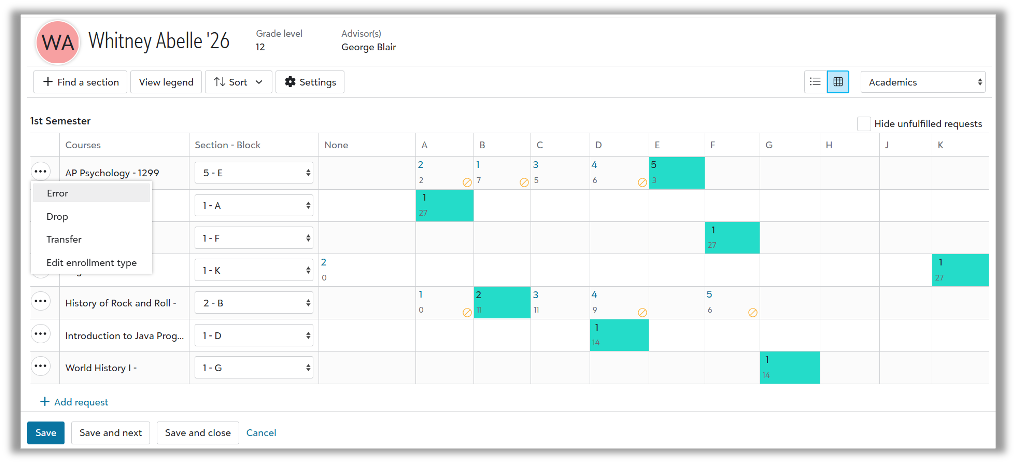
Schedule Managers can quickly view a student’s available blocks, the available sections for each course they requested, and the number of students enrolled in each section.
To add a new course to a student’s schedule, select Add request. Search for the course and then schedule the course during one of the available blocks.
To edit a course on a student’s schedule, select the context menu next to the course and choose from the following options:
- Error: Select this option if the course was added in error and the course should be removed from the student’s record.
- Drop: Select this option to drop the course (dropped courses can still appear on student transcripts, if desired).
- Transfer: Select this option to keep the course and move the student to a different section of the course.
Alternately, Schedule Managers can adjust enrollment directly on a student’s Academic Profile. Navigate to the student’s Academic Profile > Schedule > Edit enrollment and access the same options that are available in the Student enrollment task.
With a little fine-tuning, your school can finalize schedules in time for a great start to the new year!
Interested in additional resources?
Training
- For a comprehensive look at the scheduling process, check out Blackbaud University’s eLearningScheduling / K–12 Academics to learn more.
Helpful links