Order of grades in application





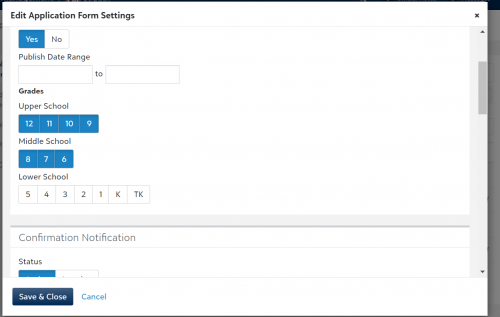
How to change the grade level order on applications. Why do they go 12, 11, 10, 9 instead of 9, 10, 11, 12???
0
Comments
-
Carissa -
They appear that way because 1 comes before 9. If there is not a sort key available, to make the grades appear in order you need to use: 09, 10, 11, 12.
Hope that helps.
Scott1 -
This is how it looks in the form builder, I don't see how to change them. Maybe it's hard coded?
0 -
The form in which the grades appear in the system is set in Core > School information > School and grade levels > expand the division using the > button to the left of the division name
I am not sure if the order you are seeing in your form follows the order that they are entered under the division or not.
We use 8th, 9th, 10th etc, and they are entered in ascending grade order under each division. It may be that your divisions are set up in descending grade order which is what is causing the issue.
I primarily work with the academics side of things, so I am not as familiar with enrollment management.
Hope that shed at least some light on the issue you have.
Scott1 -
Hi - Go to Core>Settings>General Settings>Table Values and look at your Grade Level table. You'll need to click the pencil to see the field you are interested in. For us, the value on the Application form is the Abbreviation field and we had to use 01, 02, etc to get it to sort properly. Hope that helps.
Chyrell1 -
Thanks all! I got it fixed.1






Categories
- All Categories
- 6 Blackbaud Community Help
- 211 bbcon®
- 1.4K Blackbaud Altru®
- 402 Blackbaud Award Management™ and Blackbaud Stewardship Management™
- 1.1K Blackbaud CRM™ and Blackbaud Internet Solutions™
- 15 donorCentrics®
- 360 Blackbaud eTapestry®
- 2.6K Blackbaud Financial Edge NXT®
- 655 Blackbaud Grantmaking™
- 576 Blackbaud Education Management Solutions for Higher Education
- 3.2K Blackbaud Education Management Solutions for K-12 Schools
- 941 Blackbaud Luminate Online® and Blackbaud TeamRaiser®
- 84 JustGiving® from Blackbaud®
- 6.7K Blackbaud Raiser's Edge NXT®
- 3.7K SKY Developer
- 248 ResearchPoint™
- 120 Blackbaud Tuition Management™
- 165 Organizational Best Practices
- 240 Member Lounge (Just for Fun)
- 34 Blackbaud Community Challenges
- 37 PowerUp Challenges
- 3 (Open) PowerUp Challenge: Grid View Batch
- 3 (Closed) PowerUp Challenge: Chat for Blackbaud AI
- 3 (Closed) PowerUp Challenge: Data Health
- 3 (Closed) Raiser's Edge NXT PowerUp Challenge: Product Update Briefing
- 3 (Closed) Raiser's Edge NXT PowerUp Challenge: Standard Reports+
- 3 (Closed) Raiser's Edge NXT PowerUp Challenge: Email Marketing
- 3 (Closed) Raiser's Edge NXT PowerUp Challenge: Gift Management
- 4 (Closed) Raiser's Edge NXT PowerUp Challenge: Event Management
- 3 (Closed) Raiser's Edge NXT PowerUp Challenge: Home Page
- 4 (Closed) Raiser's Edge NXT PowerUp Challenge: Standard Reports
- 4 (Closed) Raiser's Edge NXT PowerUp Challenge: Query
- 796 Community News
- 3K Jobs Board
- 54 Blackbaud SKY® Reporting Announcements
- 47 Blackbaud CRM Higher Ed Product Advisory Group (HE PAG)
- 19 Blackbaud CRM Product Advisory Group (BBCRM PAG)