New Merge Process: Duplicating Letters?





I'm getting our “master documents” ready for the new conditional Word merge process outside of RE, and I'm running into something strange.
I have 3 gift-in-kind letter templates, and I've set up all my if-then…'s for them. I have one dummy gift entered to test this. When I hit Finish & Merge, it prints one letter of each template for this one gift, even though it clearly is using a specific letter code. (So, it's generating an event GIK letter, a children's foundation GIK letter, and an adult foundation's GIK letter all in the same merge, instead of just the one associated with that letter code).
I've double-checked, re-done the “master doc,” etc. Same results every time. **UPDATE - in my tests for the other master docs I have, the same thing happens. I'll have one gift with one letter code, but it'll generate a bunch of different letters using that same data. Seems kind of random which ones.
What the heck?! Anyone out there experience this?
Comments
-
I isolated the issue and figured out what was going on.
I had one dummy gift in a CSV Export from Mail. The letter code was ChildrensGIK2022.
My three templates in the master doc were named: EventGIK2022, ChildrensGIK2022, AdultGIK2022
The master doc was pulling the data from the CSV into all three of those templates, instead of just the one it was supposed to.
For whatever reason, the ‘2022’ was causing that to happen. By deleting that and just having EventGIK, ChildrensGIK, and AdultGIK (letter codes, file name for templates, and in the If, Then, Else conditions), it works.
So, if you're going with the conditional merge option - and I think most of us are - you may want to try this if you have numbers anywhere in your stuff and you're experiencing issues.
6 -
Also, wanted to address another issue I had with formatting that was solved.
The MERGEFORMAT, CHARFORMAT thing? Yeah, none of that was working for me. I'd lose formatting, lose bolds and italics, and all kinds of assorted weirdness happened.
What did work was:
- Once the master doc was set up, I highlighted the whole thing and selected the proper font and spacing.
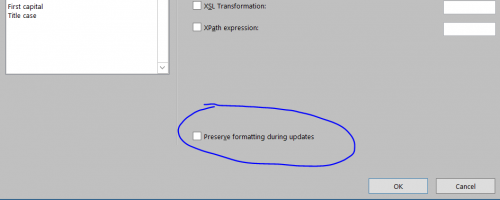
- I also made sure that each ‘Edit Field’ option inside the { french brackets } throughout the master doc was set to have ‘Preserve formatting during updates’ UNCHECKED. Yeah, sounds counterintuitive, but that's what works. (Big shout-out to @Patti Posey on that one).
 5
5 -
thanks so much for this! I was having the same issue with the formatting (as well as with the “2022” problem, but figured that out on my own). This whole merge business is going to give me an ulcer!
1 -
To address the formatting, I just made sure that all of our source documents (the secondary documents that merge into the Master doc) all have the same formatting as the Master doc. Seems to have no issues then. I did not mess with the Mergeformat, Charformat thing.
I also left the header and signature in the Master doc, so the only thing merging in from the secondary docs is the letter body.
I then went a step further than the video and figured out how to add a Gift attribute field in RE so that, when the gift attribute is present during posting, the Master doc merges in an automated signature image. (Handy when our CEO is away for an extended period.)
I got our conditional merge set up in one afternoon. To be fair, we don't put a lot of images or complex things on our letter merges: all of our letterhead is pre-printed on the paper itself. There did not seem to be any major issues. Although, I think I am the only one in our office who understands the merge language and that makes me a little nervous if I should have to pass it on to someone else to maintain.
1 -
Thank you for suggesting removing the checkbox…that fixed my formatting issue. However, is anyone else getting blank pages? If there are 4 gifts, not all having to do with the conditions in the merge, I seem to get three blank pages and then the document I want. I thought the statement would indicate no letter to be produced?
I didn't find the MERGEFORMAT CHARFORMAT helpful nor successful either.
0 -
If you have hard returns between any of the "If - Then" statements you can get blank pages. I have no returns or spaces between the different statements and no longer have blank pages.2
-
Thanks Roger, I'll take a look…hopefully that is the case. If it's not…then what?
0 -
So we are using letter codes to set up our conditional merges and because we have quite a few, letters/codes, I have several conditional merge documents. What happens is when I use one of these documents and there is a letter code not within the conditional merge document, I get a blank page. Is there a way to suppress the blank pages? I don't want to create multiple batches, but would rather run the CSV file through as many conditional merge documents as I need. And altering the CSV file is just as tedious… I'm left with deleting the blank pages if there isn't a way to suppress the blank pages for those letter codes not in the conditional merge document…
0 -
When you merge word with a csv file is it the same process as with excel? if so, I have found that selecting “edit recipients” and checking only the rows you wish to merge with the master document you're using at that time eliminates the blank pages. We too have multiple master documents. I was afraid that creating just one would be a huge mess! We all deserve medals from Microsoft after all this.
1 -
Michelle, yes CSV is just as easy as excel and you can open the file in excel to view it or make changes. You can save to excel or leave it a CSV file. Brilliant answer for the blank pages issue! That should work without a lot of fuss. I agree, one large master document would increase the likelihood of errors I think! Plus if you have more than one person producing letters, you can't all be using the same document. I suppose you could save multiples but we're trying to cut down on duplication.
1 -
Because we have four different people who sign letters, each with their own letterhead, even when Conditional Merge worked fine in RE, we have always grouped our letters into multiple Mail batches. In the Acknowledgement Letters dialog box, we select all letters that get a “President” signature and merge/export; then all letters with a “Chancellor” signature and merge/export.
Changing to the new conditional merge set-up on our own servers, the process is the same. All of the “Chancellor” letters use one Master Merge doc, and all of the “President” letters use a second “Master Merge” doc. Because the Excel file only contains letter types that match its Master Merge, we never have any blanks this way.
1 -
So we ran into another fun challenge today. I created the master conditional merge documents. When my admin tried to run the merge on her PC, she kept getting error messages. Turns out her file path to the individual letters is different than mine - even though we are on the same network file server, my letters are on the “R” drive and hers are on the "Q" drive. Luckily we figured that out after only a few trial and errors. She now has her own set of master conditional merge letters with the Q drive file path, while I have a set with the R drive file path. Fun Times.?
1














Categories
- All Categories
- 6 Blackbaud Community Help
- 211 bbcon®
- 1.4K Blackbaud Altru®
- 402 Blackbaud Award Management™ and Blackbaud Stewardship Management™
- 1.1K Blackbaud CRM™ and Blackbaud Internet Solutions™
- 15 donorCentrics®
- 360 Blackbaud eTapestry®
- 2.6K Blackbaud Financial Edge NXT®
- 656 Blackbaud Grantmaking™
- 577 Blackbaud Education Management Solutions for Higher Education
- 3.2K Blackbaud Education Management Solutions for K-12 Schools
- 941 Blackbaud Luminate Online® and Blackbaud TeamRaiser®
- 84 JustGiving® from Blackbaud®
- 6.7K Blackbaud Raiser's Edge NXT®
- 3.7K SKY Developer
- 248 ResearchPoint™
- 120 Blackbaud Tuition Management™
- 165 Organizational Best Practices
- 240 Member Lounge (Just for Fun)
- 34 Blackbaud Community Challenges
- 37 PowerUp Challenges
- 3 (Open) PowerUp Challenge: Grid View Batch
- 3 (Closed) PowerUp Challenge: Chat for Blackbaud AI
- 3 (Closed) PowerUp Challenge: Data Health
- 3 (Closed) Raiser's Edge NXT PowerUp Challenge: Product Update Briefing
- 3 (Closed) Raiser's Edge NXT PowerUp Challenge: Standard Reports+
- 3 (Closed) Raiser's Edge NXT PowerUp Challenge: Email Marketing
- 3 (Closed) Raiser's Edge NXT PowerUp Challenge: Gift Management
- 4 (Closed) Raiser's Edge NXT PowerUp Challenge: Event Management
- 3 (Closed) Raiser's Edge NXT PowerUp Challenge: Home Page
- 4 (Closed) Raiser's Edge NXT PowerUp Challenge: Standard Reports
- 4 (Closed) Raiser's Edge NXT PowerUp Challenge: Query
- 796 Community News
- 3K Jobs Board
- 54 Blackbaud SKY® Reporting Announcements
- 47 Blackbaud CRM Higher Ed Product Advisory Group (HE PAG)
- 19 Blackbaud CRM Product Advisory Group (BBCRM PAG)