New Conditional Mail Merge in Word - UGH!!!





Hello…as many of you are, I am scrambling to get this done before February 28. I have read through numerous posts, read many comments, watched a few of the youtube videos and gone through step by step with the documentation provided by some of you.
I am still having issues when I try to perform the merge in Word. I clicked Finish and Merge and I get an error saying "a field calculation error occurred in records 1, 2, 3, etc.
I have all my individual letters saved and have my conditional mail merge document saved as well with the top fields (inside address and salutation) set up as merged fields from an existing list.
I started with just doing 1 set of rules, for one letter code, just to see if I could get it to work before I added all 8 of my letters. I just want one success!!!!
I don't know what I may be doing wrong if anyone has a helpful hint.
Comments
-
Where are you saving the files? I've found that you have to save it on your machine and not a shared drive. Maybe other people have gotten that to work - but it only works for me on a local drive.
1 -
Use this formula for conditional merges.
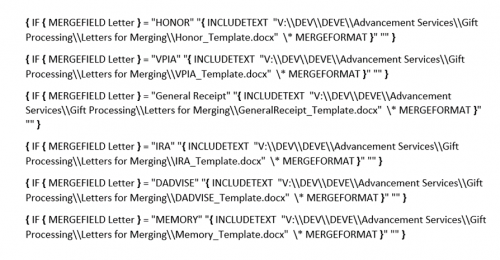
Formula for conditional letter merges First, move all your letters you are using to a folder, you or others can access (Not One Drive), You can also put your data there as well. Our codes are Honor/VPIA/General Receipt/IRA/DADVISE/MEMORY - change those to your letter code. Do the same thing for your file folder where your letters are stored and the file names. When you do the mail merge, click finish merge to edit documents, your mail merge should open. Do not resave the formula, just close it out. We are working on this now. Good luck!
1 -
This could be my problem. I have them saved on my c drive which goes to my one drive. I had them on a shared drive and that didn't work either. I'll go through your steps and see if I can find another location to save the files. Thanks for the assistance…I'm sure I'll be in touch again.
0 -
Merrianne,
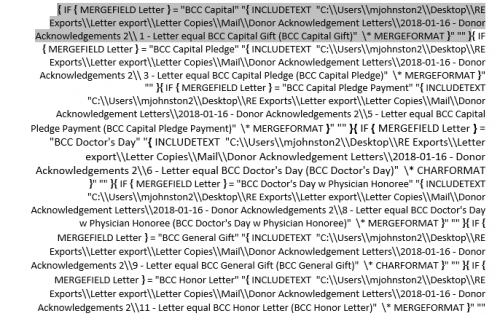
Make sure you don't include any spaces between conditions. Ours is five pages long!
Patti Posey
1 -
Barb,
It shouldn't matter where they are saved as long as the letter templates and the data file are in the same folder. We saved all the master letters and the conditional on our shared drive and we each copies everything over to our desktops and whoever is doing an export will export the data file into their folder on the desktop and complete the merge. We tested everything and all works well.
Patti Posey
1 -
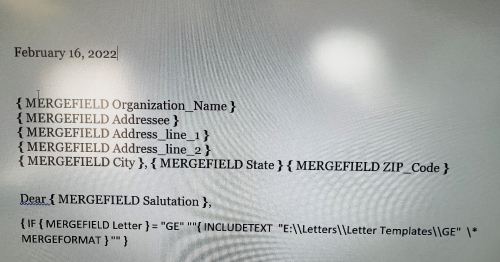
This is how my conditional mail merge looked. One of the documents said to include the merged fields on the top in the conditional mail merge file and not the individual letter files so that's why I did it this way. 0 -
We keep our letters on a system server (local shared file), but not on any cloud service. The letters and the Master Merge doc are all in one folder. When we export the csv file from RE, I save to desktop and then move that file over to the server folder. So our folder looks like this:
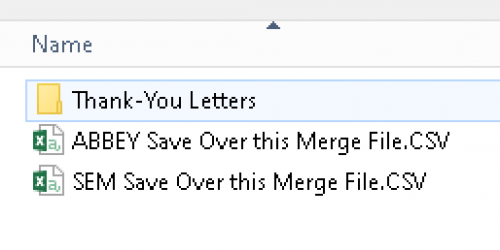
The Master Merge doc looks like this:
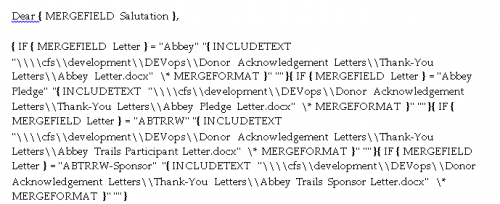
The only two differences I can see between your merge and ours are:
- Our filepath does not include the drive name (E:). Ours starts right off with backslashes.
- Your quotation marks are aligned differently. I think you clicked outside the double-quotations instead of inside them, when editing your field. See red circles below and compare to ours above.
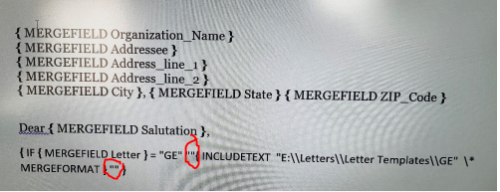
I suspect your issue is the quotation marks alignment, so I would try that first before experimenting with the filepath format.
1 -
Hi Faith,
Just a question, why do you put the conditional in each letter? We only have the one master conditional merge doc. We don't have each conditional in each letter and it works.
Patti Posey
0 -
@Patti Posey could you explain the question a bit more? We have our Master merge doc set up (the same as yours, from what I can see of the images), and then we have the supporting letter content docs that have no formulas or merges in them.
1 -
Thank for the recommendation. I was clicking between the “other” two sets of quotation marks so I got that piece now.
I started with a fresh conditional document and linked it to the recipient list, added the date and inside address fields and then did the rules piece for one letter only. Once I clicked Finish and Merge I got those general letters but the formatting is wonky…double spaced, etc.0 -
I had to delete most of the hard break spaces after merge lines in our Master doc, as well as any spaces between merge statements themselves - it seemed like the merge process tries to add a space or line after a merge field. This even played true in dollar amounts merged into letters (two spaces after the dollar amount, which was only noticeable if you had punctuation after the gift amount). I also made sure there were no “hidden” blank lines tailing the text in my secondary docs (the specific letter text that merges in).
You may also need to adjust your page set-up. I began our Master merge doc using one of the letters exported from RE, so it already had all our standard header spacing, branded fonts, and margin formats. If you start from a scratch doc, you will need to set all those up.
1 -
Just getting the letters to merge is one huge step so I'll take that as a win!! I'll keep looking at the spacing issue and take a closer look at my document. Thanks again Faith and all of you who took time to respond.
2 -
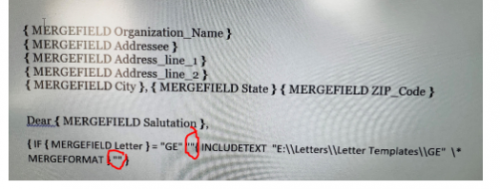
Sure, in your letter example you have a conditional (under the salutation) in addition to your merge fields. Is this just an example or do you have one in each letter?
 0
0 -
Also, make sure that your the file you are linking into your Master Merge Document has a “.docx” on the end of the file path; also, as others have mentioned, you need to move your INCLUDETEXT bracket to be in between the second set of quotes.
Here are a few additional tips on what I have found that works.- Before starting anything, edit the “Normal” Theme for your word documents, and make sure to select “New documents based on this template”
- I utilized a Master Merge document that lists out the Add/Sal + Address at the top and Signature + Tax Statement at the bottom, with conditional statements in the middle. The conditional statements are linked by file path to multiple documents stored within the same folder. The documents contain only the body of each letter that needs to be brought in.
- If following the above idea of a Shell Master Merge document, you may need to re-create your parameter file templates downloaded from RE. Check out this thread for more information: https://community.blackbaud.com/forums/viewtopic/143/58143
- If MERGEFORMAT or CHARFORMAT are included in your conditional statements, remove them. I found these prevented the formatting in my templates from appearing in the final merge doc (formatting = bold and italics).
- Make sure your export from the system is a CSV and any ‘amount’ column is formatted to “Currency” within the excel document prior to using it for a merge.
0 -
Hi @Barb Grosz and Community friends. I have posted my organization's “nested if" conditional merge documents (export template with example gifts, merge letter template with {IF} coding, and instructions) here if they are helpful to you:
https://community.blackbaud.com/forums/viewtopic/143/57565#p228431
0















Categories
- All Categories
- 6 Blackbaud Community Help
- 213 bbcon®
- 1.4K Blackbaud Altru®
- 401 Blackbaud Award Management™ and Blackbaud Stewardship Management™
- 1.1K Blackbaud CRM™ and Blackbaud Internet Solutions™
- 15 donorCentrics®
- 360 Blackbaud eTapestry®
- 2.6K Blackbaud Financial Edge NXT®
- 655 Blackbaud Grantmaking™
- 576 Blackbaud Education Management Solutions for Higher Education
- 3.2K Blackbaud Education Management Solutions for K-12 Schools
- 939 Blackbaud Luminate Online® and Blackbaud TeamRaiser®
- 84 JustGiving® from Blackbaud®
- 6.6K Blackbaud Raiser's Edge NXT®
- 3.7K SKY Developer
- 248 ResearchPoint™
- 119 Blackbaud Tuition Management™
- 165 Organizational Best Practices
- 241 Member Lounge (Just for Fun)
- 34 Blackbaud Community Challenges
- 34 PowerUp Challenges
- 3 (Open) PowerUp Challenge: Chat for Blackbaud AI
- 3 (Closed) PowerUp Challenge: Data Health
- 3 (Closed) Raiser's Edge NXT PowerUp Challenge: Product Update Briefing
- 3 (Closed) Raiser's Edge NXT PowerUp Challenge: Standard Reports+
- 3 (Closed) Raiser's Edge NXT PowerUp Challenge: Email Marketing
- 3 (Closed) Raiser's Edge NXT PowerUp Challenge: Gift Management
- 4 (Closed) Raiser's Edge NXT PowerUp Challenge: Event Management
- 3 (Closed) Raiser's Edge NXT PowerUp Challenge: Home Page
- 4 (Closed) Raiser's Edge NXT PowerUp Challenge: Standard Reports
- 4 (Closed) Raiser's Edge NXT PowerUp Challenge: Query
- 791 Community News
- 2.9K Jobs Board
- 53 Blackbaud SKY® Reporting Announcements
- 47 Blackbaud CRM Higher Ed Product Advisory Group (HE PAG)
- 19 Blackbaud CRM Product Advisory Group (BBCRM PAG)