Removing people from existing workflows





hello!
Last time I looked into using a NXT Workflow for a donor welcome series there was not a way to remove people from the workflow once it was begun. For example if you use the workflow for a giving campaign/appeal we would like to remove people who gave.
Does anyone know if this is an option now or if there is a Power Automate already set up that does this?
Comments
-
@Joanne Felci
I don't think I saw any update to RE workflow since I last looked at it many months ago.As for power automate, it can do anything SKY API can get data for, so it depends on how you record data in RE and if it is retrievable from SKY API. I have not seen a power automate that is already setup for you to just download import and run with though. You will have to start with scretch building it the way you want it that fits how your data work.
For example: You can have opportunity loaded into constituents for certain campaign/fund. As new gifts are coded to the campaign/fund, you can automate (or manual entry) the opportunity to be “funded” so your “welcome series” can look for the specific opportunity type that is not funded and send email acordingly.
1 -
@Joanne Felci - Unfortunately there is no way to remove a constituent from an NXT Workflow. I recommend you take a look at Power Automate to accomplish this. As Alex has mentioned it will need to be a custom build. If you don't want to learn PA yourself, you can partner with AutomateGenius to accomplish a flow like this.
0 -
@Joanne Felci I found several mentions of this in the Idea bank, but this one (#3268) had the most votes. Sharing here so others can vote if they are running into this same issue.
0 -
@Austen Brown - how do you troubleshoot failed power automate workflows?
0 -
@Joanne Felci
you start by going into the failed flow and see what action failed, and the error message of the failure to determine what went wrong.1 -
@Alex Wong
thank you! so how or where do I see what action failed…I'm following going to the workflow and clicking on it but I'm not seeing where something failed…beyond it telling me it failed.0 -
@Joanne Felci
when you click into the flow (not editing), you will see at the bottom “28-day run history” section, where it list the run history's date/time, duration, and status. For the failed flow, click on the date/time of the run will bring you into the specific run's detail.In there, you will look for the action that failed with a red exclaimation
 2
2 -
@Alex Wong - thank you!!! That was SO helpful, I would have never thought to click on the date.
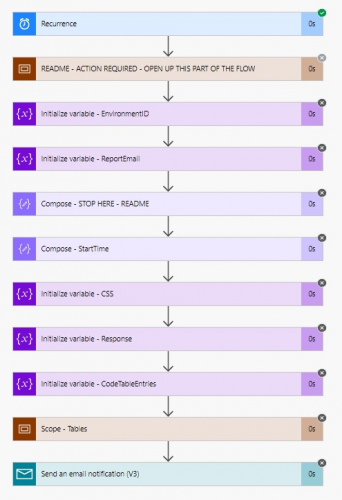
I'm not seeing any red explanation mark though - lots of gray x's though
 0
0 -
@Alex Wong…I think I might have almost figured out the problem…I didn't realize how to open the scope of work and part of it said to remove the terminate from the workflow but I cannot figure out how to do that.
0 -
@Alex Wong…I figured it out!!!
On one hand I feel like a big dummy on the other very accomplished

Do you have any recommendations on using this tool? Online training, etc.
Ultimately I'd like to try to create an automation for an email campaign workflow where if people give (or take some action) they go down one route (or at the least terminate the email series)
0 -
@Joanne Felci
I don't have any recommendation on online training, I learnt through googling and using reference documentation for expression.https://docs.microsoft.com/en-us/azure/logic-apps/workflow-definition-language-functions-reference
I'm sure there are some training that you can take online.
power automate is basically a low/no-code programming through using its interface. so it can support basically most of programming needs like conditional path and data manipuation support. the hard part of any programming (low/no-code or high-code) is logic. You must have the workflow logic in mind and clearly “express” that in the flow. So for example, if you want to send 2 types of emails to 2 different group of constituent, you will have to determine what data point differential the 2 groups of constituent. Then use that data point in a “Condition” action where TRUE goes down 1 path that has a send email action, and then FALSE goes down another path that TERMINATE or send another email action with different email body.
Community is a good resource here for power automate, if you struck somewhere, we will help you figure it out.
There is also a power automate user group that meets once a month for 1.5hr. you can sign up and post your issue live and someone will help you there live to resolve too. The next user group is next week:
0 -
@Alex Wong - thank you! I actually found some training through Blackbaud U and signed up for a class on the 28th. And I plan on sitting in on the next user group meeting…thanks so much for the info
1 -
@Austen Brown or @Alex Wong - hoping one of you can help.
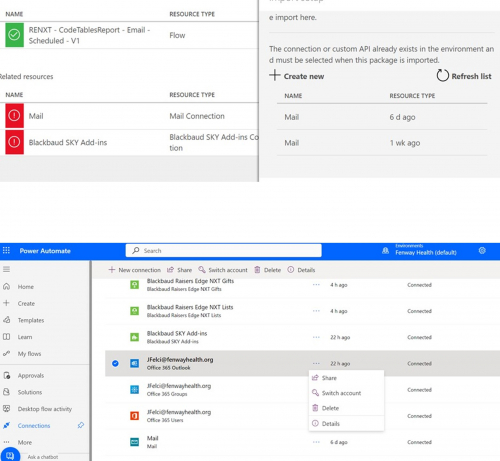
I cannot figure out how I'm supposed to do this connection.
I start on this screen and when I click Select during import and then Create new it takes me to the next screen but I cannot figure out how to select Outlook (or any connector) - HELP!!
 0
0 -
@Joanne Felci - You'll need to select one of the existing “Mail” connections within the first window initially. After you've completed the import of the flow, is where you can switch out the “Mail” action for an “Outlook” action.
0 -
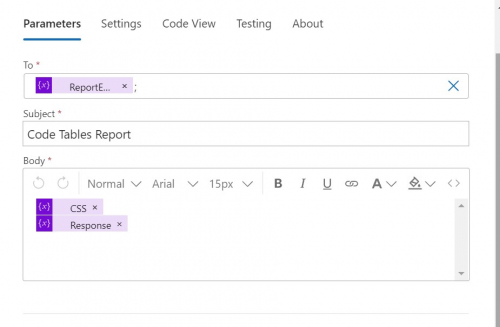
@Austen Brown - thank you! This makes no sense at all to me…that you cannot select a different connector but that is fine. The problem is this - there is some code in the original action that when I set up the new action tied to Outlook, I get an email but nothing is in it.
 0
0 -
@Joanne Felci - The listed connectors are determined by actions within a flow; you cannot change the actions until after the flow is imported and exists within your own environment.
For your current question, you'll need to select the same dynamic content listed within the old email action in your new Outlook send a email action. Click into the Outlook action, and click within the body field - you'll see a blue icon appear to the right of the field with what looks like a “lightning bolt” and a "fx" on it. Click on the lightning bolt to enter dynamic content (data from a previous step in your flow). You are looking for the two fields listed in the “Variables” section that match what is in the old action. Make sure to enter the fields in the same order as before, in your new email action.0 -
@Joanne Felci
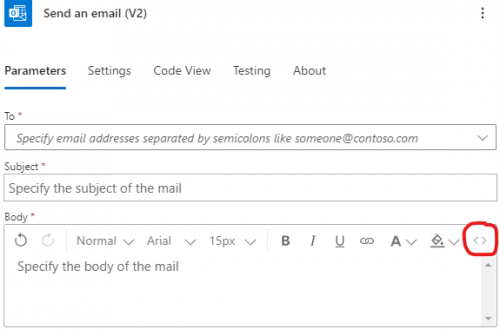
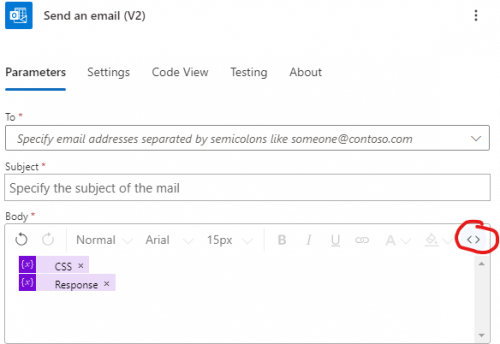
Please note that the email body is likly “code” not just text to show on the email. Since I see “CSS” as one of the dynamic content, that is CSS code, and I'm going to assume Response is also a HTML code response.Make sure you click on the <> icon to do email body editing in HTML code before you start adding the dynamic content as Austen told you to.
 0
0 -
Ok I'm getting back to this
Still lost but at least I was able to get the email to send This is what was in the original mail action for the HTML code:
{
"type": "OpenApiConnection",
"inputs": {
"parameters": {
"request/to": "@{variables('ReportEmail')};",
"request/subject": "Code Tables Report",
"request/text": "<p>@{variables('CSS')}<br>\\n@{variables('Response')}</p>"
},
"host": {
"apiId": "/providers/Microsoft.PowerApps/apis/shared_sendmail",
"connection": "shared_sendmail",
"operationId": "SendEmailV3"
}
},
"runAfter": {
"Scope_-_Tables": [
"Succeeded"
]
},
"metadata": {
"operationMetadataId": "58c07645-c973-46ba-81c5-1bfb85a49762"
}
}Am I supposed to copy all this into the body text for the new action (which is an Office 365 Outlook Send an Email action). When I try to copy it in the HTML it isn't letting me.
0 -
@Joanne Felci
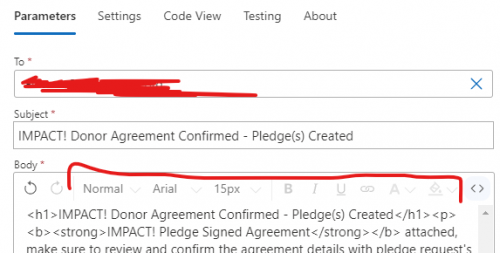
the code you pasted is the code for the “whole action", which is fine and enough to see what's going on, but the “code” i was talking about is the HTML code in the email body, which you see when you click on the <> icon.If you were to click on the <> icon in the email body, you will see:
<p>@{variables('CSS')}<br>\\n@{variables('Response')}</p>
What you need to do is to make sure when you click on <>, you see:
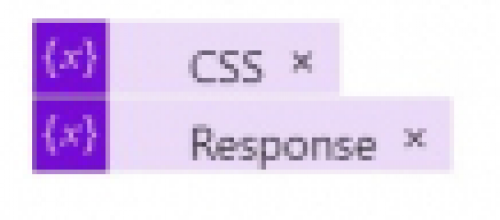
You click on the right thing when you see the formatting button are all grayed out
 0
0 -
I wonder if I'm trying to access the wrong action. I'm starting with the original Send an email Mail action that I need to try to replicate for a new Office 365 Outlook action
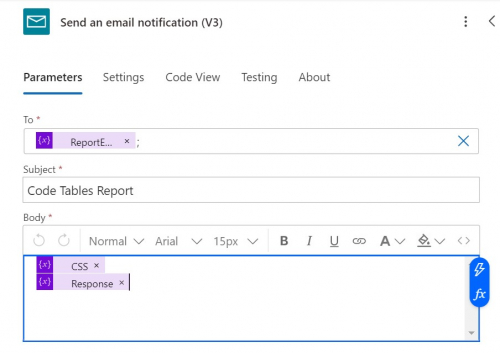
when I click on the body of the email and the <>, I'm only seeing this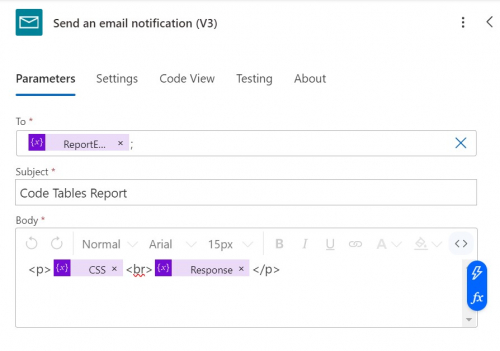 0
0 -
@Joanne Felci
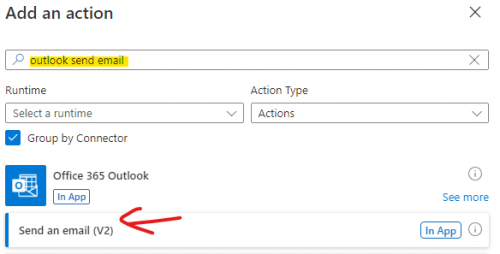
This is what Austen trying to tell you.First, you will want to add a new action (before or after the current Send an email notification (V3) action, as you will be deleting it anyway), look for Office 365 Outlook > Send an email (V2).
After the action is added, click on the <> to make sure you are on the HTML Code view and click in the “Body” and add the CSS and Response
 1
1 -
@Alex Wong - thank you again!
Ok I am making some progress. I got the email to send with the code table links, but the links do not work. I did make sure the action with the NXT ID site was set to our site link (that long thing after the = in the url for web view).
0 -
@Joanne Felci
You need to ensure that the replace expression is used on the HTML table output such that < is replace with < and > is replace with >screenshot of your create html table action and where you assign the Response variable will be needed to help.
0







Categories
- All Categories
- 6 Blackbaud Community Help
- 213 bbcon®
- 1.4K Blackbaud Altru®
- 401 Blackbaud Award Management™ and Blackbaud Stewardship Management™
- 1.1K Blackbaud CRM™ and Blackbaud Internet Solutions™
- 15 donorCentrics®
- 360 Blackbaud eTapestry®
- 2.6K Blackbaud Financial Edge NXT®
- 655 Blackbaud Grantmaking™
- 576 Blackbaud Education Management Solutions for Higher Education
- 3.2K Blackbaud Education Management Solutions for K-12 Schools
- 939 Blackbaud Luminate Online® and Blackbaud TeamRaiser®
- 84 JustGiving® from Blackbaud®
- 6.6K Blackbaud Raiser's Edge NXT®
- 3.7K SKY Developer
- 248 ResearchPoint™
- 119 Blackbaud Tuition Management™
- 165 Organizational Best Practices
- 241 Member Lounge (Just for Fun)
- 34 Blackbaud Community Challenges
- 34 PowerUp Challenges
- 3 (Open) PowerUp Challenge: Chat for Blackbaud AI
- 3 (Closed) PowerUp Challenge: Data Health
- 3 (Closed) Raiser's Edge NXT PowerUp Challenge: Product Update Briefing
- 3 (Closed) Raiser's Edge NXT PowerUp Challenge: Standard Reports+
- 3 (Closed) Raiser's Edge NXT PowerUp Challenge: Email Marketing
- 3 (Closed) Raiser's Edge NXT PowerUp Challenge: Gift Management
- 4 (Closed) Raiser's Edge NXT PowerUp Challenge: Event Management
- 3 (Closed) Raiser's Edge NXT PowerUp Challenge: Home Page
- 4 (Closed) Raiser's Edge NXT PowerUp Challenge: Standard Reports
- 4 (Closed) Raiser's Edge NXT PowerUp Challenge: Query
- 791 Community News
- 2.9K Jobs Board
- 53 Blackbaud SKY® Reporting Announcements
- 47 Blackbaud CRM Higher Ed Product Advisory Group (HE PAG)
- 19 Blackbaud CRM Product Advisory Group (BBCRM PAG)