Dashboard Outstanding Receivables Balance




I cannot seem to find the correct filter to generate the Outstanding Receivables Balance at the end of the fiscal year. The fields are limited to creation date versus posting date from what I am seeing. Is posting date not an option?
Comments
-
@Linda Garbarino, are you using Dashboard Builder to try to pull this or are you using a specific AR report?
0 -
@Nikki Baldwin Dashboard Builder. I use the AR reports regularly and wanted to test the Builder.
0 -
@Linda Garbarino ok perfect, just wanted to check before I gave you the steps! So after you add the Aged Receivable tile, or just whenever you're in edit mode for the dashboard in question, you'll want to click on the ‘Edit Properties’ button on the top right of that tile. You'll have a new screen pop up with various properties and under ‘Page filters’, ensure ‘date range’ is selected and in the drop-down below that, you can select ‘Date (post date)’ and Save.
0 -
@Nikki Baldwin great thank you! Okay so if I need to see this at the end of the fiscal year I am not seeing the totals that I would expect. I went to edit insight there is not fiscal period option. There is this year and last year. I tried adding just the ending period date (static date) or a period range but that did not work. Neither was giving me the amount per the Actual AR Aging Report. Thank you again.
0 -
@Linda Garbarino, are you including all post statuses on the report you're pulling? i.e. including not yet posted transactions when you run the Aged AR Report to compare? If not, what other filters might you have selected, including your date range selections?
0 -
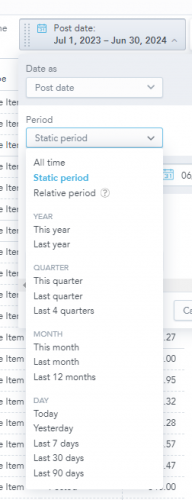
@Nikki Baldwin I am pulling posted and not posted entries. If I want the receivables outstanding at 6.30.2024 there is NO fiscal period selection. I am not sure why that is not an option.
0 -
@Nikki Baldwin and the date range can be left open ended to have a balance at 6.30.2024. You have to have a starting date in the range. Strange.
1 -
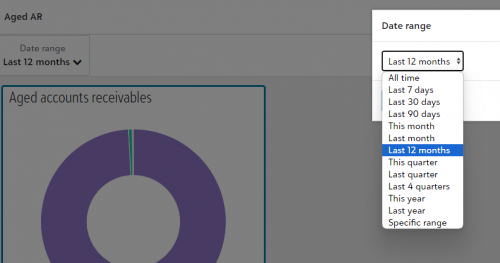
@Linda Garbarino it looks like you're in the area of Insight Designer, building a new insight vs using the standard Aged AR Insight that's available. And that's more than fine, of course, but that's why it's hemming you into a different view of the dates. You'd have to use the ‘relative dates' range to specify what you want to see there. If you just want to use the standard Aged Accounts Receivable insight, then you would have the dashboard date range drive your date there (see screenshot) and you can pick the different years and quarters.
Also wanted to mention that typically when you're creating an insight like you are in your screenshot, a pro tip my team has found is to set the insight to use ‘all time’ and then control the date filter on the dashboard itself (like in my screenshot).0 -
@Nikki Baldwin I need help running a report that would show the distribution of the receivable? I want to easily review how the receivables were coded instead of going into each one. Do you know how I could do that in NXT?
0 -
@Amber Tencic, there is a report available called ‘AR Distribution Report’ that you can run to access that information. You can, of course, set date filters, decide to run in summary or detail, and on the Content section, you can select further areas of distribution, like projects, either in detail or in grand totals, outside of just the account distribution. This report defaults to sorting by the account number but you can add another layer of sorting/breaking on the Sort and break section so you can view by client, post status, date, transaction number, etc.
Alternatively, the AR Invoice Report has a different view that is sorted by the invoice/return, rather than the accounts. To get the distribution information, you'd click the box on the Content section to ‘Show distribution for these characteristics’ and you can select the account, project, etc. that make up your distributions. You might prefer this view over the above report because it's sorted by the Invoice/Return.
If you don't like either of these, you could run a query but you will get a “duplicate” line of each invoice for every different characteristic you're wanting to see (account, project, transaction codes, class) that are related to the specific record type – so it can get a little confusing.0





Categories
- All Categories
- 6 Blackbaud Community Help
- 213 bbcon®
- 1.4K Blackbaud Altru®
- 403 Blackbaud Award Management™ and Blackbaud Stewardship Management™
- 1.2K Blackbaud CRM™ and Blackbaud Internet Solutions™
- 15 donorCentrics®
- 360 Blackbaud eTapestry®
- 2.6K Blackbaud Financial Edge NXT®
- 656 Blackbaud Grantmaking™
- 577 Blackbaud Education Management Solutions for Higher Education
- 3.2K Blackbaud Education Management Solutions for K-12 Schools
- 940 Blackbaud Luminate Online® and Blackbaud TeamRaiser®
- 84 JustGiving® from Blackbaud®
- 6.7K Blackbaud Raiser's Edge NXT®
- 3.7K SKY Developer
- 249 ResearchPoint™
- 119 Blackbaud Tuition Management™
- 165 Organizational Best Practices
- 241 Member Lounge (Just for Fun)
- 34 Blackbaud Community Challenges
- 37 PowerUp Challenges
- 3 (Open) PowerUp Challenge: Grid View Batch
- 3 (Closed) PowerUp Challenge: Chat for Blackbaud AI
- 3 (Closed) PowerUp Challenge: Data Health
- 3 (Closed) Raiser's Edge NXT PowerUp Challenge: Product Update Briefing
- 3 (Closed) Raiser's Edge NXT PowerUp Challenge: Standard Reports+
- 3 (Closed) Raiser's Edge NXT PowerUp Challenge: Email Marketing
- 3 (Closed) Raiser's Edge NXT PowerUp Challenge: Gift Management
- 4 (Closed) Raiser's Edge NXT PowerUp Challenge: Event Management
- 3 (Closed) Raiser's Edge NXT PowerUp Challenge: Home Page
- 4 (Closed) Raiser's Edge NXT PowerUp Challenge: Standard Reports
- 4 (Closed) Raiser's Edge NXT PowerUp Challenge: Query
- 796 Community News
- 3K Jobs Board
- 54 Blackbaud SKY® Reporting Announcements
- 47 Blackbaud CRM Higher Ed Product Advisory Group (HE PAG)
- 19 Blackbaud CRM Product Advisory Group (BBCRM PAG)