Sharing my Power Automate flow: Get multiple query results with Query connector and SharePoint list





Description - Run Blackbaud RENXT queries based on items in a SharePoint list, retrieve results, and save results as CSV files in SharePoint with error notifications if failures occur.
Use cases -
Use this flow to quickly add and remove queries or change save locations with easy updates to a SharePoint list. With a single PA flow controlled by the SharePoint list, you may have some queries going into one SharePoint folder for a Union in Power BI, while others are saved in another location for different handling. You can turn on and off which queries are executed to run a quick, manual test on a new query output. You may want a development copy of this flow executed manually and using one SharePoint list as well as a production copy running on a schedule and using a final SharePoint list.
Required connections -
- Blackbaud RENXT or FENXT Query
- SharePoint
- Office 365 Outlook (or Gmail)
Skill level - intermediate
Instructions - See the attached ReadMe.pdf
This Power Automate flow template builds on the example from @Ashley Moose ,
Sharing my Power Automate flow: Get query results using the new Query connectors! — Blackbaud Community. This flow introduces an Apply to each action to loop through a SharePoint list controlling which queries are executed and where each result file is saved.

First, create a SharePoint list of queries as described in the ReadMe.pdf. Then import the attached flow at make.powerautomate.com to loop through the SharePoint list and save results.
Downloads -
Answers
-
Nice! Look forward to trying it out.
1 -
I suggest we call this the "SharePoint List of Queries" aka SLQ (pronounced "slick").
It is, indeed, slick. It allows us to set a query for downloading as CSV to our SharePoint site much more easily and quickly, especially since I made it a one-page affair. (see image)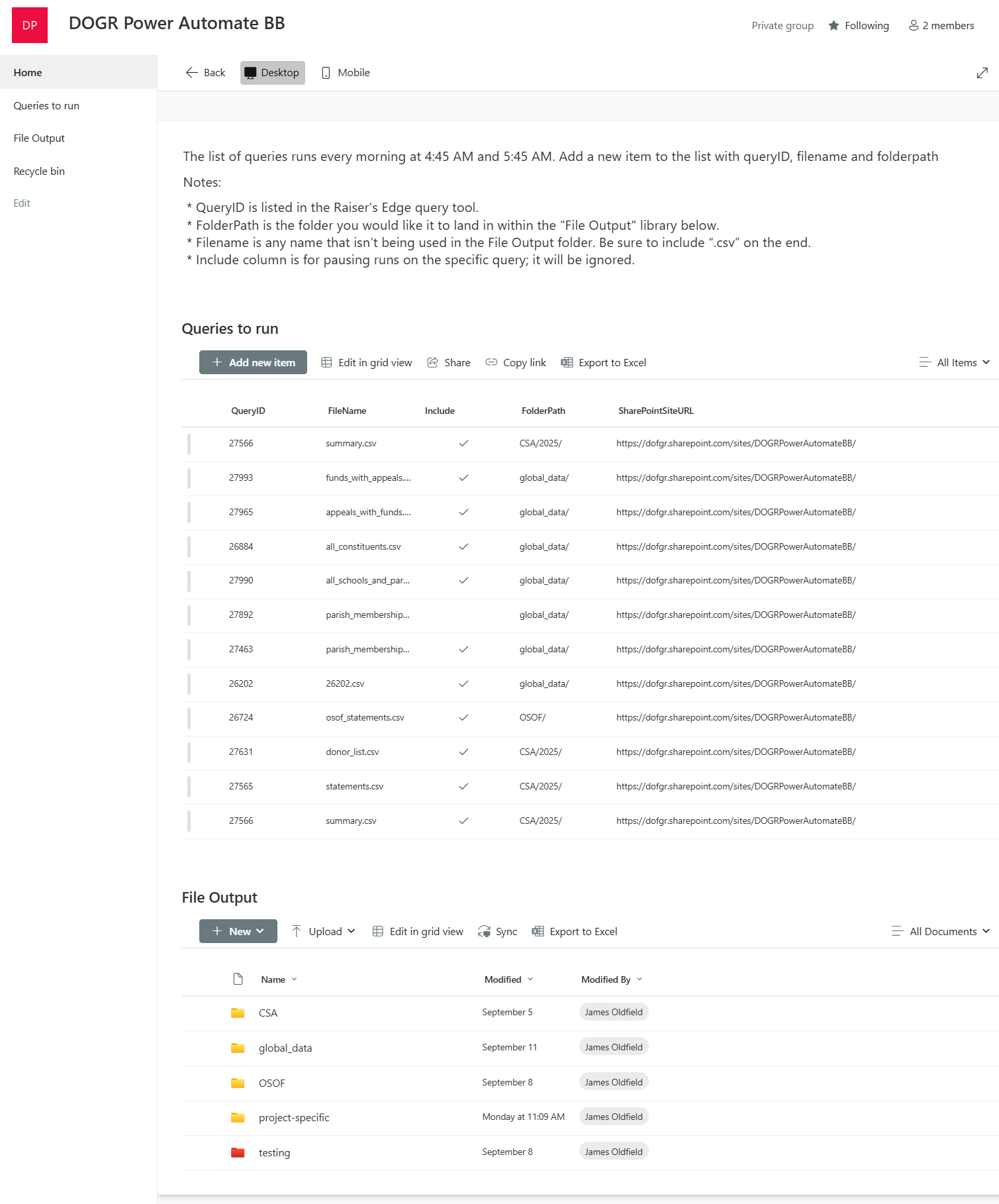
I'm sure quite a few people would like to remove the friction from creating a query to getting it downloaded to SPO. I set the list to default to one of the folders and the proper SharePointSiteURL, so one only needs to enter the query ID and a filename.
Just give access to the SPO site to someone and they can add something to the list and start pulling the data in Power BI, Excel, etc. Three clicks and they are done.
Thanks, Rebecca!1






Categories
- All Categories
- 6 Blackbaud Community Help
- 211 bbcon®
- 1.4K Blackbaud Altru®
- 403 Blackbaud Award Management™ and Blackbaud Stewardship Management™
- 1.2K Blackbaud CRM™ and Blackbaud Internet Solutions™
- 15 donorCentrics®
- 360 Blackbaud eTapestry®
- 2.6K Blackbaud Financial Edge NXT®
- 659 Blackbaud Grantmaking™
- 579 Blackbaud Education Management Solutions for Higher Education
- 3.2K Blackbaud Education Management Solutions for K-12 Schools
- 943 Blackbaud Luminate Online® and Blackbaud TeamRaiser®
- 84 JustGiving® from Blackbaud®
- 6.7K Blackbaud Raiser's Edge NXT®
- 3.8K SKY Developer
- 250 ResearchPoint™
- 120 Blackbaud Tuition Management™
- 165 Organizational Best Practices
- 241 Member Lounge (Just for Fun)
- 36 Blackbaud Community Challenges
- 37 PowerUp Challenges
- 3 (Open) PowerUp Challenge: Grid View Batch
- 3 (Closed) PowerUp Challenge: Chat for Blackbaud AI
- 3 (Closed) PowerUp Challenge: Data Health
- 3 (Closed) Raiser's Edge NXT PowerUp Challenge: Product Update Briefing
- 3 (Closed) Raiser's Edge NXT PowerUp Challenge: Standard Reports+
- 3 (Closed) Raiser's Edge NXT PowerUp Challenge: Email Marketing
- 3 (Closed) Raiser's Edge NXT PowerUp Challenge: Gift Management
- 4 (Closed) Raiser's Edge NXT PowerUp Challenge: Event Management
- 3 (Closed) Raiser's Edge NXT PowerUp Challenge: Home Page
- 4 (Closed) Raiser's Edge NXT PowerUp Challenge: Standard Reports
- 4 (Closed) Raiser's Edge NXT PowerUp Challenge: Query
- 798 Community News
- 3K Jobs Board
- 56 Blackbaud SKY® Reporting Announcements
- 47 Blackbaud CRM Higher Ed Product Advisory Group (HE PAG)
- 19 Blackbaud CRM Product Advisory Group (BBCRM PAG)