Tracking % to Capacity for Your New Timed Ticket Events
If you are newer to timed ticketing and wondering how exactly to set your capacity or what times of day are busier for you there are a few things to know to help you track this.
First, if you are scanning you will get the actual attendance compared to capacity. When you scan a ticket the system marks this ticket as attended.
To track attendance you can scan your online ticket purchases at entrance. We know some of our organizations are mounting their scanners for touchless scanning and scanning directly from devices so that tickets don't have to be printed. There are community posts about these options.
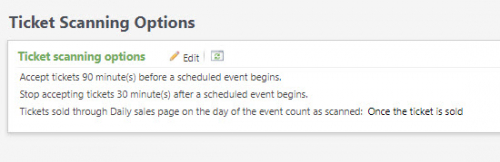
For walk-up purchases you need to be sure that the Ticket Scanning Options are set correctly. You can find these in Tickets, Configuration, Ticket Scanning Options. Here you can set Tickets sold through Daily sales page on the day of the event count as scanned: Once the ticket is sold. As you see here:
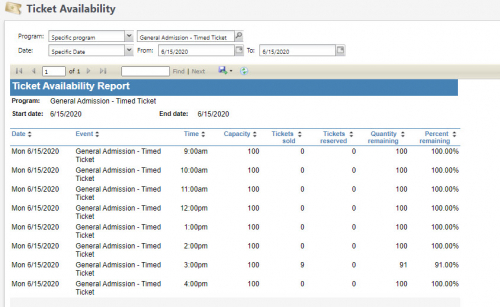
Then, for reporting % to Capacity and tracking this to determine your capacity settings moving forward you can find great options in Altru's standard reports. I like the Average Hourly Sales report, Event Attendance Detail Report and my new favorite for this, the Ticket Availability Report. You can filter these by program or date. Here's a view of the Ticket Availability Report filtered for my daily admission timed ticketing event:
If someone purchases tickets online for a timeslot but then shows up later you should reschedule the tickets (search based on order number) into the new time slot. Then scan. The ticket number remains the same even if the time changes so that will still work!
We know that timed ticketing is a bit new for some organizations. As you track capacity and learn more about how best to manage that I hope these reports help!
First, if you are scanning you will get the actual attendance compared to capacity. When you scan a ticket the system marks this ticket as attended.
To track attendance you can scan your online ticket purchases at entrance. We know some of our organizations are mounting their scanners for touchless scanning and scanning directly from devices so that tickets don't have to be printed. There are community posts about these options.
For walk-up purchases you need to be sure that the Ticket Scanning Options are set correctly. You can find these in Tickets, Configuration, Ticket Scanning Options. Here you can set Tickets sold through Daily sales page on the day of the event count as scanned: Once the ticket is sold. As you see here:

Then, for reporting % to Capacity and tracking this to determine your capacity settings moving forward you can find great options in Altru's standard reports. I like the Average Hourly Sales report, Event Attendance Detail Report and my new favorite for this, the Ticket Availability Report. You can filter these by program or date. Here's a view of the Ticket Availability Report filtered for my daily admission timed ticketing event:

If someone purchases tickets online for a timeslot but then shows up later you should reschedule the tickets (search based on order number) into the new time slot. Then scan. The ticket number remains the same even if the time changes so that will still work!
We know that timed ticketing is a bit new for some organizations. As you track capacity and learn more about how best to manage that I hope these reports help!

1
Comments
-
how do people handle scanning tickets that were sold onsite, via daily sales? print out barcodes after the fact and manually scan at the end of the day to show totals?0
-
Hi Akane!! It's been a long time!
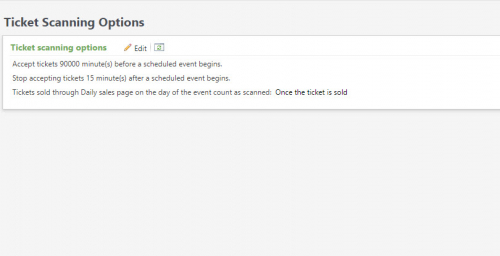
For in person sales there are scanning rules that apply and dictate how these are counted. You can find this under Tickets, Configuration, Ticket Scanning options. If you review the options for Tickets Sold through Daily Sales page on the day of the event you can list this as "scanned" when sold and will reflect your attendance correctly. Here's what that looks like:
I hope that helps! Great to hear from you!
Anah
0 -
Hi Anah! Glad to be back with the Blackbaud team! But I still have a question. what if we sold a ticket in advance for a different event date (via daily sales screen), I dont want that marked as scanned until the actual event date that they use the ticket? I know one answer is that we dont sell advance tickets that way (but I know some users could still make an error).
Also, this Article Number: 70894, doesnt reassure me any further lol. I've got a good handle on online sales, but for those few walkups we take I want to confirm a reasonable way of making sure they are reflected in our scanned totals. We want to be on top of tickets scanned so that we can watch capacity (covid world and all). chating with support, it was suggested I "print" these walkups as PDFs and then manually "scan" them.1 -
Akane,
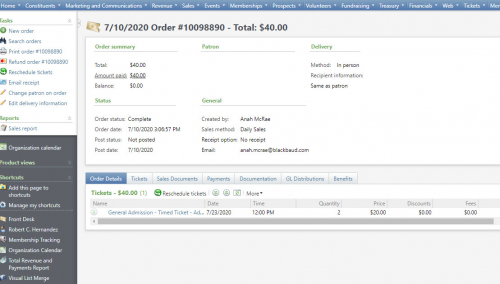
Got it! So that setting will only mark attended if the event if the date it is sold. For future dates at walk up - I might choose to email them a receipt or connect to a record. Then when they arrive go to Sales, Order Search and when you pull up the order on the left side there's a place to print (Print Order).
This is a bit different than the solution you are working through as it does require steps but keeps things within Altru. I'll keep thinking about it.
If you are open to switching to the Advanced Sales Screen for walkups that purchase for future dates it is all easier. Here you can enter the advanced date and then when they arrive choose Pickup Tickets under Sales. That requires going to a different sales screen though.
Feel free to email me! Happy to help and excited to work with you again!
Anah
0 -
Thank You, Anah!0
Categories
- All Categories
- 6 Blackbaud Community Help
- 210 bbcon®
- 1.4K Blackbaud Altru®
- 395 Blackbaud Award Management™ and Blackbaud Stewardship Management™
- 1.1K Blackbaud CRM™ and Blackbaud Internet Solutions™
- 15 donorCentrics®
- 360 Blackbaud eTapestry®
- 2.5K Blackbaud Financial Edge NXT®
- 649 Blackbaud Grantmaking™
- 567 Blackbaud Education Management Solutions for Higher Education
- 3.2K Blackbaud Education Management Solutions for K-12 Schools
- 937 Blackbaud Luminate Online® and Blackbaud TeamRaiser®
- 84 JustGiving® from Blackbaud®
- 6.5K Blackbaud Raiser's Edge NXT®
- 3.7K SKY Developer
- 247 ResearchPoint™
- 118 Blackbaud Tuition Management™
- 165 Organizational Best Practices
- 239 The Tap (Just for Fun)
- 33 Blackbaud Community Challenges
- 31 PowerUp Challenges
- 3 (Open) PowerUp Challenge: Data Health
- 3 (Closed) Raiser's Edge NXT PowerUp Challenge: Product Update Briefing
- 3 (Closed) Raiser's Edge NXT PowerUp Challenge: Standard Reports+
- 3 (Closed) Raiser's Edge NXT PowerUp Challenge: Email Marketing
- 3 (Closed) Raiser's Edge NXT PowerUp Challenge: Gift Management
- 4 (Closed) Raiser's Edge NXT PowerUp Challenge: Event Management
- 3 (Closed) Raiser's Edge NXT PowerUp Challenge: Home Page
- 4 (Closed) Raiser's Edge NXT PowerUp Challenge: Standard Reports
- 4 (Closed) Raiser's Edge NXT PowerUp Challenge: Query
- 783 Community News
- 2.9K Jobs Board
- 53 Blackbaud SKY® Reporting Announcements
- 47 Blackbaud CRM Higher Ed Product Advisory Group (HE PAG)
- 19 Blackbaud CRM Product Advisory Group (BBCRM PAG)