RE:NXT Prospect Tab Guru Needed
I have a development officer who is also a newer NXT user. He asked me for resources today…he's wanting to dive in to using the Prospect tab, but wants to know he's doing it right. I'm a loooong time RE user, but with almost zero experience on the Prospect Tab.
I found some information for him and shared the BBU Instructor-Led Training class, but I would really like to find a user with experience (and maybe some sharable best practices). If you are able and willing to be that person, I would love to hear from you! Thx in advance ?

Comments
-
@Jeffery Corbett As with any area, how your organization is using the Prospect module is absolutely key information for best practice use of the data. I'd also consider which aspects of that module most affect this user's role (Ratings, Financial information, interest areas, Proposals, etc.). If you don't have a plan in place, I would recommend putting together a list of your priorities for the module before you speak with other users as that can definitely help you determine what will or won't work in your specific situation.
2 -
@Jeffery Corbett Here is how we use the Prospect Tab (mostly for Proposals/Opportunities):
There are FIVE steps or Phases for the moves management (which currently are listed in the Prospect Tab/General/Prospect Status in Database View or Prospect Management tile in RE NXT. Each prospect status has a time frame in days of how long someone can stay in each before they’re considered past due (number in parenthesis). The prospect status should be updated when necessary to keep current.
Phase 1- IDENTIFICATION/RESEARCH (30): Identify potential prospects, research & gather information
Phase 2- QUALIFICATION (21): Does the prospect quality to move to next step
Phase 3- CULTIVATION (180): Cultivate a relationship with prospect
Phase 4- SOLICITATION (90): Solicit a gift from prospect
Phase 5- STEWARDSHIP (365): Continue building a relationship with donor after they've given
The next section will show how to create proposals, actions, notes, etc. for these various steps plus an action reminder.
- Creating Proposals (known as Opportunities in RE NXT)
- Go to the RE record. Click on the Prospect Tab. In Prospect Status, if the status is not yet determined, choose from the drop down box the various steps/phases this prospect is currently in. In the Philanthropic Interests, you can choose the various interests of the company or person. You can also add what interests they will not give to.

In RE NXT Prospect Status is slightly different (It lives in the Prospect Management Tile).

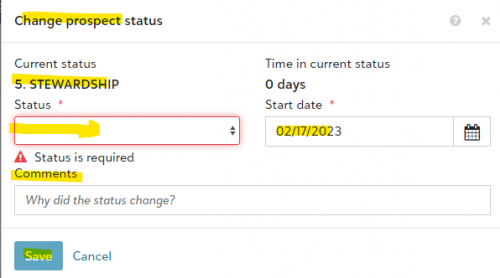
When you enter the status, you can also enter a date (when status is entered in Database view, the date that info is entered, will be recorded in RE NXT). RE NXT will also track how many days it is in that status. Each time you change the status in RE NXT, you can add the new date. The time in status will revert back to zero and re-count. You also can add a comment to why the status changed.

When the status is past the number of days allowed a warning will appear in RE NXT. You can also view status history.

TAKE NOTE: At this time the days in status (and also days in proposal/opportunity status) CANNOT be reported on or exported. It can only be viewed when the record is opened.
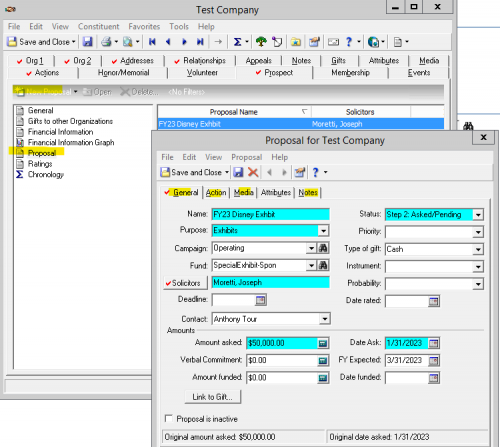
- To add the proposal and the information, click New Proposal and add the various information as seen below. You can also add Notes, Actions & media as well in regard to this proposal. If the money actually comes in, the gift will be linked to the proposal, which is done by the Database Manager, who will then, change the status to Step 4 Complete/Closed.

The proposal statuses are below. The first three steps show the number of days a proposal/opportunity can stay in each before it’s considered late. With each of the first three steps, when it is time to move to the next one, put in the date for the date ask field. So if Step One has 1/2/23 and you move to Step 2, change the date ask to 1/31/23. When you move to Step three, put in the date ask, whatever that date is.
- Step 1 : Planning (30 days)
- Step 2: Asked/Pending (30 days)
- Step 3: Approved/Accepted (30 days)
- Step 4: Complete/Closed
- Declined
- Withdrawn
A brief explanation of the fields. The below fields in blue are REQUIRED, which means, they must be filled in for you to save the information. If you know the information for some of the fields (even the ones not listed below), enter that information. The more information, the better.
- Name – Proposal Name (Should begin with the FY and then be specific. Ex. Naming Opportunity Louisiana Pavilion)
- Status – One of the following options:
- Step 1: Planning: Proposal has not been presented yet to the prospect, but will sometime in the near future
- Step 2: Asked/Pending: Proposal has been presented to prospect and we are waiting on a response
- Step 3: Approved/Accepted: Prospect has notified us that they have accepted the proposal and funding and/or a signed agreement is forthcoming
- Step 4: Complete/Closed: Signed pledge agreement or a check has been received and a gift record has been entered in Raiser’s Edge
- Declined: Prospect has declined the proposal
- Withdrawn: Proposal is in limbo/not followed through/put on hold, etc
- Purpose – What the money will be funding (this will be more general; the name of the proposal is where you can name it with more detail). Examples of purpose include:
- Galleries / Pavilions
- Education
- Endowment
- Exhibits
- Events / Conferences / Entertainment
- Sponsorship
If you are unsure of the purpose at the time you create the proposal record (for example, if you are still deciding if the ask will be for the Campaigns Pavilion or the Liberation Pavilion), you can use “TO BE DETERMINED” as a place holder until you have decided.
- Solicitors – Who is a solicitor for the proposal. Click on the box labeled “Solicitors” to search for and add names (Solicitors must have a profile in RE and be marked as a solicitor. If you cannot locate the solicitor you are looking for, please contact the Database Manager.)
- Deadline: – Date Deadline (if known)
- Contact: – ONLY on Organization record (contact MUST be listed in the relationship tab of the ORG record (person does NOT need to have their own IND record).
- Priority, Type of Gift, Instrument, Probability, Date Rated, Deadline – You can ignore these fields if they do not pertain to you or if not known.
- Amount Asked – Proposal ask amount (if known)
- Date Asked – Date that the proposal was entered into the system. With each status, change this date. The original date will always be shown in the bottom of record.
- Verbal Commitment – Amount prospect has indicated that they will be funding; amount may differ than original ask amount
- FY Expected – Last day of the Fiscal Year during which we should expect a response or receive funding. For example: 6/30/20 (FY20), 6/30/21 (FY21) etc.
- Amount Funded – This will be filled in by Database Manager when the actual gift comes in. Database Manager will also link the gift to the proposal.
- Date Funded – Date This will be filled in by Database Manager when the gift comes in.
- Proposal is Inactive box – This box is checked after a certain time frame has passed and proposal is completed, declined or withdrawn. Usually after the fiscal year.
The most important information is located on the “General” tab, but you can also add actions, media (such as a proposal document) to the proposal record and notes. Notes can also be added within the Action tab (if it relates to the action).
In RE NXT terminology and processes are slightly different.
DATABASE VIEW RE NXT
Prospect/Proposal Tab Opportunities
Proposal Attributes Custom Fields
Media Tab (for uploading documents) Attachments
----------------------------------------------------------------------------------------
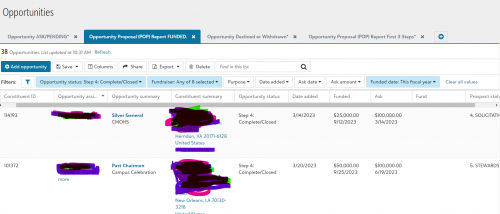
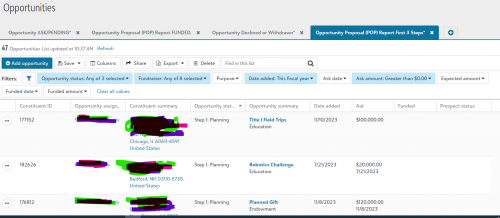
I am hardly a fan of RE NXT as it exist right now, but the one thing it has that works well for us are Opportunities Lists for our Development Officers. We use these as reports to see where they are in their process of Opportunities FUNDED and Opportunities (with the first three steps). These lists can be exported, sorted and sent out to the Development Officers. Below are examples:
OPPORTUNITIES FUNDED LIST: For FUNDED we use the filter DATE FUNDED.

OPPORTUNITES (First three steps): For these we use the filter DATED ADDED (when it was entered into the system), since when they move to the various steps, they change the DATE ASK field, so the DATE ADDED in the system works well for our needs

We do not really use the other aspects of the Prospect Tab such as Gift to other Organizations. and Financial Information. The ratings are filled in annually by RE NXT, but will find these rating are not that great and so we use another company, WINDFALL, which works well with Raiser's Edge and we put that information into an Attribute. We mostly use WINDFALL for NETWORTH, which seems to be pretty accurate and useful for our organization and easy to use and import the info into Raiser's Edge.
Hope this helps.
6 -
@Jeffery Corbett I HIGHLY recommend that you both watch this webinar from Blackbaud. Moves management is a system involving a few components of Raiser's Edge, and the Prospect tab is just one of them. The webinar is geared to webview - there are some features built out there that do not write back to database view - but webview's strength is in portfolio management.
There will still be some decisions to make about configurations for prospect and opportunity status settings, action types, etc. But it can be a very effective system and this webinar should help to get you organized to start.Karen
3 -
@Karen Diener Thank you!
1 -
@Joe Moretti Thank you so much Joe! (My dev officer's name is Joe as well.) I appreciate this.
1
Categories
- All Categories
- 6 Blackbaud Community Help
- 209 bbcon®
- 1.4K Blackbaud Altru®
- 395 Blackbaud Award Management™ and Blackbaud Stewardship Management™
- 1.1K Blackbaud CRM™ and Blackbaud Internet Solutions™
- 15 donorCentrics®
- 360 Blackbaud eTapestry®
- 2.5K Blackbaud Financial Edge NXT®
- 648 Blackbaud Grantmaking™
- 566 Blackbaud Education Management Solutions for Higher Education
- 3.2K Blackbaud Education Management Solutions for K-12 Schools
- 937 Blackbaud Luminate Online® and Blackbaud TeamRaiser®
- 84 JustGiving® from Blackbaud®
- 6.5K Blackbaud Raiser's Edge NXT®
- 3.7K SKY Developer
- 247 ResearchPoint™
- 118 Blackbaud Tuition Management™
- 165 Organizational Best Practices
- 239 The Tap (Just for Fun)
- 33 Blackbaud Community Challenges
- 31 PowerUp Challenges
- 3 (Open) PowerUp Challenge: Data Health
- 3 (Closed) Raiser's Edge NXT PowerUp Challenge: Product Update Briefing
- 3 (Closed) Raiser's Edge NXT PowerUp Challenge: Standard Reports+
- 3 (Closed) Raiser's Edge NXT PowerUp Challenge: Email Marketing
- 3 (Closed) Raiser's Edge NXT PowerUp Challenge: Gift Management
- 4 (Closed) Raiser's Edge NXT PowerUp Challenge: Event Management
- 3 (Closed) Raiser's Edge NXT PowerUp Challenge: Home Page
- 4 (Closed) Raiser's Edge NXT PowerUp Challenge: Standard Reports
- 4 (Closed) Raiser's Edge NXT PowerUp Challenge: Query
- 782 Community News
- 2.9K Jobs Board
- 53 Blackbaud SKY® Reporting Announcements
- 47 Blackbaud CRM Higher Ed Product Advisory Group (HE PAG)
- 19 Blackbaud CRM Product Advisory Group (BBCRM PAG)