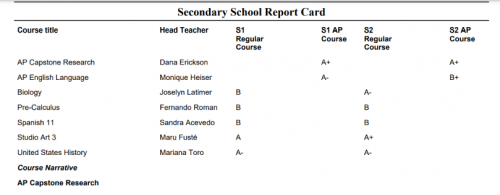
Having all Grades on the Report Card on the same column

Hi Blackbaud Community, I am creating the new Report Card for this upcoming Trimester, and wanted to keep all grades on the same column, instead of having a different column for the type of Course (i.e. Honors, AP, or Regular, see example attached. Is there a way to do this? Does this have to do with using the same Grade Plan for all courses, regardless of the weight for each course? Thanks! Any help greatly appreciated.

552361f4017691373e5b0482ec245f9c-huge-re

Comments

  • @Tere Somoza - Tere, the trick to this is to be sure your grade plans have the same nomenclature for the columns you want to align. You can have multiple Grade Plan Groups, you just need to be sure your Grade Plans and Grade Plan Grades are named exactly the same in each Grade Plan Group so they can appear in the same column on the report card. This Knowledgebase article is for aligning final grades from all terms in one report card or transcript column, but the same principle applies to quarter and semester grades as well:

    https://kb.blackbaud.com/knowledgebase/articles/Article/191253

    Hope this helps.

    Scott

  • @Scott Chrysler thanks! This definitely gives me a starting point. Does this mean I have to create new Grade Plans? What if my classes are already locked because teachers already started adding grades to students?

  • @Tere Somoza - I would not create new grade plans, I would just rename the Grade Plan Descriptions and Grade Plan Grades so they all align.

    Scott

  • @Scott Chrysler thanks. So, for this first Trimester, for which we are setting Grading up now, I have one Grade Plan Grade (TRI 1 Grade) and one Grade Plan (TRI 1 Report Card), however, how do I make sure that the Honors and AP courses are calculating with the correct weight? I guess that was the reason why originally we had a Grade Plan for each (AP, Honors and Regular) to account for the different weight in courses. I am including a small clip to give you an idea.

    Thanks Scott!


  • @Tere Somoza
    I posted a detailed visual here that might help with the new builder requirements to get multiple grade plan grades to display beneath the same column on the transcript/report card.

    If you have different grade plan groups for Regular, Honors & AP, it's likely that your courses are being weighted at the grade translation table. If that's the case, you will just need to make sure that your courses are associated with the appropriate grade plan group. The weight will automatically be applied, assuming that you have the “GPA Equiv 1” or “GPA Equiv 2” set up correctly in each of the 3 translation tables. Changing the naming convention of the grade plan/grade plan grades shouldn't have any impact on the course type. I'm happy to elaborate and provide more detail!

  • @Kristen Duval Thanks! I'll go ahead and do some testing with the information you gave me, thanks so much. I also spoke with Scott and he gave me some very good insights as well. We are also changing the Grade Translation for this academic year, so basically the value for a letter grade on the weighted equivalent for all three types of courses we have (Regular, Honors and AP's) will be different than all previous years. What will be the impact on the cumulative GPA on a transcript, given that the Grade Translation table used for GPA calculations, was different for previous years? Have you had any experience with this?

  • @Tere Somoza
    Hi Tere,

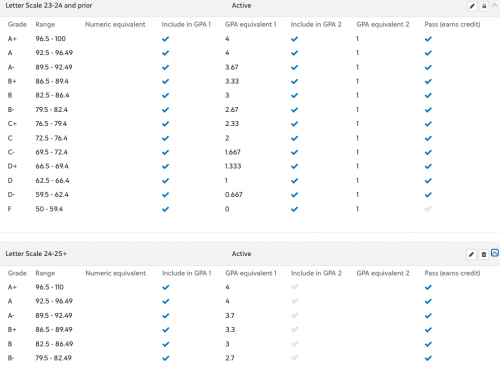
    I do! You will want to create a NEW scale for 2024-2025 with the updated GPA values. You will need 3 new scales. On for Regular, one for Honors and one for AP. The new scales should reflect the new GPA values that should apply to 24-25 and beyond. You will need to update all of your grade plan grades for 24-25 only so that they're using the new translations. You don't want to update the old translation table with the new values, as this will cause the cumulative GPAs to update retroactively. Be sure that the new scale is populated with the new values in the same column (either GPA Equiv 1 or GPA Equiv 2) that the old values were populated in the old scale. You should be able to reference your GPA calculation to confirm which value you're using. Here's a quick visual of what your old and new Regular scale might look like:

    4560b6d4ca89740a8275927a7baf71b5-huge-im
  • @Kristen Duval thanks! I have done that, let me ask a few questions regarding this:

    • How will the Cumulative GPA for a student be affected, if at all, considering that previous years had a different Grading Scale than this year? So for example, a 12th Grade student, whose GPA's from 9th, 10th and 11th were generated using the old Grading Scale, and his GPA for this year be calculated using another Grading Scale, when it comes time for a GPA for all 4 years, how will that work?
    • I see that you didn't add any values on the GPA equivalent 2, but you did have values of 1 for your last year's Grading Scale, what is the reason for that?

    Thanks Kristen!


  • @Tere Somoza We ran into this problem this year when we adjusted our AP grading scale. Our previous scale offered 6 points for an A, and starting this year we are offering 5 points for an A, but we are grandfathering in this year's seniors who had 6-point AP classes last year and, to compare apples to apples, will need to have 6-point classes this year as well.

    This is a problem most noticeable in calculus and a handful of science classes (physics, chemistry, etc.) where we have a mix of 11th and 12th graders, who will be on separate weights for this year only. Since the courses lock to a grade plan once they're offered, we had to create separate courses and enroll students by grade in the proper course by grade plan.

    In other words, we did exactly what Kristen did, but then we had to go one step further and have (for example) an AP Calculus AB course for only seniors that offers 6 points (and will be made inactive after this year), and a new AP Calculus AB course for only juniors that offers 5 points and will be the only one used after this year. Section-wise it isn't a big deal; you just schedule them at the same time with the same teacher, and if you make a mistake and assign a student to the wrong section you just swap it out. But it is a little bit of a bumpy road to make the transition work, for sure.

  • @Tere Somoza
    Hi Tere,

    The GPAs shouldn't be impacted. Prior years will use the GPA Equiv. 1 that you designated in your OLD translation table. The GPA for the current year and moving forward will use the GPA Equiv. 1 from your new scale. Blackbaud looks at the GPA Equiv. 1 for the grade translation table that was associated with the grade plan grade that you're including in your GPA formula for each applicable year. So for example;

    2022-2023: English = A- = 3.67
    2023-2024: English = A- = 3.67
    2024-2025: English = A- = 3.7

    New Cumulative = 3.67+3.67+3.7= 11.04 / 3 = 3.68
    If you hadn't changed your scale, the formula would be as follows:

    2022-2023: English = A- = 3.67
    2023-2024: English = A- = 3.67
    2024-2025: English = A- = 3.67

    New Cumulative = 3.67+3.67+3.67= 11.01 / 3 = 3.67

    The value of “1” in GPA Equiv. 2 in the old scale was added by me as a work around to a different GPA issue I was trying to solve to add up credits earned by students and doesn't have any relation to the change your describing :) I hope this helps!

  • @Kristen Duval yes it does. Thanks Kristen. One final question, related to our transition from Semesters to Trimesters. On the new Transcript Builder, can I have my previous years displaying Semesters and this year (2024-2025) displaying Trimesters?

  • @Tere Somoza
    You're very welcome!

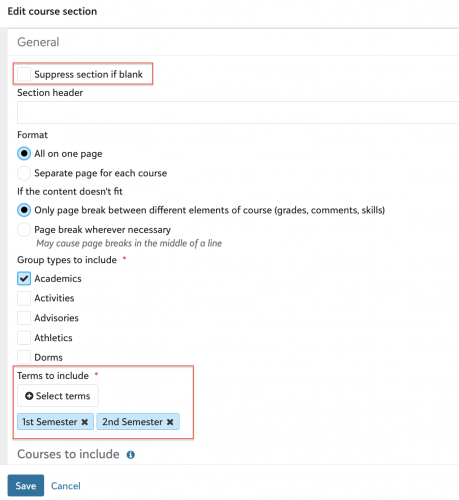
    You can't specify that certain years you'd like to display Trimesters and going forward you want to display Semesters. You'll have to add both to the transcript if you want to use the same transcript template. However, you can accomplish this by adding a grades section at the top for the Trimester grades. You can set this to “Suppress section if blank” and would then select only Trimester 1, Trimester 2 and Trimester 3 via “Terms to Include”.

    You would then add another grades section beneath that, suppress section if blank and select the Semester terms to include.

    3819fcbebd5a522c1fac4e98d57e00df-huge-im

    There's a way that you can do this with only one grades section with columns for both Semesters and all 3 Trimesters. But the spacing always looks weird with that approach.