When You Need Student Information, Class Rosters & Directories Are The Way To Go!
The first day of school is just around the corner, which means teachers will soon be asking you for class rosters and students’ contact information. If you want to be ready, then keep reading to find out how to create Class Rosters and Student/Family Directories.
The Class Report (also known as Class Roster) lists classes that have been created for the academic year with information and a list of students enrolled in each class. Class rosters can be created in Registrar’s Office by going to Reports > Course/Class Reports > Class Report.
When creating a new Class Report, you will see four tabs at the top of the screen: General, Filters, Columns, and Format. The General tab allows you to select the school, academic year, session, and term to be used for the report, while the Filters tab allows you to select the filters you would like to apply to the report. The last two tabs, Columns and Format, are used to define the content that will be displayed on the Class Report.
Columns Tab:
Select any of the columns you would like to include in the report. For example, if you want to know the course name, the course ID, and the name of the teacher in the class, then you will want to ensure Course Name, Course ID, and Teacher are selected to display in the Columns tab.
At this point you may have noticed there are no fields related to student information. Well not to worry, that information is located on the Format tab.
Format Tab:
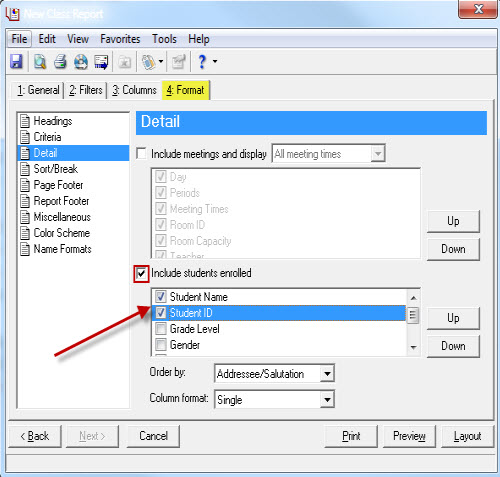
To display students’ information on students, highlight Detail and mark the Include Students Enrolled checkbox. Then mark any additional checkboxes to include those student details in the report.
Next, go to the Sort/Break section to select the fields you would like to sort the report by. For example, you can sort by Course ID, Course Name, Class ID, or Teacher. As always, select Preview to verify your results and to ensure you’re satisfied with the setup prior to printing the full report.
NOTE: When you mark the Break? checkbox for a field, additional checkboxes will be available in the Break Footer frame. For example, if you break by Course Name, you can mark the Print Count per Course Name checkbox.
The Class Report is great for creating lists of students enrolled in classes, but if your teachers are asking you for a list of their students’ contact information, then you will want to check out one of the Student and Family Directories options instead.
Student and Family Directories can be found in Registrar’s Office by going to Reports > Directories and Lists. Both Student and Family Directories provide a list of students, their relations, and student/relation address information. The only difference between the two directories is how each directory orders their content. The Student Directory is ordered by student names, while the Family Directory is ordered by the name of the student relation.
For easy-to-follow instructions on how to create a Student or Family Directory, please review the following Knowledgebase Solutions.
Student Directory: BB155870
Family Directory: BB141627
Tips to consider when creating a Student or Family Directory:
Have questions? Let me know in the comments below!
The Class Report (also known as Class Roster) lists classes that have been created for the academic year with information and a list of students enrolled in each class. Class rosters can be created in Registrar’s Office by going to Reports > Course/Class Reports > Class Report.
When creating a new Class Report, you will see four tabs at the top of the screen: General, Filters, Columns, and Format. The General tab allows you to select the school, academic year, session, and term to be used for the report, while the Filters tab allows you to select the filters you would like to apply to the report. The last two tabs, Columns and Format, are used to define the content that will be displayed on the Class Report.
Columns Tab:
Select any of the columns you would like to include in the report. For example, if you want to know the course name, the course ID, and the name of the teacher in the class, then you will want to ensure Course Name, Course ID, and Teacher are selected to display in the Columns tab.
At this point you may have noticed there are no fields related to student information. Well not to worry, that information is located on the Format tab.
Format Tab:

To display students’ information on students, highlight Detail and mark the Include Students Enrolled checkbox. Then mark any additional checkboxes to include those student details in the report.
Next, go to the Sort/Break section to select the fields you would like to sort the report by. For example, you can sort by Course ID, Course Name, Class ID, or Teacher. As always, select Preview to verify your results and to ensure you’re satisfied with the setup prior to printing the full report.
NOTE: When you mark the Break? checkbox for a field, additional checkboxes will be available in the Break Footer frame. For example, if you break by Course Name, you can mark the Print Count per Course Name checkbox.
The Class Report is great for creating lists of students enrolled in classes, but if your teachers are asking you for a list of their students’ contact information, then you will want to check out one of the Student and Family Directories options instead.
Student and Family Directories can be found in Registrar’s Office by going to Reports > Directories and Lists. Both Student and Family Directories provide a list of students, their relations, and student/relation address information. The only difference between the two directories is how each directory orders their content. The Student Directory is ordered by student names, while the Family Directory is ordered by the name of the student relation.
For easy-to-follow instructions on how to create a Student or Family Directory, please review the following Knowledgebase Solutions.
Student Directory: BB155870
Family Directory: BB141627
Tips to consider when creating a Student or Family Directory:
- Go to Format > Detail, to define the contact types you would like included in the directory (e.g. Home Phone, Cell Phone, Email).
- Go to Format > Sort/Break, to sort the results by specific criteria. You can sort by Student Name, Grade Level, or Birth Date for example.
- To prevent the same address from displaying twice for each set of spouse pairs, consider marking the Combine Entries for Each Spouse Pair checkbox found on the General tab. In order for this feature to work, you need to ensure the following three conditions are met.
- The spouse records must have a relationship defined between their two records.
- Those records must also have the Spouse checkbox marked.
- The two spouse records must also be listed as a relationship on their child’s student record.
Have questions? Let me know in the comments below!
0
Categories
- All Categories
- 6 Blackbaud Community Help
- 211 bbcon®
- 1.4K Blackbaud Altru®
- 396 Blackbaud Award Management™ and Blackbaud Stewardship Management™
- 1.1K Blackbaud CRM™ and Blackbaud Internet Solutions™
- 15 donorCentrics®
- 360 Blackbaud eTapestry®
- 2.5K Blackbaud Financial Edge NXT®
- 649 Blackbaud Grantmaking™
- 568 Blackbaud Education Management Solutions for Higher Education
- 3.2K Blackbaud Education Management Solutions for K-12 Schools
- 937 Blackbaud Luminate Online® and Blackbaud TeamRaiser®
- 84 JustGiving® from Blackbaud®
- 6.5K Blackbaud Raiser's Edge NXT®
- 3.7K SKY Developer
- 247 ResearchPoint™
- 119 Blackbaud Tuition Management™
- 165 Organizational Best Practices
- 239 The Tap (Just for Fun)
- 34 Blackbaud Community Challenges
- 31 PowerUp Challenges
- 3 (Open) PowerUp Challenge: Data Health
- 3 (Closed) Raiser's Edge NXT PowerUp Challenge: Product Update Briefing
- 3 (Closed) Raiser's Edge NXT PowerUp Challenge: Standard Reports+
- 3 (Closed) Raiser's Edge NXT PowerUp Challenge: Email Marketing
- 3 (Closed) Raiser's Edge NXT PowerUp Challenge: Gift Management
- 4 (Closed) Raiser's Edge NXT PowerUp Challenge: Event Management
- 3 (Closed) Raiser's Edge NXT PowerUp Challenge: Home Page
- 4 (Closed) Raiser's Edge NXT PowerUp Challenge: Standard Reports
- 4 (Closed) Raiser's Edge NXT PowerUp Challenge: Query
- 785 Community News
- 2.9K Jobs Board
- 53 Blackbaud SKY® Reporting Announcements
- 47 Blackbaud CRM Higher Ed Product Advisory Group (HE PAG)
- 19 Blackbaud CRM Product Advisory Group (BBCRM PAG)