How To Set Up Interim Marking Columns


Interim or cumulative grades can be tracked by posting to interim marking columns created in Registrar’s Office. Although teachers will not have access to the interim marking columns in their gradebooks, they can view all marking column grade information entered in Registrar's Office for the selected academic year by clicking History on the grade entry grid (go to View, select Marking Column History). Interim marking columns are often used when schools want to print progress reports that are formatted like report cards.
For the step-by-step process of this setup, take a look at this link:
http://www.blackbaud.com/kb/index?page=content&id=BB113949
Maybe you only use two marking columns at your school—Semester 1 and Semester 2—but you would like to send a progress report to parents and students that shows the Progress Sem 1 grade and Progress Sem 2 grade.
We would not want to add Progress Sem 1 to FAWeb as its own separate marking column, since we want Semester 1 to be an accumulation of everything—tests, quizzes, homework—from the first half of the year. Therefore, we will only show the Progress Sem 1 marking column in EE and hide it from FAWeb.
To set up this interim marking column in EE, go to Configuration, Registrar Setup, and choose the marking column set that is currently in use.
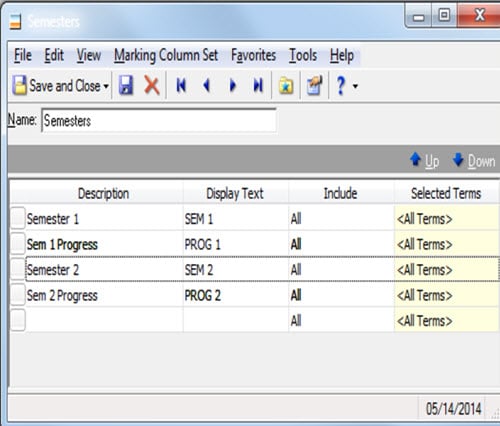
After adding the interim marking columns, the next step is to hide them in FAWeb. To do this, you will need to log in as the Supervisor. Once you are logged in, go to Setup, and choose Setup Marking Column Access Rights for Faculty. Next, under View and Edit next to the interim marking columns, change Yes to No.
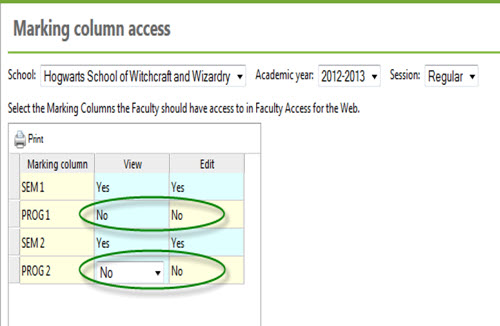
The teachers should continue to enter grades as the normally do. The most integral part of this process is posting from FAWeb to EE. When it is time for the progress report to be sent out, teachers will need to mark their Semester 1 or Semester 2 grades as Ready (this can be done globally using the Update FAWeb Statuses Wizard)
Once these are marked as Ready, go to Administration, Post from FAWeb, and fill out the parameter as you typically do—School, Academic Year, Session, etc. Where it says Marking Columns to Post, in the ‘From the Web’ section, choose the Sem 1 or Sem 2 marking column and in the ‘To Registrar’s Office’ section, choose your interim marking column. (Not entirely familiar with the posting process? Here is a helpful reference.)
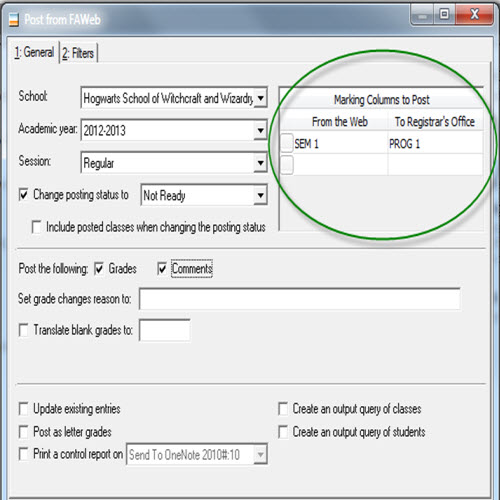
Always remember to check the Preprocessing Report to ensure that everything looks the way you expect it to look and then proceed to post. You can now view these grades in The Education Edge and print them on Progress Reports!
In our next blog post, find out how to modify which marking column(s) display on your report card!
For the step-by-step process of this setup, take a look at this link:
http://www.blackbaud.com/kb/index?page=content&id=BB113949
Maybe you only use two marking columns at your school—Semester 1 and Semester 2—but you would like to send a progress report to parents and students that shows the Progress Sem 1 grade and Progress Sem 2 grade.
We would not want to add Progress Sem 1 to FAWeb as its own separate marking column, since we want Semester 1 to be an accumulation of everything—tests, quizzes, homework—from the first half of the year. Therefore, we will only show the Progress Sem 1 marking column in EE and hide it from FAWeb.
To set up this interim marking column in EE, go to Configuration, Registrar Setup, and choose the marking column set that is currently in use.

After adding the interim marking columns, the next step is to hide them in FAWeb. To do this, you will need to log in as the Supervisor. Once you are logged in, go to Setup, and choose Setup Marking Column Access Rights for Faculty. Next, under View and Edit next to the interim marking columns, change Yes to No.

The teachers should continue to enter grades as the normally do. The most integral part of this process is posting from FAWeb to EE. When it is time for the progress report to be sent out, teachers will need to mark their Semester 1 or Semester 2 grades as Ready (this can be done globally using the Update FAWeb Statuses Wizard)
Once these are marked as Ready, go to Administration, Post from FAWeb, and fill out the parameter as you typically do—School, Academic Year, Session, etc. Where it says Marking Columns to Post, in the ‘From the Web’ section, choose the Sem 1 or Sem 2 marking column and in the ‘To Registrar’s Office’ section, choose your interim marking column. (Not entirely familiar with the posting process? Here is a helpful reference.)

Always remember to check the Preprocessing Report to ensure that everything looks the way you expect it to look and then proceed to post. You can now view these grades in The Education Edge and print them on Progress Reports!
In our next blog post, find out how to modify which marking column(s) display on your report card!
0
Categories
- All Categories
- New K-12 Community Home (TEST)
- New Higher Education Home Page (Test)
- New Impact Edge Community TEST
- New YourCause Community TEST
- New SKY Community TEST
- New Grantmaking TEST Community
- New Altru Test Community
- New bbcon Community - TEST
- 12 Blackbaud Agents for Good™
- New Raiser's Edge NXT Community
- 8 Blackbaud Community Help
- 222 bbcon®
- 1.4K Blackbaud Altru®
- 410 Blackbaud Award Management™ and Blackbaud Stewardship Management™
- 1.2K Blackbaud CRM™ and Blackbaud Internet Solutions™
- 16 donorCentrics®
- 361 Blackbaud eTapestry®
- 2.7K Blackbaud Financial Edge NXT®
- 687 Blackbaud Grantmaking™
- 604 Blackbaud Education Management Solutions for Higher Education
- 3.3K Blackbaud Education Management Solutions for K-12 Schools
- 954 Blackbaud Luminate Online® and Blackbaud TeamRaiser®
- 85 JustGiving® from Blackbaud®
- 7K Blackbaud Raiser's Edge NXT®
- 4K SKY Developer
- 258 ResearchPoint™
- 123 Blackbaud Tuition Management™
- 165 Organizational Best Practices
- 248 Member Lounge (Just for Fun)
- 40 Blackbaud Community Challenges
- 37 PowerUp Challenges
- 3 (Closed) PowerUp Challenge: Grid View Batch
- 3 (Closed) PowerUp Challenge: Chat for Blackbaud AI
- 3 (Closed) PowerUp Challenge: Data Health
- 3 (Closed) Raiser's Edge NXT PowerUp Challenge: Product Update Briefing
- 3 (Closed) Raiser's Edge NXT PowerUp Challenge: Standard Reports+
- 3 (Closed) Raiser's Edge NXT PowerUp Challenge: Email Marketing
- 3 (Closed) Raiser's Edge NXT PowerUp Challenge: Gift Management
- 4 (Closed) Raiser's Edge NXT PowerUp Challenge: Event Management
- 3 (Closed) Raiser's Edge NXT PowerUp Challenge: Home Page
- 4 (Closed) Raiser's Edge NXT PowerUp Challenge: Standard Reports
- 4 (Closed) Raiser's Edge NXT PowerUp Challenge: Query
- 829 Community News
- 3.1K Jobs Board
- 57 Blackbaud SKY® Reporting Announcements
- 47 Blackbaud CRM Higher Ed Product Advisory Group (HE PAG)
- 19 Blackbaud CRM Product Advisory Group (BBCRM PAG)