Sharing my Power Automate Flow (update): Connection NXT Actions, MS Planner and SharePoint Lists





I am sharing our 3-part NXT workflow that links NXT Actions to MS Planner Tasks. We use this in the context of grant management (research/application/writing/reporting), and this updates a flow that I shared a while back as our process has refined.
A general overview of automation (NXT Actions, Planner Tasks):
- Adding task:
- User adds action in NXT
- Automation pushes NXT action to Planner (NXTActiontoPlannerTask_20220525180148.zip
NXT Action to Planner Task.pdf)
- Automation pushes NXT action to Planner (NXTActiontoPlannerTask_20220525180148.zip
- User adds action in NXT
- Changing task details
- User updates task details (due date, description) in NXT
- Automation pushes detail changes from NXT to Planner (UpdatePlannertaskdetailswhenNXTActionisupdated_20220525181315.zip
Update Planner Task Details.pdf)
- Automation pushes detail changes from NXT to Planner (UpdatePlannertaskdetailswhenNXTActionisupdated_20220525181315.zip
- User updates task details (due date, description) in NXT
- Completing task
- User marks task complete in Planner
- Automation changes NXT action status to 'closed' (MarkNXTactionsasclosedwhenPlannertaskismarkedclosed_20220525182033.zip
Planner Action to NXT Action Status workflow.pdf)
- Automation changes NXT action status to 'closed' (MarkNXTactionsasclosedwhenPlannertaskismarkedclosed_20220525182033.zip
- User marks task complete in Planner
Required connections: RENXT, Microsoft Planner, Microsoft Lists, Microsoft Power Automate
Skill level: Intermediate
Things you'll need to configure:
- SharePoint List: You'll need to create a SharePoint list. The columns you absolutely need in this list are NXT Action ID and Planner Task ID. Depending on how you format your Planner Tasks--or if you also want to use this list as a quick tabular reference--you might want more columns.
The columns for my list are: Constituent, ActionID, Action Link, Action Type, Status Description, Assigned To, Action Date, Opportunity Name, OpportunityID, Opportunity Status PlannerID, Planner Task Status, ConsSysID, Date Created, Date Last Modified - Workflow 1 (NXT Actions → Planner Tasks):
- Review the ‘Convert Time Zone’ to make sure this flow is right for your time zone.
- The flow uses a condition based on the NXT Action Type--ours start with “Grant”). You should configure this to collect the actions you want to include in Planner.
- Because our team uses monthly Planner boards, we pull the Month of an action's due date and use a switch function to funnel these actions into the correct Planner board. You may not need this, or you may want to sort your actions into planner boards based on some other field, like maybe action type or a custom field.
- This flow stores Planner Task ID as an action custom field (text field)--you'll need to add that attribute
- Workflow 2 (NXT Action updates → SharePoint List → Planner Task):
- This flow builds off the earlier flows. It pulls actions modified on or after yesterday, and uses the action's existence on the SharePoint list to update Planner tasks (due date, description). It also updates the SharePoint list details in case you are using that list as a reference.
- This flow builds off the earlier flows. It pulls actions modified on or after yesterday, and uses the action's existence on the SharePoint list to update Planner tasks (due date, description). It also updates the SharePoint list details in case you are using that list as a reference.
- Workflow 3 (Mark NXT Action completed when Planner Task completed):
- This flow builds off the earlier flows.
- Trigger: When planner task is completed--you'll need to build one of these flows for each planner board you use (I have 12, because we use monthly boards).
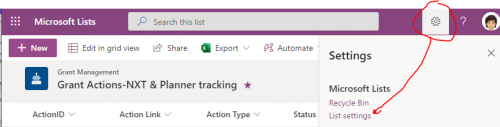
- The ID of the completed task is used to get the NXT Action ID from SharePoint list. You'll need to update the Sharepoint “Get Item” action through the Filter Query to make sure that it is pulling the correct column for you list. To make sure you're getting the correct column name, click the gear icon on the upper right corner of your list & select “List settings”
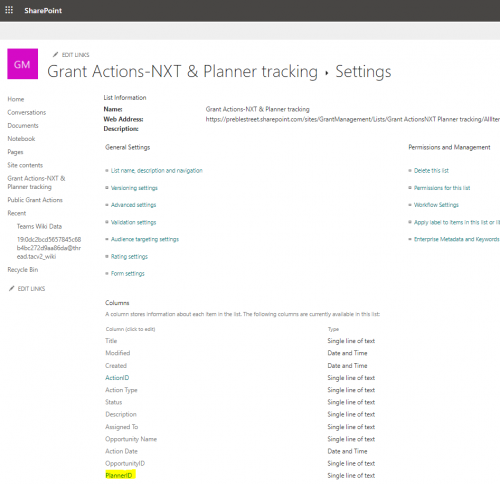
Click the appropriate column header for your PlannerID column
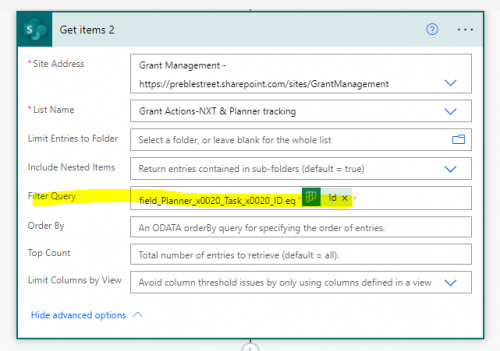
Look at the URL on the resulting page.

That is the field name you'll need in the Get Items filter query:
Comments
-
@Nicole Holt
Have you tried to add the fundraiser(s) from the action into assigned in the planner task? I am stuck here.0 -
@Kim Wolcott we aren't doing that at this point, primarily because often the people assigned don't have RENXT rights (and so aren't fundraisers). Our grants team makes the assignments within Planner.
I think you should be able to get the fundraiser's email address and use that in the ‘assign to’ part of Planner. In the example below I got the email addresses via a string attribute, then cut off the last two characters (a semicolon and space added during the append process), but someoneelse might have a more elegant solution.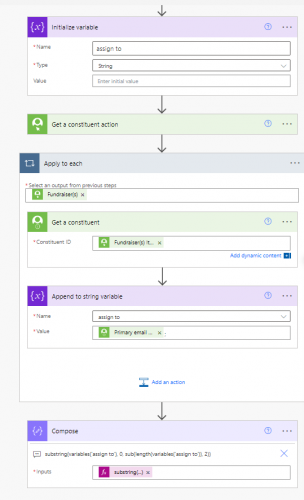
edit--sorry, now I'm seeing how small that pasted flow is. Here it is, written:
- add an ‘Initialize Variable’ at the beginning of your flow. This one is named ‘assigned to’ and is a string
- you'll get your action, as in the original flow, but you'll add a ‘get constituent’ item, and in that you'll add ‘Fundraiser(s) Item’. This will create an Apply to Each loop as multiple fundraisers can be assigned.
- Within that Apply to Each loop, add an Append to String Variable item. You're appending to the ‘assigned to’ variable, and adding the primary email address, followed by “; ”
- outside your ‘apply to each’ you can eitehr create a compose item OR you can add this directly in the ‘create a planner task’ action under the assigned-to field:
substring(variables('assign to'), 0, sub(length(variables('assign to')), 2))
this will put all those email addresses in, separated by a semicolon, but will take off the last two characters--which should be a semicolon and space.
0 -
@Nicole Holt Thank you SO much! I got it to work.
1 -
@Kim Wolcott I'm glad it's working for you!
0



Categories
- All Categories
- 6 Blackbaud Community Help
- 213 bbcon®
- 1.4K Blackbaud Altru®
- 403 Blackbaud Award Management™ and Blackbaud Stewardship Management™
- 1.1K Blackbaud CRM™ and Blackbaud Internet Solutions™
- 15 donorCentrics®
- 360 Blackbaud eTapestry®
- 2.6K Blackbaud Financial Edge NXT®
- 656 Blackbaud Grantmaking™
- 577 Blackbaud Education Management Solutions for Higher Education
- 3.2K Blackbaud Education Management Solutions for K-12 Schools
- 939 Blackbaud Luminate Online® and Blackbaud TeamRaiser®
- 84 JustGiving® from Blackbaud®
- 6.6K Blackbaud Raiser's Edge NXT®
- 3.7K SKY Developer
- 249 ResearchPoint™
- 119 Blackbaud Tuition Management™
- 165 Organizational Best Practices
- 241 Member Lounge (Just for Fun)
- 34 Blackbaud Community Challenges
- 37 PowerUp Challenges
- 3 (Open) PowerUp Challenge: Grid View Batch
- 3 (Closed) PowerUp Challenge: Chat for Blackbaud AI
- 3 (Closed) PowerUp Challenge: Data Health
- 3 (Closed) Raiser's Edge NXT PowerUp Challenge: Product Update Briefing
- 3 (Closed) Raiser's Edge NXT PowerUp Challenge: Standard Reports+
- 3 (Closed) Raiser's Edge NXT PowerUp Challenge: Email Marketing
- 3 (Closed) Raiser's Edge NXT PowerUp Challenge: Gift Management
- 4 (Closed) Raiser's Edge NXT PowerUp Challenge: Event Management
- 3 (Closed) Raiser's Edge NXT PowerUp Challenge: Home Page
- 4 (Closed) Raiser's Edge NXT PowerUp Challenge: Standard Reports
- 4 (Closed) Raiser's Edge NXT PowerUp Challenge: Query
- 794 Community News
- 3K Jobs Board
- 54 Blackbaud SKY® Reporting Announcements
- 47 Blackbaud CRM Higher Ed Product Advisory Group (HE PAG)
- 19 Blackbaud CRM Product Advisory Group (BBCRM PAG)