Address cleanup question





Hi all, in our database, from around 2005 - 2006/7 Address Finder was run and unfortunately, each time it was run, it continued to add the same address on a constituent record multiple times.
So for example, if I am a constituent in our database and I now have a preferred address of 1 Smith Lane, historically, I might have 10 Betty Lane on my record ten times from when I lived there in 2005 to 2007. Does anyone have any suggestions as to how to globally clean up a situation like this? The trick is I would want 10 Betty Lane to live on this example constituent's record once as a former address so we do not lose that history.
Thank you all for your help!
Comments
-
@Ellen Bartlett
There's no built-in way to do this automatically. You can potentially get a workaround by using Excel and the "Alternate Address Deleter" plug-in. If you'd like an explanation of that just let me know.0 -
@Ellen Bartlett We have the same thing, but that is actually not something that bothers me, so I do not worry about that (sometimes you pick your battles). You do need to be careful with the Alternate Address Deleter Plug-in since he whatever address type you choose, let's say if you have an alternative type, it will remove all of them.
1 -
@Joe Moretti Thank you!
0 -
@Nicholas Mascari Hi Nicholas, if you are able to share your workaround, that would be great! Thank you.
0 -
@Ellen Bartlett
This workaround is a bit complex, especially if you don't have much Excel experience, but I'll see if I can explain it all here.
3 tools we'll be using: Excel, Import, and the “Alternate Address Deleter” plug-in.
-I'm assuming you have admin privileges
The only issues I've run into with this workaround method is that it will incorrectly label addresses that are a result of the “Primary Business Information” on organization relationship records.As I would always recommend, be careful with any global changes and/or deleting mass amounts of data. I believe Blackbaud creates a backup of the database that you can roll back to if you're being hosted through them and make a huge mistake. I'd contact customer service before doing this to verify.
1.) Create a query listing all of your addresses
Criteria:Addresses → All Addresses → Address Line 1 = not blank
Output:
Constituent Information → Constituent ID
Constituent Information → Name
Addresses → All Addresses → Address Line 1
Addresses → All Addresses → Import ID
Addresses → All Addresses → Address Type
Addresses → All Addresses → PreferredSort:
Constituent Information → Name
Export this list into Excel
2.) Use Excel to find the duplicate addresses-Open the export in Excel and turn it into a table (Home → Format as Table)
-If you used my exact outputs, put this formula into G2 (should be the next empty column):
=IF(COUNTIFS($A$2:$A$9999, A2, $C$2:$C$9999, C2) > 1, "Duplicate row", "")
Where the “9999” is the last row number in your table
-This basically checks for instances where column A (Constituent ID) AND column C (Address Line 1) occur more than once, AKA a duplicate address.
You can drop the formula down to all rows in the table by double-clicking the small box on the bottom-right of the cell: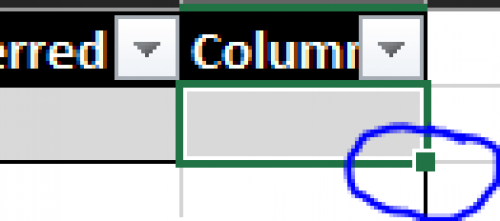
Depending on how many rows you have, this may take a while for Excel to create the formula for every row.
Because of this, after you've done this, select any cell on the column and hit CTRL+SPACE to select the entire column that contains the formula. Then hit CTRL+C to copy it, then right-click the column and paste the values of the selection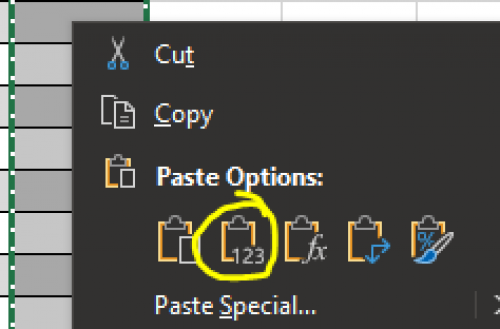
This makes the spreadsheet not have to work as hard when you start sorting rows. Before it'd have to recalculate every formula each time you sort. Now it just contains the values “Duplicate row” or a blank → easy to sort.
At this point, you'll want to sort that formula column from Z → A, which should bring all the “Duplicate row” cells up. You can then delete all of the other rows that were not marked “Duplicate row”. Then sort the “Preferred” row by Z → A, which should bring up all the “Duplicate row”s that are also marked “Yes” for the “Preferred” address. You should delete these rows as well, since these are the addresses you want to keep while you remove all the others that are duplicates of that address.
You'll have to create another formula in the next column:
=COUNTIF(A:A,A2)
- This just counts how many times the Constituent ID appears in the worksheet. Since we already cleaned up the worksheet, this will just be a numerical indicator of how many duplicates you have for each person.Follow the same steps for Copy/Pasting the values back into the column.
Now, an issue would present itself in the form of anyone having a number greater than 1. Even for the addresses that are not preferred, you still want to keep the first instance of each address. To get around this, we'll use another formula which is a modification of the first one we used.
=IF(COUNTIFS($A$2:$A2, $A2, $C$2:$C2, $C2)>1, "", "First Instance")
So what this does is it gradually expands the search criteria once you double-click that box and drop the formula down. Notice I don't include the last row of the spreadsheet whereas last time I did. Every time the formula drops down, it will include that row plus any of the previous rows, meaning the first instance of an address occurring will not have a count greater than 1, whereas the next instance of an address will also include the first instance, and will have a count greater than 1.
Follow the same steps for Copy/Pasting the values back into the column.
You want to delete any rows that are greater than 1 from the 2nd formula AND have the text “First Instance” from the 3rd formula.
At this point you should have a list of every duplicate address that is ready to be removed from the database, since you've taken out all of the first instances and preferred addresses.
I would scan through the list and bring some random people up in RE just to verify that you've done everything correct and you'll be deleting only the duplicate addresses.
3.) Before we use the Import tool, we need to create a new Address Type
Go into Config → Tables → Address Types and create a new type that signifies you wish to delete these addresses. I personally just created one that says “DELETE”.
4.) Use the Import tool to “update” all of the dupe addresses with the “DELETE” address type
-Create a new spreadsheet and save it as a “.csv” file.-Copy/paste the columns for ID and Import ID from your address spreadsheet into this one.
-Rename the "ID" column header to “ConsID” and the “Import ID” header to “AddrImpID”
-Add a third header in column C called "AddrType"
-Fill all the cells in column C down to your last row in A/B with the new address type, such as “DELETE”
-Save the file
-Should look like this when you're done:
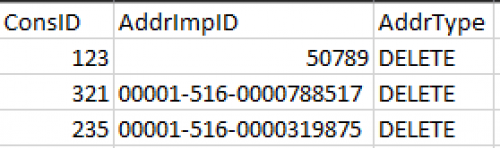
-Go into Admin → Import → Constituent → Constituent Address → create a new import-Select “Update existing records” + “Validate data only” (for now) → “Use the Constituent ID”, and use the file you just created as the Import file
-You'll need to change this to find your .csv file:
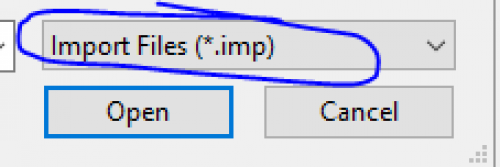
-On the 3rd tab “Fields”, if any of the fields are blank/don't match, you can select each row and manually select the field from the query menu on the left.-On the 4th tab “Summary” you can choose to “Create a control report” if you want to see any failure explanations when it runs.
-Hit “Validate Now” on the bottom right.-If everything goes smoothly and you have no Exceptions, and you believe you're confident with everything you've done up to this point, go back to the 1st tab, uncheck “Validate data only”, then hit “Update Now” on the bottom right.
5.) Use the Alternate Address Deleter to delete the addresses with the new type
-Go to Plug-Ins → Alternate Address Deleter → select the address type you made and hit “Begin”
Let me know if you have specific questions,7 -
@Ellen Callahan
I'm sorry that happened Blackbaud should be mortified.0
 -
2












Categories
- All Categories
- 6 Blackbaud Community Help
- 213 bbcon®
- 1.4K Blackbaud Altru®
- 403 Blackbaud Award Management™ and Blackbaud Stewardship Management™
- 1.1K Blackbaud CRM™ and Blackbaud Internet Solutions™
- 15 donorCentrics®
- 360 Blackbaud eTapestry®
- 2.6K Blackbaud Financial Edge NXT®
- 656 Blackbaud Grantmaking™
- 577 Blackbaud Education Management Solutions for Higher Education
- 3.2K Blackbaud Education Management Solutions for K-12 Schools
- 939 Blackbaud Luminate Online® and Blackbaud TeamRaiser®
- 84 JustGiving® from Blackbaud®
- 6.6K Blackbaud Raiser's Edge NXT®
- 3.7K SKY Developer
- 248 ResearchPoint™
- 119 Blackbaud Tuition Management™
- 165 Organizational Best Practices
- 241 Member Lounge (Just for Fun)
- 34 Blackbaud Community Challenges
- 37 PowerUp Challenges
- 3 (Open) PowerUp Challenge: Grid View Batch
- 3 (Closed) PowerUp Challenge: Chat for Blackbaud AI
- 3 (Closed) PowerUp Challenge: Data Health
- 3 (Closed) Raiser's Edge NXT PowerUp Challenge: Product Update Briefing
- 3 (Closed) Raiser's Edge NXT PowerUp Challenge: Standard Reports+
- 3 (Closed) Raiser's Edge NXT PowerUp Challenge: Email Marketing
- 3 (Closed) Raiser's Edge NXT PowerUp Challenge: Gift Management
- 4 (Closed) Raiser's Edge NXT PowerUp Challenge: Event Management
- 3 (Closed) Raiser's Edge NXT PowerUp Challenge: Home Page
- 4 (Closed) Raiser's Edge NXT PowerUp Challenge: Standard Reports
- 4 (Closed) Raiser's Edge NXT PowerUp Challenge: Query
- 794 Community News
- 2.9K Jobs Board
- 54 Blackbaud SKY® Reporting Announcements
- 47 Blackbaud CRM Higher Ed Product Advisory Group (HE PAG)
- 19 Blackbaud CRM Product Advisory Group (BBCRM PAG)