Gift Attribute Category assignment





I’m trying to create a new Gift Attribute in Raiser's Edge NXT webview to track donations designated for specific equipment.
In Control Panel → Tables, the only option I found was to create a new Donor Table, so I created one called “Specified Equipment.”
However, I’m unable to assign a category to the table. I expected to see an option to categorize it under Gift Attributes, but that option doesn’t appear.
Am I creating this in the wrong place, or is there another step required to assign a category to a newly created table?
Answers
-
I had this same issue last week. I ended up going to DBV and adding the gift attribute there and clicked on [Add New Table] at the very bottom of the Table Name drop down menu. Then I went to WV and added the table values to the newly created table that had no values in it.
0 -
Hi Julie, how did you add this in DBV? Add new table is no longer available for us. What version do you use?
0 -
I added the Gift Attribute in DBV. I put in the name I wanted in the Description. Added Table in the Data Type filed and then when you click in the Table Name column and get the drop down if you scroll to the very bottom of the table list you can click on [Add New Table] and name the table. Then you go to WV under tables and you can add the values that you want in the gift attribute table that you just created.
0 -
We are on NXT and I'm an admin so that may make a difference.
0 -
It's puzzling. I am an admin but none of this options are working. I will create a case. Thank you for your suggestions.
0 -
You are in the wrong area of NXT
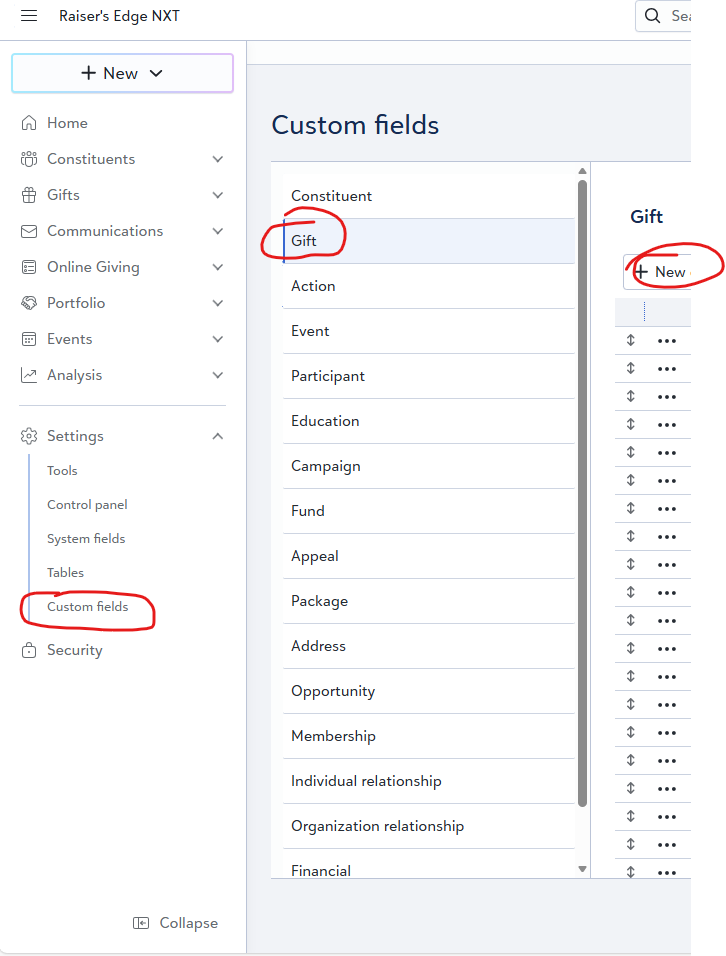
Attribute in DBV = Custom Fields in Webview, terminology change.
2 -
Follow up for everyone that is interested in this: the problem was that I had only created the table but not the custom field. This is the step that I missed. Thus at the gift entry level it could not find the table.
1 -
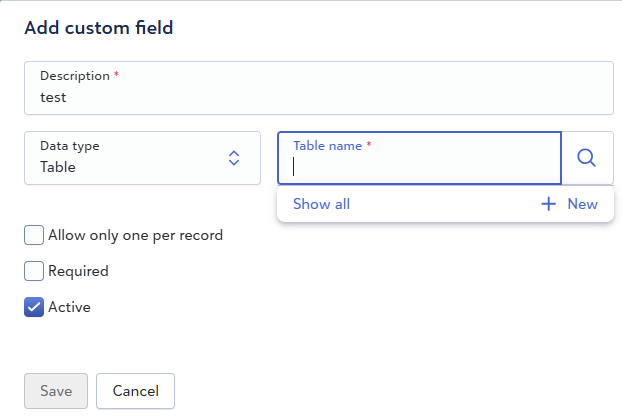
It works similar to db view. Create the custom field and change the data type to table, put your cursor in the Table name field and you will see the +New option:
 0
0








Categories
- All Categories
- 6 Blackbaud Community Help
- 211 bbcon®
- 1.4K Blackbaud Altru®
- 403 Blackbaud Award Management™ and Blackbaud Stewardship Management™
- 1.2K Blackbaud CRM™ and Blackbaud Internet Solutions™
- 15 donorCentrics®
- 360 Blackbaud eTapestry®
- 2.6K Blackbaud Financial Edge NXT®
- 658 Blackbaud Grantmaking™
- 579 Blackbaud Education Management Solutions for Higher Education
- 3.2K Blackbaud Education Management Solutions for K-12 Schools
- 943 Blackbaud Luminate Online® and Blackbaud TeamRaiser®
- 84 JustGiving® from Blackbaud®
- 6.7K Blackbaud Raiser's Edge NXT®
- 3.8K SKY Developer
- 250 ResearchPoint™
- 120 Blackbaud Tuition Management™
- 165 Organizational Best Practices
- 241 Member Lounge (Just for Fun)
- 36 Blackbaud Community Challenges
- 37 PowerUp Challenges
- 3 (Open) PowerUp Challenge: Grid View Batch
- 3 (Closed) PowerUp Challenge: Chat for Blackbaud AI
- 3 (Closed) PowerUp Challenge: Data Health
- 3 (Closed) Raiser's Edge NXT PowerUp Challenge: Product Update Briefing
- 3 (Closed) Raiser's Edge NXT PowerUp Challenge: Standard Reports+
- 3 (Closed) Raiser's Edge NXT PowerUp Challenge: Email Marketing
- 3 (Closed) Raiser's Edge NXT PowerUp Challenge: Gift Management
- 4 (Closed) Raiser's Edge NXT PowerUp Challenge: Event Management
- 3 (Closed) Raiser's Edge NXT PowerUp Challenge: Home Page
- 4 (Closed) Raiser's Edge NXT PowerUp Challenge: Standard Reports
- 4 (Closed) Raiser's Edge NXT PowerUp Challenge: Query
- 798 Community News
- 3K Jobs Board
- 56 Blackbaud SKY® Reporting Announcements
- 47 Blackbaud CRM Higher Ed Product Advisory Group (HE PAG)
- 19 Blackbaud CRM Product Advisory Group (BBCRM PAG)