Raiser's Edge®-ResearchPoint® Integration Tips: Part 2 - Using The Integration

Shelley Weifenbach
Blackbaud Employee




Learn tips and tricks of using the Raiser's Edge®-ResearchPoint® integration from a Strategic Consulant with the Data Intelligence team, formerly Target Analytics. This blog is part 2 of 2 in the series.In “Raiser's Edge®-ResearchPoint® Integration Tips: Part 1 - Configuring the Integration”, we discussed:
Step #1: In ResearchPoint, create the research list.
Don't just use any research list! Create a list with only records linked to RE that have not been synced recently: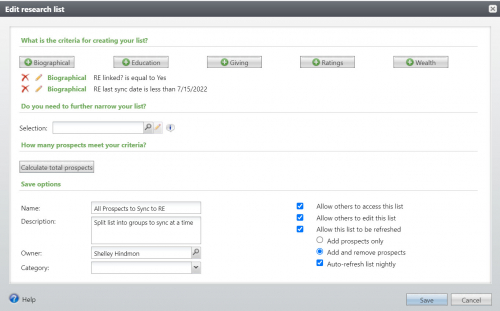
This will allow your research list to be refreshed, removing recently synced records if/when ResearchPoint times out so you don’t have to start syncing the list from the beginning again. Remember to edit the RE Last Sync Date when you want to sync all your records again.
Step #2: Split the research list.
If your research list is less than about 25,000 records, you should be able to skip this step and use my tips in the next step to refresh the list if/when ResearchPoint times out.
Here is a great Knowledgebase article on syncing large amounts of data. Here are a few key highlights:
Step #3: Sync your research list(s).
First, it is important to remember that ResearchPoint must remain open while you sync your records. ResearchPoint has an inactivity timer so make sure that you navigate back to ResearchPoint in your browser every 30-60 minutes to keep it from timing out and stopping the syncing process.
If you split your list, start by syncing the first “subquery” list (e.g. list 1 of 3). When it finishes syncing or ResearchPoint times out, then go to the next list (e.g. list 2 of 3) and start the sync. When you have attempted to sync all the split lists, refresh your original research list (i.e. the one you split the lists from) and continue to split the lists as needed or sync from the main list, depending on how many records remain.
If you did not split your list, return to your research list and choose Refresh to remove recently synced records and begin syncing again. Repeat this process until only the exceptions remain or there are 0 records on the list.
Step #4: Review and manage syncing exceptions from the research list.
Sometimes you will receive exceptions when you sync records. Here are a few of the most common exceptions I come across but search the Knowledgebase or reach out to Support for assistance troubleshooting others.
I hope you found some helpful tips and tricks on the syncing process. Check out the blog series on “Analytics in RE NXT”, starting with The Best Reporting Tool blog post, to learn more about using your newly synced data in Raiser’s Edge!
If you have other tips and tricks to share on the syncing process, please share them in the Comments below.
- Linking your Raiser’s Edge®/Blackbaud Raiser's Edge NXT® and ResearchPoint® Databases
- Entering login credentials to ResearchPoint to be fully integrated
- Configuring which fields sync to and from Raiser’s Edge and ResearchPoint
- Performing a test sync to confirm your settings.
Step #1: In ResearchPoint, create the research list.
Don't just use any research list! Create a list with only records linked to RE that have not been synced recently:
- Create a new research list from Prospects > Research Lists section > Add new.
- Add the filters of RE Linked? = Yes and RE Last Sync Date before [today’s date] from the Biographical filters.
- Save with a descriptive name, e.g. “All Prospects to Sync to RE”, and check the box to allow the list to be refreshed by adding and removing prospects and refreshing nightly.

This will allow your research list to be refreshed, removing recently synced records if/when ResearchPoint times out so you don’t have to start syncing the list from the beginning again. Remember to edit the RE Last Sync Date when you want to sync all your records again.
Step #2: Split the research list.
If your research list is less than about 25,000 records, you should be able to skip this step and use my tips in the next step to refresh the list if/when ResearchPoint times out.
Here is a great Knowledgebase article on syncing large amounts of data. Here are a few key highlights:
- If your research list created in step 1 is over 100,000 records, you will have to split the list before you can sync the list.
- If you have less than 100,000 records on the list, you do not have to split the list, but you may still want to for improved processing. The integration will sync approximately 2,500 records per hour.
- Keep the ResearchPoint window open and active so it won't timeout.
Step #3: Sync your research list(s).
First, it is important to remember that ResearchPoint must remain open while you sync your records. ResearchPoint has an inactivity timer so make sure that you navigate back to ResearchPoint in your browser every 30-60 minutes to keep it from timing out and stopping the syncing process.
If you split your list, start by syncing the first “subquery” list (e.g. list 1 of 3). When it finishes syncing or ResearchPoint times out, then go to the next list (e.g. list 2 of 3) and start the sync. When you have attempted to sync all the split lists, refresh your original research list (i.e. the one you split the lists from) and continue to split the lists as needed or sync from the main list, depending on how many records remain.
If you did not split your list, return to your research list and choose Refresh to remove recently synced records and begin syncing again. Repeat this process until only the exceptions remain or there are 0 records on the list.
Step #4: Review and manage syncing exceptions from the research list.
Sometimes you will receive exceptions when you sync records. Here are a few of the most common exceptions I come across but search the Knowledgebase or reach out to Support for assistance troubleshooting others.
- “The specified constituent could not be found. The constituent has either been deleted or you do not have rights to view it.” Likely the RE constituent record was deleted or merged with another record. You may attempt to unlink the record from the ResearchPoint prospect record and re-link to the appropriate record.
- “502: Bad Gateway” or “The underlying connection was closed: an unexpected error occurred on a receive”
- "Error in save: This record is currently open by [user] on [machine]"
- “Error: Invalid Code Table Entry: Description”
- “Data could not be saved. The UPDATE statement conflicted with the CHECK constraint 'CK_PHONE_PRIMARYCOUNT'…”
- “Data could not be saved. Cannot insert the value NULL into column ‘DECEASEDDATE’.”
- “Invalid Amount: This record contains a negative currency which cannot be synced to RE”
I hope you found some helpful tips and tricks on the syncing process. Check out the blog series on “Analytics in RE NXT”, starting with The Best Reporting Tool blog post, to learn more about using your newly synced data in Raiser’s Edge!
If you have other tips and tricks to share on the syncing process, please share them in the Comments below.
0
Categories
- All Categories
- New K-12 Community Home (TEST)
- New Higher Education Home Page (Test)
- New Impact Edge Community TEST
- New YourCause Community TEST
- New SKY Community TEST
- New Grantmaking TEST Community
- New Altru Test Community
- New bbcon Community - TEST
- 12 Blackbaud Agents for Good™
- New Raiser's Edge NXT Community
- 8 Blackbaud Community Help
- 222 bbcon®
- 1.4K Blackbaud Altru®
- 411 Blackbaud Award Management™ and Blackbaud Stewardship Management™
- 1.2K Blackbaud CRM™ and Blackbaud Internet Solutions™
- 16 donorCentrics®
- 361 Blackbaud eTapestry®
- 2.7K Blackbaud Financial Edge NXT®
- 688 Blackbaud Grantmaking™
- 604 Blackbaud Education Management Solutions for Higher Education
- 3.3K Blackbaud Education Management Solutions for K-12 Schools
- 954 Blackbaud Luminate Online® and Blackbaud TeamRaiser®
- 85 JustGiving® from Blackbaud®
- 7.1K Blackbaud Raiser's Edge NXT®
- 4K SKY Developer
- 258 ResearchPoint™
- 123 Blackbaud Tuition Management™
- 165 Organizational Best Practices
- 249 Member Lounge (Just for Fun)
- 40 Blackbaud Community Challenges
- 37 PowerUp Challenges
- 3 (Closed) PowerUp Challenge: Grid View Batch
- 3 (Closed) PowerUp Challenge: Chat for Blackbaud AI
- 3 (Closed) PowerUp Challenge: Data Health
- 3 (Closed) Raiser's Edge NXT PowerUp Challenge: Product Update Briefing
- 3 (Closed) Raiser's Edge NXT PowerUp Challenge: Standard Reports+
- 3 (Closed) Raiser's Edge NXT PowerUp Challenge: Email Marketing
- 3 (Closed) Raiser's Edge NXT PowerUp Challenge: Gift Management
- 4 (Closed) Raiser's Edge NXT PowerUp Challenge: Event Management
- 3 (Closed) Raiser's Edge NXT PowerUp Challenge: Home Page
- 4 (Closed) Raiser's Edge NXT PowerUp Challenge: Standard Reports
- 4 (Closed) Raiser's Edge NXT PowerUp Challenge: Query
- 829 Community News
- 3.1K Jobs Board
- 57 Blackbaud SKY® Reporting Announcements
- 47 Blackbaud CRM Higher Ed Product Advisory Group (HE PAG)
- 19 Blackbaud CRM Product Advisory Group (BBCRM PAG)