Looking for instructions for teachers' gradebook set-up
Brian Gray
Community All-Star
My school will begin using the LMS for the first time this year. We built the grade plans, letter grade translations, etc, etc with our implementation consultant several months ago.
One thing that escaped my notice at that time was the details of how a teacher will enter fall term exam grades (if that class has an exam). I am looking for instructions that people with more experience than I have give to their teachers for setting up the gradebook to accommodate:
If you have a "cookbook" document you give to your teachers, would you please share it with me?

One thing that escaped my notice at that time was the details of how a teacher will enter fall term exam grades (if that class has an exam). I am looking for instructions that people with more experience than I have give to their teachers for setting up the gradebook to accommodate:
- fall marking period grade (average of assignments given from August to mid-November - the part I understand)
- fall exam grade
- fall term grade (80% marking period and 20% exam)
If you have a "cookbook" document you give to your teachers, would you please share it with me?

1
Comments
-
Brian -
For calculating a marking period grade, teachers need to go into their gradebooks and click on Edit Setup. They have the choice of calculating using either Percentages, Total Points, or Total Points with Weight. If they are not sure, you can actually change this setting along the way and see the impact each calculation has on a student's average. I require our faculty to set up their gradebooks for the year. The Grading Manager can set the default settings for teachers via Academics > Grades > Grading Setup > Default. One day I am hoping we will be able to select which calculation methods are available for them to use as well.
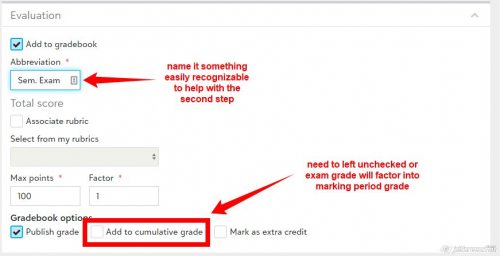
The exam grade - this can be done two different ways. The first way is to have the exam grade entered in its own column when the teacher is calculating the term grade. This is the easiest; however, once the grading plan closes, they do not have an easy way of seeing all exam grades in a section. So long as the exam is printed on the report card, it is easy to find each individual student's. The other way is more cumbersome and has to be managed by teachers individually. The teacher needs to add the Semester Exam to the gradebook. Be sure the Semester Exam is not is not Add to Cum. Grade (or it will factor in the marking period grade as well). When the teacher wants to enter the Semester Exam in the calculation screen, they click the Calculate button - a pop up screen appears that gives them the option of how to generate the grade. Using the Adtl. Grade: option, the teacher selects the Exam assignment from the gradebook and sets the % to 100%.
Gradebook exam column:
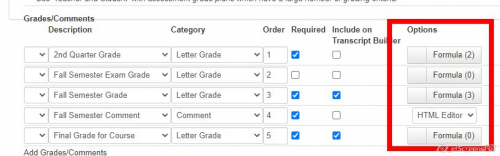
Grade calculation column:
To calculate the term grade, it is easiest if the Grading Manager sets up the formulas for the teachers. It insures the calculation are done properly and are consistent. You set up the formulas via Academics > Grades > Grading setup > set filter as needed. For the Grade Plan you wan tot add the formula to, click View. Then edit the Grade Plan Details. For each Grade in the grade plan you will see there is a formula "button"
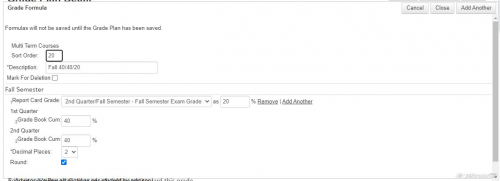
Click on the formula button for the grade for which you want to set a formula. Depending on the courses associated with the Grade Plan, you may have the option of setting up formulas for single term course and multi term courses. Select whichever is appropriate. You can set up multiple formulas if you want to give your teachers a choice on how the grade is calculated. We have two options: 40/40/20 = each quarter counts as 40% of the semester grade and the exam counts as 20% or 45/45/10 = each quarter counts as 45% of the semester grade and the exam counts for 10%. You have to give each formula a name. Whatever you enter here, the teachers see when the click the calculate button in Grade Plan so make the names descriptive.
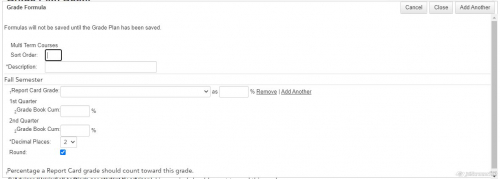
Then construct your formula in this screen:
You can set up the calculation to pull from Report Card Grades or directly from the gradebook. Word of warning: if you pull from report card grades and are translating grades on output, the calculation will use whatever numerical grade is assigned to that letter grade in your translation table. This may result in calculations that are not as accurate as pulling directly from a gradebook. This is how our formula looks for 40/40/20 semester grade calculations:
I am not thrilled we need to pull the exam grade in via the report card, but you cannot set a formula to pull a grade directly from the gradebook and I do not want to set up the exam as its own marking period.
We don't have a specific tutorial set up for the teachers. The gradebook can be so finicky, I prefer they come to me directly with questions so I know it is done properly. This takes more time, but I think it is worth it.
Hope this helps.
Scott
6 -
Scott - Thanks for your detailed response. I appreciate it.
1
Categories
- All Categories
- 6 Blackbaud Community Help
- 211 bbcon®
- 1.4K Blackbaud Altru®
- 396 Blackbaud Award Management™ and Blackbaud Stewardship Management™
- 1.1K Blackbaud CRM™ and Blackbaud Internet Solutions™
- 15 donorCentrics®
- 360 Blackbaud eTapestry®
- 2.5K Blackbaud Financial Edge NXT®
- 649 Blackbaud Grantmaking™
- 567 Blackbaud Education Management Solutions for Higher Education
- 3.2K Blackbaud Education Management Solutions for K-12 Schools
- 937 Blackbaud Luminate Online® and Blackbaud TeamRaiser®
- 84 JustGiving® from Blackbaud®
- 6.5K Blackbaud Raiser's Edge NXT®
- 3.7K SKY Developer
- 247 ResearchPoint™
- 119 Blackbaud Tuition Management™
- 165 Organizational Best Practices
- 239 The Tap (Just for Fun)
- 34 Blackbaud Community Challenges
- 31 PowerUp Challenges
- 3 (Open) PowerUp Challenge: Data Health
- 3 (Closed) Raiser's Edge NXT PowerUp Challenge: Product Update Briefing
- 3 (Closed) Raiser's Edge NXT PowerUp Challenge: Standard Reports+
- 3 (Closed) Raiser's Edge NXT PowerUp Challenge: Email Marketing
- 3 (Closed) Raiser's Edge NXT PowerUp Challenge: Gift Management
- 4 (Closed) Raiser's Edge NXT PowerUp Challenge: Event Management
- 3 (Closed) Raiser's Edge NXT PowerUp Challenge: Home Page
- 4 (Closed) Raiser's Edge NXT PowerUp Challenge: Standard Reports
- 4 (Closed) Raiser's Edge NXT PowerUp Challenge: Query
- 785 Community News
- 2.9K Jobs Board
- 53 Blackbaud SKY® Reporting Announcements
- 47 Blackbaud CRM Higher Ed Product Advisory Group (HE PAG)
- 19 Blackbaud CRM Product Advisory Group (BBCRM PAG)