Looking for a way to upload files to student records





I need a way to upload records to a student's file. I am not finding the Files and Folders option very useful because I can only use it once per student. I need to be able to upload documents that can be seen by the student and/or families, such as when they send proof of enrollment in an outside course. I also need to be able to attach things to records such as custody documents that can only be seen internally and highly restricted.
What is everyone else doing with these sorts of files?
Comments
-
@Jennifer Miller I'm guessing the User Files is indeed the right choice, but you may need to use a slightly altered process to get them there. Bulk Upload will work well for multiple users or just one student (build your CSV file once for all students and then upload only the student(s) you need). The process change will be creating file slots for items - you'll want to create a new slot every time you do an upload unless you know there isn't a duplicate. You can name them by date (e.g. 2024-09 Update) or just make them sequential. Or give them the specific name of what they are (e.g. Custody Agreement / Outside Enrollment Fall 2024). I think the key will be just how you organize the files and make as many slots as needed to hold that information, then you aren't overwriting the existing file with your new one.
1 -
@David Gillespie
Thank you for this. I downloaded the sample template and all is has is the user name and the file name. Is the file name where I want to identify exactly what the document is, such as 'custody agreement, transfer records, email correspondance, etc? How do I tell BB where that file is located to find and attach it?Next, I went into the student Files and Folders and selected the .csv I created, then in Step 3 I chose the folder and file, but did not go ahead and validate because it does not seem I have indicated anywhere the actual file to be attached.
It seems like I need to do more with the .csv? Are there really only 2 columns?
I appreciate any insight you might be able to provide.
0 -
@Jennifer Miller Yes - it's a two-step process. First, you go to Bulk Upload > Manage User Files to actually CREATE the file placeholder you want the user to see. That's where you would give it a longer name. Then you use the CSV to upload the documents - each one needs a unique name that will match to a specific user. For example, we create a generic CSV upload file that will work for any batch of PDFs and re-use it all year. Here are the first few lines:
user_id filename 6588336 24ABRLAU.pdf 7831551 27AKRLEE.pdf 6588337 24ALALAY.pdf 5513297 25ALIANE.pdf 3867431 26ALLMAR.pdf 6588338 24ANTNIC.pdf That means that anytime I want to upload a set of PDFs files for our students (like their comments that are written in another system), I just name the files according to their email ID (the filename) and then those files get attached to those user IDs. I could use this same file even if I were only uploading a single document for one user - the system will warn you that files are missing for everyone else, but it will still process.
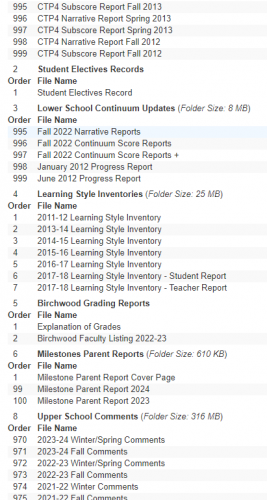
What the file is actually called on the student's / parent's screen is determined in that “Manage User Files” area. You can create separate categories and many files in each. The filename only appears on a user's screen if they have a file uploaded for that category so you don't have to worry about cluttering everyone else's lists for nothing.
Here are examples of what we've used it for:
 2
2 -
@David Gillespie
Thanks, David.One of the things I am struggling with is that I can't see the name of the actual file that was uploaded. It only shows the file name and subfolder. I end up having to download each one to try to find the specific document I'm looking for.
Maybe there is a better place to put things like when we receive an email from a caregiver and we want to keep track of it.
Any suggestions for how I might adjust my thinking and processes to better organize this information?
0 -
@Jennifer Miller Yes, you are right - it standardizes the name of the file for everyone. You would have to create differently named files in the upload process to manage that. Another alternative is to store the files themselves in another place (Google Drive, sharable cloud space, etc.) and then upload to Blackbaud a simple document with just a link to that folder. We do that for our middle school “credit worksheets” - the upload to Blackbaud is a PDF with one link that takes them to the Google Drive folder with the annual documents.
1



Categories
- All Categories
- New YourCause Community TEST
- New SKY Community TEST
- New Grantmaking TEST Community
- New Altru Test Community
- New bbcon Community - TEST
- 12 Blackbaud Agents for Good™
- New Raiser's Edge NXT Community
- 7 Blackbaud Community Help
- 218 bbcon®
- 1.4K Blackbaud Altru®
- 409 Blackbaud Award Management™ and Blackbaud Stewardship Management™
- 1.2K Blackbaud CRM™ and Blackbaud Internet Solutions™
- 16 donorCentrics®
- 361 Blackbaud eTapestry®
- 2.7K Blackbaud Financial Edge NXT®
- 681 Blackbaud Grantmaking™
- 599 Blackbaud Education Management Solutions for Higher Education
- 3.3K Blackbaud Education Management Solutions for K-12 Schools
- 952 Blackbaud Luminate Online® and Blackbaud TeamRaiser®
- 85 JustGiving® from Blackbaud®
- 7K Blackbaud Raiser's Edge NXT®
- 3.9K SKY Developer
- 257 ResearchPoint™
- 123 Blackbaud Tuition Management™
- 165 Organizational Best Practices
- 247 Member Lounge (Just for Fun)
- 40 Blackbaud Community Challenges
- 37 PowerUp Challenges
- 3 (Closed) PowerUp Challenge: Grid View Batch
- 3 (Closed) PowerUp Challenge: Chat for Blackbaud AI
- 3 (Closed) PowerUp Challenge: Data Health
- 3 (Closed) Raiser's Edge NXT PowerUp Challenge: Product Update Briefing
- 3 (Closed) Raiser's Edge NXT PowerUp Challenge: Standard Reports+
- 3 (Closed) Raiser's Edge NXT PowerUp Challenge: Email Marketing
- 3 (Closed) Raiser's Edge NXT PowerUp Challenge: Gift Management
- 4 (Closed) Raiser's Edge NXT PowerUp Challenge: Event Management
- 3 (Closed) Raiser's Edge NXT PowerUp Challenge: Home Page
- 4 (Closed) Raiser's Edge NXT PowerUp Challenge: Standard Reports
- 4 (Closed) Raiser's Edge NXT PowerUp Challenge: Query
- 822 Community News
- 3.1K Jobs Board
- 57 Blackbaud SKY® Reporting Announcements
- 47 Blackbaud CRM Higher Ed Product Advisory Group (HE PAG)
- 19 Blackbaud CRM Product Advisory Group (BBCRM PAG)