Blackbaud’s Education Management Solutions: What’s New For July 18, 2023

Derek Nichols
Blackbaud Employee




Here are the latest changes, updates, and new features for the Education management products for July 18, 2023.
In Back to School Resources, teachers will find curated help content to assist them as they begin a new school year and Frequently Asked Questions where we’ve highlighted commonly used Knowledgebase solutions. An Additional Links section also features more teacher-related content and a What's New for Faculty so they can stay informed on feature updates pertinent to their role.
These new resources focus exclusively on faculty tasks and administrative help topics are not accessible in the navigation.
In Academics > Grades > Grade calculations, completed calculations display as Processed.
The list can be exported, a filter can be used to change the data being displayed, and columns can be added or removed as needed. Select Edit and then switch the drop down to Activities to view and add new ones as needed. Please note that this change has also been applied to Extracurricular as well.
Process history can be accessed from the following locations: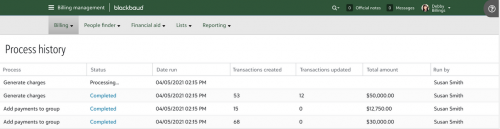
In Core, Security, Roles, there is a new tab called Tasks. This shows a searchable list with columns of information for:
The Parent/Student and Admin view now displays the status of the school form for other recipients. The Student Checklist Step is only completed once all recipients have completed their requirements, whether it be submitting or even declining the School Form. For example, one parent will see a message indicating the form is missing a required signature from the other parent on a school form, medical form or contract step. Signed and accepted displays if the step was signed and accepted by the logged in parent or Declined if the logged in parent selected that option. These updated messages replace the old Fill Out and Continue buttons if the form associated with the step has been signed and accepted or declined.
Finally, step labels have been further updated to clarify the Due date (if any) associated with a step, showing the current status and also the specific due date.
Administrators now see a status indicator and a popover icon displaying if there are any missing signature requirements for Checklist Steps that are associated with a School Form, Medical Form, or Contract. This list shows the signatures and who’s acceptance of the form are required in order for it to be marked complete.
To manage your community subscriptions:
Academics
New resources for faculty
With this release, we've added a Related links tile to the Faculty - My Day page with convenient access to Faculty Resources and the newly added Back to School Resources page.In Back to School Resources, teachers will find curated help content to assist them as they begin a new school year and Frequently Asked Questions where we’ve highlighted commonly used Knowledgebase solutions. An Additional Links section also features more teacher-related content and a What's New for Faculty so they can stay informed on feature updates pertinent to their role.
These new resources focus exclusively on faculty tasks and administrative help topics are not accessible in the navigation.
Attendance filter
A new filter called As of Today/Time is available with Student Attendance Statuses which display the attendance of a student at the exact moment of time. If a date selected is in a previous academic year, students who were enrolled at that time continue to display as expected. You can find this under the Find Me Now tile on the Academics Homepage.Export grade calculation results
Once a grade calculation has been processed, Grading Managers can now export the results to a .CSV file.In Academics > Grades > Grade calculations, completed calculations display as Processed.
- Select the Grade average link next to a calculation to view the results.
- Select Export to csv to download a spreadsheet of the results.
Student Enrollment Activities
We've added a new Student enrollment area under Activities, allowing you to manage enrollment values in a list style format. From Scheduling and then Requests and Schedules, switch to Activities to see the new Student Enrollment area which shows things like the student name, grade level, and advisor.The list can be exported, a filter can be used to change the data being displayed, and columns can be added or removed as needed. Select Edit and then switch the drop down to Activities to view and add new ones as needed. Please note that this change has also been applied to Extracurricular as well.
Billing management
View the results of payments added to a group
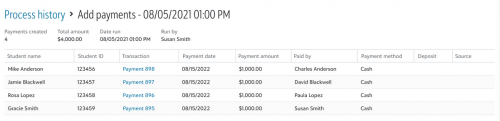
Billing clerks can now review a report of when payments are added using the Add payments to group; reports provide a complete list of all students and their related payment details that were part of the run, providing an additional audit trail for tracking payment processes. Each report is stored in and accessed from Process history.Process history can be accessed from the following locations:
- By selecting View previous run history on the Add payments to group window.
- From a notification that appears right after adding payments to a group.

On the Process history page, select runs with a Status of Completed to delve into the results.
To get started, navigate to a student billing profile, and under Activity, select an enrollment deposit. On the record page, select More actions… followed by View change history.

Audit log added to Enrollment deposit records
We’ve added an audit log for enrollment deposits, enabling Billing clerks to identify changes throughout the deposits’ lifecycle. The log contains examples of when the enrollment deposit was created, updated, and deleted and by whom.To get started, navigate to a student billing profile, and under Activity, select an enrollment deposit. On the record page, select More actions… followed by View change history.
Payments processed by Blackbaud Merchant Services (BBMS) can no longer be deleted
The Delete option for payments processed by BBMS was removed.Preferred name added to Work with transactions heading
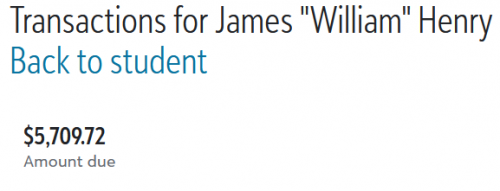
The Work with transactions page now incorporates the student’s preferred name in the heading. For example, if a student’s full name is James William Henry, but the student goes by William, the name appears as James “William” Henry on the page, mirroring the billing profile heading format.
Core
Profile publish access – prevent users from removing too much directory information
Platform managers use Core, Security, Profile access, Profile publish access to configure which profile data each role can publish for other roles to view. Now, platform managers can configure these settings to disable the option called Include my name, but do not include any other information about me. When enabled, this option appears to users in their Account settings, Privacy settings. By disabling this option for a role, such as for students, platform managers prevent those users from removing their information from the school’s directory.Blackbaud ID – View a user’s authentication method
When a platform manager views a user’s profile in Core, the Access tab now shows additional information to help the platform manager assist users who need to reset their passwords. Under the user’s Login information, it now indicates whether the user logins in with via- Single Sign On (SSO),
- Sign in with Google,
- Sign in with Apple,
- or a Username (email address) and Password.
- N/A - Because of their authentication type, the user is not required to use our MFA.
- Enabled – The user is not required to use our MFA but has chosen to turn it on.
- Disabled – The user is not required to use our MFA and does not have it on.
- Required—The user has at least one security role that is required to use our MFA.
Roles and tasks – early adopter program (EAP)
Schools active in the EAP for the new user experience for managing roles and tasks will notice additional information to help platform managers determine which users have access to a specific security task.In Core, Security, Roles, there is a new tab called Tasks. This shows a searchable list with columns of information for:
- Domain
- Task name
- Parent task (if applicable)
- Task ID
- Task description
- Roles with task enabled
- Roles with task disabled (but which could be edited to enable it)
- Remember, clones can only have tasks that the original role also had enabled. Clones can only have access equal to or less than the original role.
- On the task’s row, select (…) to view more options and then select Show users. Select a user name from the list to go to the user’s profile in Core. You can then use the Access tab on their profile to update their role membership.
- Alternatively, on the task’s row, select a role from the columns called Roles with task enabled or Roles with task disabled. Then select Members.
- Next, select +Add to add additional users to the role.
- Or find a member in list, select (…) on the user’s row to view more options, and then select Remove to remove the user from the security role.
- Tip: If the user has multiple roles that have that task enabled, remember to also remove the user from those roles if you want to remove the user’s access to the task.
Enrollment management
Student checklist updates
With this release, we've made a number of updates to Student Checklist. First, we've added the ability to decline a School Form or Medical Form (if enabled) right from the Student Checklist. A warning confirmation message appears when Decline is selected to prevent an accidental click. Admissions managers can also assign a student checklist right from the student's record as well. If needed, a search option or filter can be used for selecting the correct checklist.The Parent/Student and Admin view now displays the status of the school form for other recipients. The Student Checklist Step is only completed once all recipients have completed their requirements, whether it be submitting or even declining the School Form. For example, one parent will see a message indicating the form is missing a required signature from the other parent on a school form, medical form or contract step. Signed and accepted displays if the step was signed and accepted by the logged in parent or Declined if the logged in parent selected that option. These updated messages replace the old Fill Out and Continue buttons if the form associated with the step has been signed and accepted or declined.
Finally, step labels have been further updated to clarify the Due date (if any) associated with a step, showing the current status and also the specific due date.
Administrators now see a status indicator and a popover icon displaying if there are any missing signature requirements for Checklist Steps that are associated with a School Form, Medical Form, or Contract. This list shows the signatures and who’s acceptance of the form are required in order for it to be marked complete.
API and Integrations
School API and OneRoster API For information about recently added endpoints and other updates, view the School API and OneRoster API changelog.Subscribe to “What’s New”
To receive email notifications when the What’s new update appears, make sure to subscribe to the K12 community’s blog by logging into the community site and selecting the Subscribe button.To manage your community subscriptions:
- Log into the community and locate your name and profile picture in the upper right corner.
- Select the drop-down arrow and select My Account.
- From the My Account page, select the Subscriptions tab and scroll down to the Blogs section.
- Locate Blackbaud K-12 Education solutions Blog. If you want to be notified as soon as the What’s new content goes live on the community, select the Instant option. You can also opt for Daily and Weekly notifications.
- Scroll to the end of the page and select Save changes.
What’s Recent
Missed any of our weekly releases? You can catch up on everything in our Month in Review blog posts, which cover every feature and update Education management releases each month.1
Categories
- All Categories
- New K-12 Community Home (TEST)
- New Higher Education Home Page (Test)
- New Impact Edge Community TEST
- New YourCause Community TEST
- New SKY Community TEST
- New Grantmaking TEST Community
- New Altru Test Community
- New bbcon Community - TEST
- 12 Blackbaud Agents for Good™
- New Raiser's Edge NXT Community
- 8 Blackbaud Community Help
- 222 bbcon®
- 1.4K Blackbaud Altru®
- 410 Blackbaud Award Management™ and Blackbaud Stewardship Management™
- 1.2K Blackbaud CRM™ and Blackbaud Internet Solutions™
- 16 donorCentrics®
- 361 Blackbaud eTapestry®
- 2.7K Blackbaud Financial Edge NXT®
- 687 Blackbaud Grantmaking™
- 604 Blackbaud Education Management Solutions for Higher Education
- 3.3K Blackbaud Education Management Solutions for K-12 Schools
- 954 Blackbaud Luminate Online® and Blackbaud TeamRaiser®
- 85 JustGiving® from Blackbaud®
- 7K Blackbaud Raiser's Edge NXT®
- 4K SKY Developer
- 258 ResearchPoint™
- 123 Blackbaud Tuition Management™
- 165 Organizational Best Practices
- 248 Member Lounge (Just for Fun)
- 40 Blackbaud Community Challenges
- 37 PowerUp Challenges
- 3 (Closed) PowerUp Challenge: Grid View Batch
- 3 (Closed) PowerUp Challenge: Chat for Blackbaud AI
- 3 (Closed) PowerUp Challenge: Data Health
- 3 (Closed) Raiser's Edge NXT PowerUp Challenge: Product Update Briefing
- 3 (Closed) Raiser's Edge NXT PowerUp Challenge: Standard Reports+
- 3 (Closed) Raiser's Edge NXT PowerUp Challenge: Email Marketing
- 3 (Closed) Raiser's Edge NXT PowerUp Challenge: Gift Management
- 4 (Closed) Raiser's Edge NXT PowerUp Challenge: Event Management
- 3 (Closed) Raiser's Edge NXT PowerUp Challenge: Home Page
- 4 (Closed) Raiser's Edge NXT PowerUp Challenge: Standard Reports
- 4 (Closed) Raiser's Edge NXT PowerUp Challenge: Query
- 829 Community News
- 3.1K Jobs Board
- 57 Blackbaud SKY® Reporting Announcements
- 47 Blackbaud CRM Higher Ed Product Advisory Group (HE PAG)
- 19 Blackbaud CRM Product Advisory Group (BBCRM PAG)