ICYMI: Creating An Online Exam

Derek Nichols
Blackbaud Employee




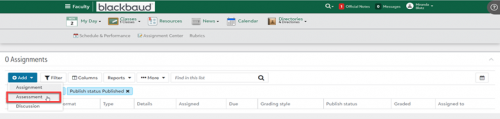
Similar to last week, we're providing a recap on a post we made back in November regarding the creation of a midterm or final exam using the Blackbaud Education management products. Enjoy!With the end of term on approach, educators will be working on setting up their final exams for their students in the next few weeks and they may need or want an exam students can take online. Online exams can be easily created using Assessments. Assessments can be added from the Assignment Center or Section assignments by selecting Add then Assessment:
Once Assessment is selected, faculty will need to fill out the Details, Evaluation, and Publishing Options for the Assessment. There are some unique options that are available when adding an Assessment that are not available for other assignment types, including:
There are three sections to the assessment.
Introduction
The introduction allows teachers to create a message for students at the beginning of the assessment. This could be used to provide instructions for students or briefly cover what will be included in the exam. There is a 2000-character limit on the introduction, but faculty can use the full WYSIWYG editor options. Students will also see the Time limit for the Assessment in the Introduction.
Questions
Faculty can add questions to their assessments under Questions. From the list on the left, drag the question type to the Assessment to add a question.
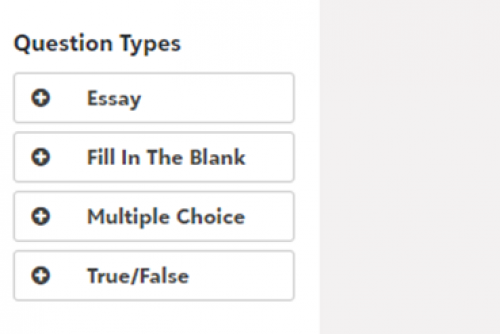
Faculty should use Add Media to add audio files, links, embeds, and/or photos. There are four different question types that can be added to their assessments:
Essay:
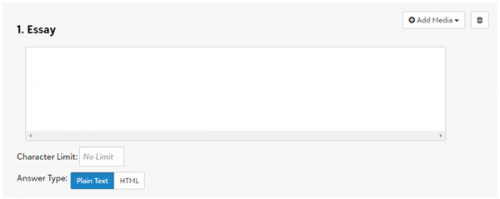
They can use the Essay question type for open-ended questions. Faculty can then add a character limit and allow students to use HTML in their answers.
Fill in the blank:
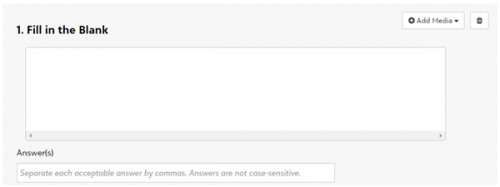
Faculty can use Fill in the blank questions if they are looking for a specific answer. Then they can provide a statement and add the correct answer in the available Answer text box. Students will need to provide the exact answer to receive credit. Educators can add multiple acceptable answers by using a comma between potential responses.
Multiple choice:
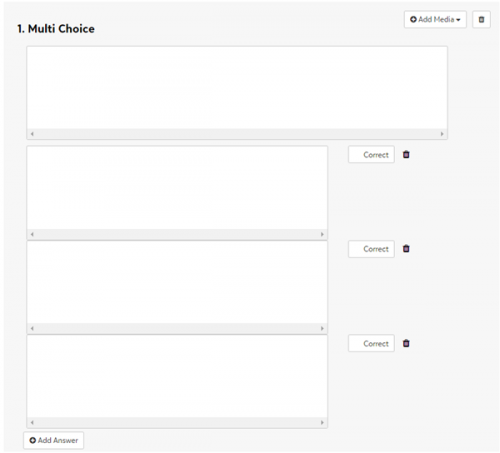
Educators can add a question and provide multiple answer options. By default, teachers can add three answers, but faculty can add additional options using Add answer. They'll need to select Correct for any answer that is considered true. There can be multiple correct answers.
True/False:
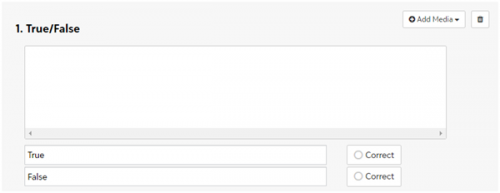
Faculty can provide a statement and students can select either True or False in response. True and False can be changed to alternate values if needed. Educators will need to select Correct for the correct answer.
Results
The last section to setup for an Assessment is Results. Under Results, you can decide what students should see once they submit their assessment. Educators can select to Allow students to view results page and will then need to decide what information students can see. This can include:

Once Assessment is selected, faculty will need to fill out the Details, Evaluation, and Publishing Options for the Assessment. There are some unique options that are available when adding an Assessment that are not available for other assignment types, including:
- When adding Max points, teachers can select how the points are divided. They can select to divide the points equally among the questions or they can select to assign specific points for each question.
- They can add a Time to complete the assessment and can select to Adjust individual student times if some students need additional time for IEPs or 504s.
- They can allow multiple attempts on the Assessment.
- They can randomize the questions.
- They can allow students to save the assessment for later.

There are three sections to the assessment.
Introduction
The introduction allows teachers to create a message for students at the beginning of the assessment. This could be used to provide instructions for students or briefly cover what will be included in the exam. There is a 2000-character limit on the introduction, but faculty can use the full WYSIWYG editor options. Students will also see the Time limit for the Assessment in the Introduction.
Questions
Faculty can add questions to their assessments under Questions. From the list on the left, drag the question type to the Assessment to add a question.

Faculty should use Add Media to add audio files, links, embeds, and/or photos. There are four different question types that can be added to their assessments:
Essay:

They can use the Essay question type for open-ended questions. Faculty can then add a character limit and allow students to use HTML in their answers.
Fill in the blank:

Faculty can use Fill in the blank questions if they are looking for a specific answer. Then they can provide a statement and add the correct answer in the available Answer text box. Students will need to provide the exact answer to receive credit. Educators can add multiple acceptable answers by using a comma between potential responses.
Multiple choice:

Educators can add a question and provide multiple answer options. By default, teachers can add three answers, but faculty can add additional options using Add answer. They'll need to select Correct for any answer that is considered true. There can be multiple correct answers.
True/False:

Faculty can provide a statement and students can select either True or False in response. True and False can be changed to alternate values if needed. Educators will need to select Correct for the correct answer.
Results
The last section to setup for an Assessment is Results. Under Results, you can decide what students should see once they submit their assessment. Educators can select to Allow students to view results page and will then need to decide what information students can see. This can include:
- Show questions on the results page along with the points earned and the correct answers.
- Show the amount of time used to complete the assessment
- Show take again button if multiple attempts are enabled
- If you are copying and pasting text into the Assessment, make sure to select Paste as plain text. This will strip out any unwanted or troublesome HTML.
- If you are creating an assessment with more than 40 questions, you might want to try splitting the exam up. There can be performance issues with bigger assessments so splitting them up will circumvent these issues.
- Once students start taking the assessment, it can no longer be edited.
0
Categories
- All Categories
- New YourCause Community TEST
- New SKY Community TEST
- New Grantmaking TEST Community
- New Altru Test Community
- New bbcon Community - TEST
- 12 Blackbaud Agents for Good™
- New Raiser's Edge NXT Community
- 7 Blackbaud Community Help
- 218 bbcon®
- 1.4K Blackbaud Altru®
- 409 Blackbaud Award Management™ and Blackbaud Stewardship Management™
- 1.2K Blackbaud CRM™ and Blackbaud Internet Solutions™
- 16 donorCentrics®
- 361 Blackbaud eTapestry®
- 2.7K Blackbaud Financial Edge NXT®
- 680 Blackbaud Grantmaking™
- 598 Blackbaud Education Management Solutions for Higher Education
- 3.3K Blackbaud Education Management Solutions for K-12 Schools
- 952 Blackbaud Luminate Online® and Blackbaud TeamRaiser®
- 85 JustGiving® from Blackbaud®
- 7K Blackbaud Raiser's Edge NXT®
- 3.9K SKY Developer
- 257 ResearchPoint™
- 123 Blackbaud Tuition Management™
- 165 Organizational Best Practices
- 247 Member Lounge (Just for Fun)
- 40 Blackbaud Community Challenges
- 37 PowerUp Challenges
- 3 (Closed) PowerUp Challenge: Grid View Batch
- 3 (Closed) PowerUp Challenge: Chat for Blackbaud AI
- 3 (Closed) PowerUp Challenge: Data Health
- 3 (Closed) Raiser's Edge NXT PowerUp Challenge: Product Update Briefing
- 3 (Closed) Raiser's Edge NXT PowerUp Challenge: Standard Reports+
- 3 (Closed) Raiser's Edge NXT PowerUp Challenge: Email Marketing
- 3 (Closed) Raiser's Edge NXT PowerUp Challenge: Gift Management
- 4 (Closed) Raiser's Edge NXT PowerUp Challenge: Event Management
- 3 (Closed) Raiser's Edge NXT PowerUp Challenge: Home Page
- 4 (Closed) Raiser's Edge NXT PowerUp Challenge: Standard Reports
- 4 (Closed) Raiser's Edge NXT PowerUp Challenge: Query
- 822 Community News
- 3.1K Jobs Board
- 57 Blackbaud SKY® Reporting Announcements
- 47 Blackbaud CRM Higher Ed Product Advisory Group (HE PAG)
- 19 Blackbaud CRM Product Advisory Group (BBCRM PAG)