Security Across The Web View And Database View





To enable people at your organization to use features in Raiser's Edge NXT and help secure sensitive information, admins can set security rights in both the web view and database view. Your access to features and data is secured by both your security group in the database view and your security group or roles in the web view.
To choose which features you access in the web view, admins can set up rights based on security group or roles in Control Panel, Security.
To choose which information you access throughout Raiser's Edge NXT, admins can set your security group's privileges in the database view to: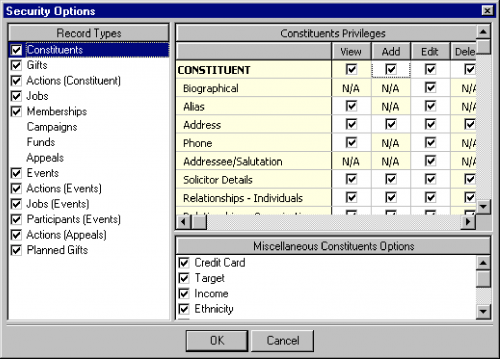 Admins! To manage a security group's access to records and information, open its record from Admin, Security. To choose records or information the group can access, under Group Privileges, select Records and Options, and then, under Record Types, choose which types of records it can access, such as Constituents, Gifts, or Funds.
In the database view, admins can also set your security group's privileges to choose which of the database view features — such as Records, Query, or Code Tables — you can access.
Admins! To manage which features a security group can access in the database view, open its record from Admin, Security. Under Group Privileges, choose which database view features the group can access. For each feature, further define the group's access as necessary, such as to limit the type of information, reports, or batches it can view.
For more information, check out the Security Overview Help.
- Your security group in the database view secures your access to features and information in both the web view and database view.
- Your security group or role in the web view secures your access to web view features, such as Lists or attachments for campaigns, funds, or appeals.
To choose which features you access in the web view, admins can set up rights based on security group or roles in Control Panel, Security.
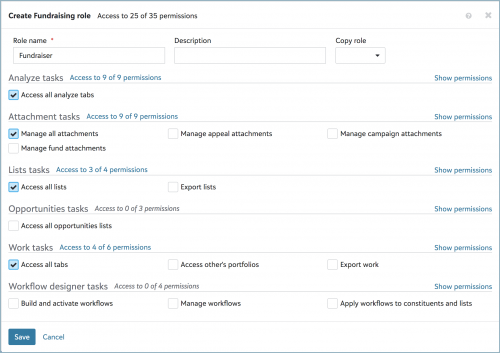 If your organization secures web view features by role, admins choose which web view features — including newer features like Marketing or Reporting — your roles can access. To limit your access to records, information, and database view features, admin also choose which security group in the database view applies to you. For more information, see the Role-based Security Help.
- If your organization secures web view features by security group, admins choose which web view features — such as Lists or Work Center — your group can access, in addition to its privileges set in the database view. For more information, see the Group-based Security Help.

To choose which information you access throughout Raiser's Edge NXT, admins can set your security group's privileges in the database view to:
- Choose which records and information you can view or manage in both the database view and web view, such as on records and lists.
- Limit your access to specific gift or constituent records or information based on selected criteria, such as fund or constituent code.
 Admins! To manage a security group's access to records and information, open its record from Admin, Security. To choose records or information the group can access, under Group Privileges, select Records and Options, and then, under Record Types, choose which types of records it can access, such as Constituents, Gifts, or Funds.
- For each selected record type, under Privileges, choose how much access the group's members should have to information. For example, for Constituents, choose whether the group should only view Address information or also add, edit, and delete it.
- To further secure specific constituents or gifts, such as to protect celebrities or major giving initiatives, restrict or allow the group's access to records based on constituent code or fund. For more information, check out the Record Security Help.
In the database view, admins can also set your security group's privileges to choose which of the database view features — such as Records, Query, or Code Tables — you can access.
Admins! To manage which features a security group can access in the database view, open its record from Admin, Security. Under Group Privileges, choose which database view features the group can access. For each feature, further define the group's access as necessary, such as to limit the type of information, reports, or batches it can view.
For more information, check out the Security Overview Help.
6
Comments
-
Great information!0



Categories
- All Categories
- New YourCause Community TEST
- New SKY Community TEST
- New Grantmaking TEST Community
- New Altru Test Community
- New bbcon Community - TEST
- 12 Blackbaud Agents for Good™
- New Raiser's Edge NXT Community
- 7 Blackbaud Community Help
- 219 bbcon®
- 1.4K Blackbaud Altru®
- 409 Blackbaud Award Management™ and Blackbaud Stewardship Management™
- 1.2K Blackbaud CRM™ and Blackbaud Internet Solutions™
- 16 donorCentrics®
- 361 Blackbaud eTapestry®
- 2.7K Blackbaud Financial Edge NXT®
- 681 Blackbaud Grantmaking™
- 599 Blackbaud Education Management Solutions for Higher Education
- 3.3K Blackbaud Education Management Solutions for K-12 Schools
- 952 Blackbaud Luminate Online® and Blackbaud TeamRaiser®
- 85 JustGiving® from Blackbaud®
- 7K Blackbaud Raiser's Edge NXT®
- 3.9K SKY Developer
- 257 ResearchPoint™
- 123 Blackbaud Tuition Management™
- 165 Organizational Best Practices
- 247 Member Lounge (Just for Fun)
- 40 Blackbaud Community Challenges
- 37 PowerUp Challenges
- 3 (Closed) PowerUp Challenge: Grid View Batch
- 3 (Closed) PowerUp Challenge: Chat for Blackbaud AI
- 3 (Closed) PowerUp Challenge: Data Health
- 3 (Closed) Raiser's Edge NXT PowerUp Challenge: Product Update Briefing
- 3 (Closed) Raiser's Edge NXT PowerUp Challenge: Standard Reports+
- 3 (Closed) Raiser's Edge NXT PowerUp Challenge: Email Marketing
- 3 (Closed) Raiser's Edge NXT PowerUp Challenge: Gift Management
- 4 (Closed) Raiser's Edge NXT PowerUp Challenge: Event Management
- 3 (Closed) Raiser's Edge NXT PowerUp Challenge: Home Page
- 4 (Closed) Raiser's Edge NXT PowerUp Challenge: Standard Reports
- 4 (Closed) Raiser's Edge NXT PowerUp Challenge: Query
- 822 Community News
- 3.1K Jobs Board
- 57 Blackbaud SKY® Reporting Announcements
- 47 Blackbaud CRM Higher Ed Product Advisory Group (HE PAG)
- 19 Blackbaud CRM Product Advisory Group (BBCRM PAG)