Preparing FAWeb for the First Day of School


As teachers and staff head back to school, many preparations take place to ensure a smooth start on the first day. Between setting up rooms and preparing lesson plans, teachers are busy! Below are a few steps that will help make the first few days easier for teachers in FAWeb.
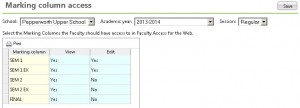
First, ensure the academic year and Marking Columns have been turned on by the FAWeb Supervisor. Under the Setup Menu, we can grant users access to the new year under the Edit academic year access rights for faculty. Next, ensure the marking columns are marked to view under Edit marking column access rights for faulty. If you want teachers to be able to enter grades now, also mark them as editable. If you would rather wait until later in the year to make them editable, you can leave them set to view only. Remember to double check the school, academic year, and session you have selected at the top of that screen to ensure you're setting the rights for the appropriate school and year.
If the grading scale and calculations are setup by the FAWeb Supervisor, we can prep these under the Setup Menu too. If they will be the same as last year, we can copy them using the Copy grading scales and weights option. If you need to edit the grading scales or weights or if you need to create new ones, you can do so using the Define grading scales for faculty to use and Assign marking column weights options.
Once you've made all the changes you need to make for the upcoming year, be sure to clear the server cache under Server Configuration. This allows the changes we made to show for the teachers in FAWeb immediately.
For more detailed information about setting up for next year, check out BB734263.
Even if you've done all of your homework, there's always a chance of a hiccup. If the first day rolls around and you run into issues with gradebooks or students not showing up, take a look at these Knowledgebase solutions for some ideas of what to check.
First, ensure the academic year and Marking Columns have been turned on by the FAWeb Supervisor. Under the Setup Menu, we can grant users access to the new year under the Edit academic year access rights for faculty. Next, ensure the marking columns are marked to view under Edit marking column access rights for faulty. If you want teachers to be able to enter grades now, also mark them as editable. If you would rather wait until later in the year to make them editable, you can leave them set to view only. Remember to double check the school, academic year, and session you have selected at the top of that screen to ensure you're setting the rights for the appropriate school and year.

If the grading scale and calculations are setup by the FAWeb Supervisor, we can prep these under the Setup Menu too. If they will be the same as last year, we can copy them using the Copy grading scales and weights option. If you need to edit the grading scales or weights or if you need to create new ones, you can do so using the Define grading scales for faculty to use and Assign marking column weights options.
Once you've made all the changes you need to make for the upcoming year, be sure to clear the server cache under Server Configuration. This allows the changes we made to show for the teachers in FAWeb immediately.
For more detailed information about setting up for next year, check out BB734263.
Even if you've done all of your homework, there's always a chance of a hiccup. If the first day rolls around and you run into issues with gradebooks or students not showing up, take a look at these Knowledgebase solutions for some ideas of what to check.
0
Categories
- All Categories
- New K-12 Community Home (TEST)
- New Higher Education Home Page (Test)
- New Impact Edge Community TEST
- New YourCause Community TEST
- New SKY Community TEST
- New Grantmaking TEST Community
- New Altru Test Community
- New bbcon Community - TEST
- 12 Blackbaud Agents for Good™
- New Raiser's Edge NXT Community
- 8 Blackbaud Community Help
- 223 bbcon®
- 1.4K Blackbaud Altru®
- 411 Blackbaud Award Management™ and Blackbaud Stewardship Management™
- 1.2K Blackbaud CRM™ and Blackbaud Internet Solutions™
- 16 donorCentrics®
- 361 Blackbaud eTapestry®
- 2.7K Blackbaud Financial Edge NXT®
- 688 Blackbaud Grantmaking™
- 604 Blackbaud Education Management Solutions for Higher Education
- 3.3K Blackbaud Education Management Solutions for K-12 Schools
- 954 Blackbaud Luminate Online® and Blackbaud TeamRaiser®
- 85 JustGiving® from Blackbaud®
- 7.1K Blackbaud Raiser's Edge NXT®
- 4K SKY Developer
- 258 ResearchPoint™
- 123 Blackbaud Tuition Management™
- 165 Organizational Best Practices
- 249 Member Lounge (Just for Fun)
- 40 Blackbaud Community Challenges
- 37 PowerUp Challenges
- 3 (Closed) PowerUp Challenge: Grid View Batch
- 3 (Closed) PowerUp Challenge: Chat for Blackbaud AI
- 3 (Closed) PowerUp Challenge: Data Health
- 3 (Closed) Raiser's Edge NXT PowerUp Challenge: Product Update Briefing
- 3 (Closed) Raiser's Edge NXT PowerUp Challenge: Standard Reports+
- 3 (Closed) Raiser's Edge NXT PowerUp Challenge: Email Marketing
- 3 (Closed) Raiser's Edge NXT PowerUp Challenge: Gift Management
- 4 (Closed) Raiser's Edge NXT PowerUp Challenge: Event Management
- 3 (Closed) Raiser's Edge NXT PowerUp Challenge: Home Page
- 4 (Closed) Raiser's Edge NXT PowerUp Challenge: Standard Reports
- 4 (Closed) Raiser's Edge NXT PowerUp Challenge: Query
- 829 Community News
- 3.1K Jobs Board
- 57 Blackbaud SKY® Reporting Announcements
- 47 Blackbaud CRM Higher Ed Product Advisory Group (HE PAG)
- 19 Blackbaud CRM Product Advisory Group (BBCRM PAG)