Would You Like To Save Time With Scheduling In Education Edge? Use Copy!




Are you tired of setting up things in Education Edge from one year to the next ? Did you know there are several ways you can copy information from one year to another? Below you will find out how to copy Homeroom Teachers, Advisors, Academic Years, Course Restrictions 2, Course Grading, Course Billing Items, Faculty/Staff Restrictions, Room Restrictions, and the ENTIRE Master Schedule.
COPYING HOMEROOM TEACHERS AND/OR ADVISORS
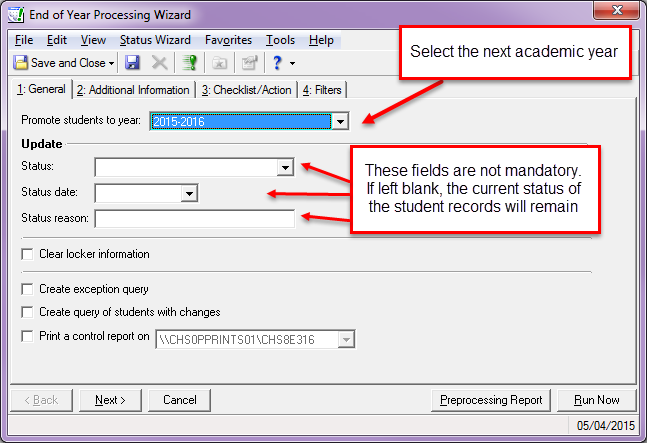
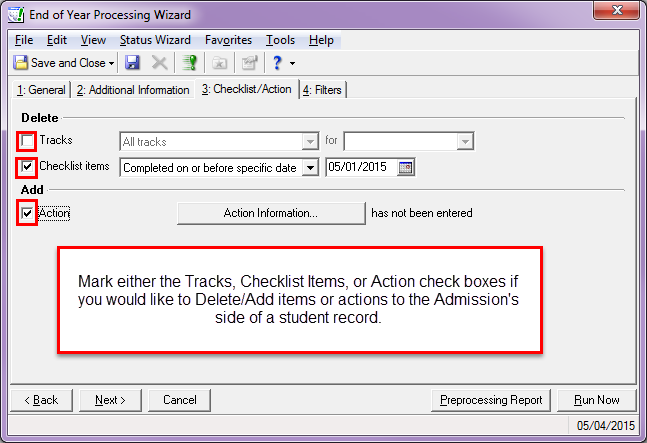
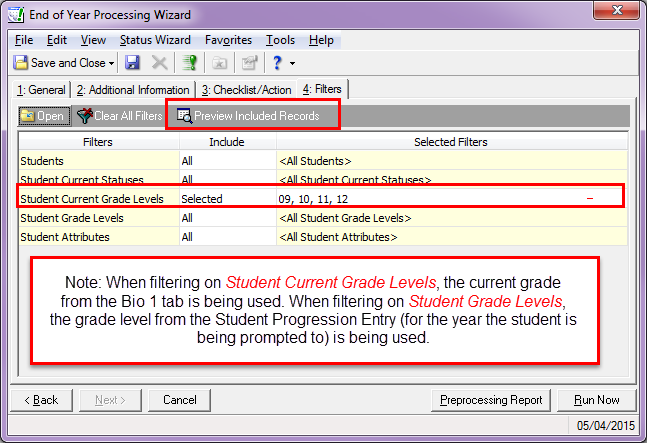
What if your students have the same Homeroom Teacher and/or Advisor every year? You can copy this information using the Mark for Reenrollment Status Wizard. Go to Administration > Status Wizards > Mark for Reenrollment. In the Additional Information tab, you can use Copy Previous. Or, if it’s something new, you can use the Specific Value and filter on which group gets that value.
How to run the Mark for Reenrollment wizard in The Education Edge
COPYING ACADEMIC YEARS
If you haven’t set up your Academic Year for next year, you can copy it from a previous one. In Configuration > Academic Year > highlight the year you would like to copy and then choose Copy from… You will need to have the Academic Year (the 2015-2016) set up in Configuration > Tables > Academic Year first. The copy function will also copy Patterns and Translation Tables.
PLEASE NOTE: If you are going to change any Timetables or Marking Column Sets you will NOT want to Copy Course Grades Information, Course Skills Information, and Course Restrictions.
How to copy an academic year
COPYING COURSE RESTRICTIONS, GRADING, AND BILLING ITEMS
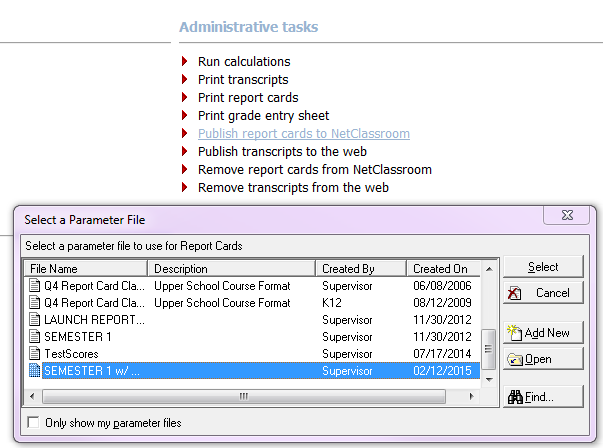
What if you didn’t copy the Course’s Restrictions 2, Grading, and Billing Items when you set up your Academic Year, and you are not changing your Timetables and Marking Column Sets? Never fear. You can still copy these. Go to Records > Courses > Copy Course Information.
PLEASE NOTE: If you are going to change any Timetables or Marking Column Sets you will NOT want to Copy Course Grades Information, Course Skills Information, and Course Restrictions. This will also copy Patterns and Translation Tables.
How to copy course information
COPYING FACULTY AND ROOM RESTRICTIONS
Same as with Course Restrictions, Grading, and Billing Items, you can copy Faculty/Staff Restrictions and Room Restrictions, if they were not copied with your Academic Year. Go to Records and then either Faculty/Staff or Rooms and choose the Copy Restrictions. You can also copy for a single Teacher or Room here.
How to copy faculty scheduling restrictions
How to copy room restrictions
COPYING THE MASTER SCHEDULE
What about the Master Schedule? Making a Master Schedule can take a tremendous amount of time. What if almost everything remains the same from year-to-year, and you only make minor changes? You can copy the entire Master Schedule from one year to another, then go in and change the things that are different.
If you would like, you can save the blank Master Schedule by using the Save a scheduling Scenario in Scheduling before running the Copy Scheduling Year.
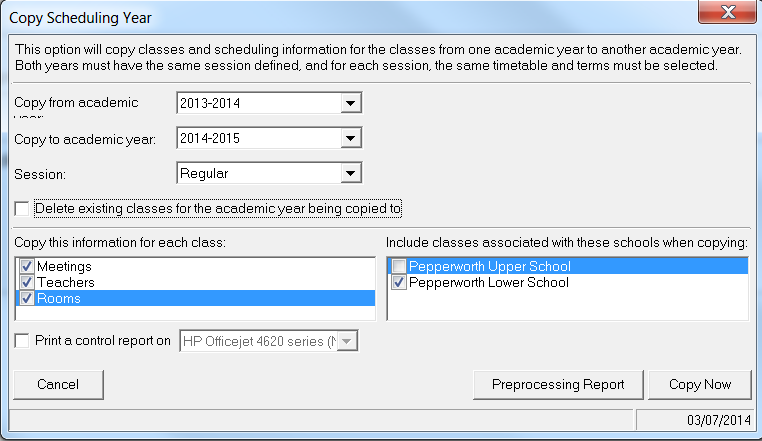
To copy the Master Schedule go to Scheduling > Copy Scheduling Year.
Then all you’ll need to do is change those classes, teachers, and/or rooms that changed. If AP Chemistry is changing from Period 1 to Period 2, just drag it into the new period in Edit Master Schedule. Or, if you need a new section of English 9, create the New Class. Or, if Mrs. Jones isn’t teaching Honors Algebra I anymore, change the teacher of those sections to Mr. Smith. Everything else will remain the same.
How to automatically create classes and copy a previous year’s schedule
Do you have any other Copy Shortcuts? Let me know in the Comment Section below.
Happy Copying!
COPYING HOMEROOM TEACHERS AND/OR ADVISORS
What if your students have the same Homeroom Teacher and/or Advisor every year? You can copy this information using the Mark for Reenrollment Status Wizard. Go to Administration > Status Wizards > Mark for Reenrollment. In the Additional Information tab, you can use Copy Previous. Or, if it’s something new, you can use the Specific Value and filter on which group gets that value.
How to run the Mark for Reenrollment wizard in The Education Edge

COPYING ACADEMIC YEARS
If you haven’t set up your Academic Year for next year, you can copy it from a previous one. In Configuration > Academic Year > highlight the year you would like to copy and then choose Copy from… You will need to have the Academic Year (the 2015-2016) set up in Configuration > Tables > Academic Year first. The copy function will also copy Patterns and Translation Tables.
PLEASE NOTE: If you are going to change any Timetables or Marking Column Sets you will NOT want to Copy Course Grades Information, Course Skills Information, and Course Restrictions.
How to copy an academic year

COPYING COURSE RESTRICTIONS, GRADING, AND BILLING ITEMS
What if you didn’t copy the Course’s Restrictions 2, Grading, and Billing Items when you set up your Academic Year, and you are not changing your Timetables and Marking Column Sets? Never fear. You can still copy these. Go to Records > Courses > Copy Course Information.
PLEASE NOTE: If you are going to change any Timetables or Marking Column Sets you will NOT want to Copy Course Grades Information, Course Skills Information, and Course Restrictions. This will also copy Patterns and Translation Tables.
How to copy course information

COPYING FACULTY AND ROOM RESTRICTIONS
Same as with Course Restrictions, Grading, and Billing Items, you can copy Faculty/Staff Restrictions and Room Restrictions, if they were not copied with your Academic Year. Go to Records and then either Faculty/Staff or Rooms and choose the Copy Restrictions. You can also copy for a single Teacher or Room here.
How to copy faculty scheduling restrictions
How to copy room restrictions

COPYING THE MASTER SCHEDULE
What about the Master Schedule? Making a Master Schedule can take a tremendous amount of time. What if almost everything remains the same from year-to-year, and you only make minor changes? You can copy the entire Master Schedule from one year to another, then go in and change the things that are different.
If you would like, you can save the blank Master Schedule by using the Save a scheduling Scenario in Scheduling before running the Copy Scheduling Year.
To copy the Master Schedule go to Scheduling > Copy Scheduling Year.
Then all you’ll need to do is change those classes, teachers, and/or rooms that changed. If AP Chemistry is changing from Period 1 to Period 2, just drag it into the new period in Edit Master Schedule. Or, if you need a new section of English 9, create the New Class. Or, if Mrs. Jones isn’t teaching Honors Algebra I anymore, change the teacher of those sections to Mr. Smith. Everything else will remain the same.
How to automatically create classes and copy a previous year’s schedule

Do you have any other Copy Shortcuts? Let me know in the Comment Section below.
Happy Copying!
0
Categories
- All Categories
- New eTapestry Home Community
- New K-12 Community Home (TEST)
- New Higher Education Home Page (Test)
- New Impact Edge Community TEST
- New YourCause Community TEST
- New SKY Community TEST
- New Grantmaking TEST Community
- New Altru Test Community
- New bbcon Community - TEST
- 12 Blackbaud Agents for Good™
- New Raiser's Edge NXT Community
- 8 Blackbaud Community Help
- 223 bbcon®
- 1.4K Blackbaud Altru®
- 411 Blackbaud Award Management™ and Blackbaud Stewardship Management™
- 1.2K Blackbaud CRM™ and Blackbaud Internet Solutions™
- 16 donorCentrics®
- 361 Blackbaud eTapestry®
- 2.7K Blackbaud Financial Edge NXT®
- 688 Blackbaud Grantmaking™
- 604 Blackbaud Education Management Solutions for Higher Education
- 3.3K Blackbaud Education Management Solutions for K-12 Schools
- 954 Blackbaud Luminate Online® and Blackbaud TeamRaiser®
- 85 JustGiving® from Blackbaud®
- 7.1K Blackbaud Raiser's Edge NXT®
- 4K SKY Developer
- 258 ResearchPoint™
- 124 Blackbaud Tuition Management™
- 165 Organizational Best Practices
- 249 Member Lounge (Just for Fun)
- 40 Blackbaud Community Challenges
- 37 PowerUp Challenges
- 3 (Closed) PowerUp Challenge: Grid View Batch
- 3 (Closed) PowerUp Challenge: Chat for Blackbaud AI
- 3 (Closed) PowerUp Challenge: Data Health
- 3 (Closed) Raiser's Edge NXT PowerUp Challenge: Product Update Briefing
- 3 (Closed) Raiser's Edge NXT PowerUp Challenge: Standard Reports+
- 3 (Closed) Raiser's Edge NXT PowerUp Challenge: Email Marketing
- 3 (Closed) Raiser's Edge NXT PowerUp Challenge: Gift Management
- 4 (Closed) Raiser's Edge NXT PowerUp Challenge: Event Management
- 3 (Closed) Raiser's Edge NXT PowerUp Challenge: Home Page
- 4 (Closed) Raiser's Edge NXT PowerUp Challenge: Standard Reports
- 4 (Closed) Raiser's Edge NXT PowerUp Challenge: Query
- 829 Community News
- 3.1K Jobs Board
- 57 Blackbaud SKY® Reporting Announcements
- 47 Blackbaud CRM Higher Ed Product Advisory Group (HE PAG)
- 19 Blackbaud CRM Product Advisory Group (BBCRM PAG)