Talk The Talk: A SKY Reporting Lexicon





As you start to use SKY Reporting, you're likely to encounter new — and similar — terms and concepts. To help keep things straight, this brief lexicon provides an overview of what's what.
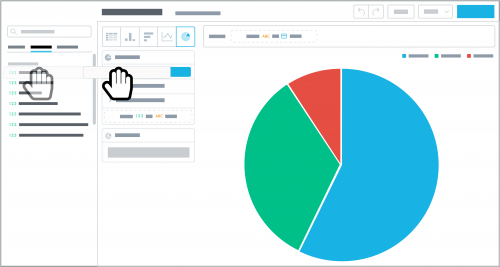 Measures are the numerical amounts and percentages you track or analyze, such as the goals for fundraising efforts or the outstanding balances of invoices. To analyze a measure, you can pair it with other measures or attributes in an insight, or by itself as a key performance indicator (KPI) (more on those below). While most measures provide a sum — or total — of their records, some enable you to choose which amount — such as average, minimum, or median — to analyze with an insight.
In addition, you can further adjust a measure for specific analysis.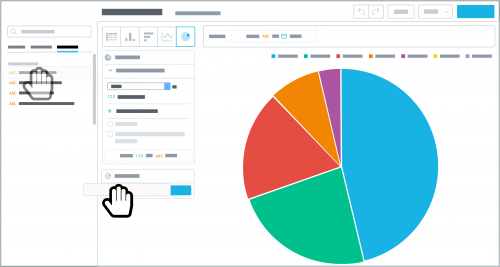 Attributes provide the categorical criteria or characteristics of your records, such as Constituent code or Vendor. Use attributes to narrow the focus and compare data within an insight or dashboard.
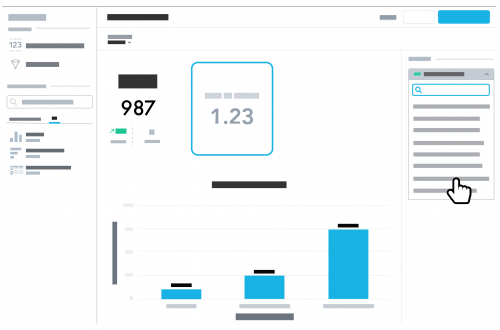 KPIs (or key performance indicators) summarize a measure's total amount and can compare its performance to a previous period. When you add a KPI to a dashboard, you choose which measure it tracks, which filters apply to it, and whether to compare its previous performance. To help track a measure, you can set an alert for its KPI and receive an email notification if it exceeds or falls below a set threshold amount. For more details, see Get Started with Key Performance Indicators.
Dashboards provide a custom collection of insights and KPIs for your personal analysis. To help narrow the focus of a dashboard, you can apply attribute filters and choose the criteria of the records to analyze. To choose the default time period to analyze with the dashboard, set its Date range filter. When you add an insight or KPI to a dashboard, you can choose which of the filters it respects.
Now that you know the basics, you'll be speaking SKY Reporting-ese in no time!
 Measures are the numerical amounts and percentages you track or analyze, such as the goals for fundraising efforts or the outstanding balances of invoices. To analyze a measure, you can pair it with other measures or attributes in an insight, or by itself as a key performance indicator (KPI) (more on those below). While most measures provide a sum — or total — of their records, some enable you to choose which amount — such as average, minimum, or median — to analyze with an insight.
In addition, you can further adjust a measure for specific analysis.
- When used in a KPI, choose whether to compare the measure's performance to a previous period, and whether an increase is good or bad.
- When used in an insight:
- To narrow the focus of a measure, select it and then Add attribute filter to choose the criteria of the records to include in its number-crunching.
- To calculate a measure's percentage — rather than its count — of records within an attribute, select the measure and then show in %.
- To analyze a measure year-over-year, apply a Date attribute to the insight, and then select the measure and compare the same period in previous year.
 Attributes provide the categorical criteria or characteristics of your records, such as Constituent code or Vendor. Use attributes to narrow the focus and compare data within an insight or dashboard.
- Pair attributes with measures in an insight to break down its number-crunching and compare categorical data.
- To narrow the focus of your analysis, apply an attribute as a filter on a measure, insight, or dashboard, and choose the criteria of the records it should include.
 KPIs (or key performance indicators) summarize a measure's total amount and can compare its performance to a previous period. When you add a KPI to a dashboard, you choose which measure it tracks, which filters apply to it, and whether to compare its previous performance. To help track a measure, you can set an alert for its KPI and receive an email notification if it exceeds or falls below a set threshold amount. For more details, see Get Started with Key Performance Indicators.
Dashboards provide a custom collection of insights and KPIs for your personal analysis. To help narrow the focus of a dashboard, you can apply attribute filters and choose the criteria of the records to analyze. To choose the default time period to analyze with the dashboard, set its Date range filter. When you add an insight or KPI to a dashboard, you can choose which of the filters it respects.
Now that you know the basics, you'll be speaking SKY Reporting-ese in no time!
0
Comments
-
I appreciate the attempt but still find the expalnatiaon overly complicated and unclear. How about a defintiion of each - period. Then Explain the difference between tt he two definitions -- then show me usage in clear context - something simple that everyone tracks - Donor Retention.
Thank you
0 -
Hey Michelle- Here's the 'brass tacks' edition: A 'measure' is the number you want to analyze. It's usually a sum total but can be an average, a minimum, etc.; either way, it's essentially a raw calculation available in SKY Reporting. In your example, a measure could be something like 'Donors retained' (although Raiser's Edge NXT doesn't yet offer that calculation). If you want to track or analyze that number, you have a couple of options to harness that raw calculation.
- To analyze the calculation by itself, you can add a 'KPI' to your dashboard and choose the measure. With a KPI, you can also compare the current calculation to its past performance and set an alert to be notified if it exceeds or falls below a specific amount.
- For deeper analysis, such as to compare multiple measures or categorical data within a measure, you can design an 'insight' as a table or chart. In your example, you could compare your retained donors to your lapsed donors (again, not yet available in Raiser's Edge NXT), across an 'attribute' such as the donors' primary constituent codes. Once you design an insight, you can add it to your dashboard for easy analysis.
Hope that helps! Thanks!0 -
All that said, if you're looking to analyze Donor Retention, Raiser's Edge NXT provides several out-of-the-box metrics around donor acquisition and retention in Fundraising, Analyze — no assembly required. Thanks!0



Categories
- All Categories
- New K-12 Community Home (TEST)
- New Higher Education Home Page (Test)
- New Impact Edge Community TEST
- New YourCause Community TEST
- New SKY Community TEST
- New Grantmaking TEST Community
- New Altru Test Community
- New bbcon Community - TEST
- 12 Blackbaud Agents for Good™
- New Raiser's Edge NXT Community
- 8 Blackbaud Community Help
- 222 bbcon®
- 1.4K Blackbaud Altru®
- 411 Blackbaud Award Management™ and Blackbaud Stewardship Management™
- 1.2K Blackbaud CRM™ and Blackbaud Internet Solutions™
- 16 donorCentrics®
- 361 Blackbaud eTapestry®
- 2.7K Blackbaud Financial Edge NXT®
- 688 Blackbaud Grantmaking™
- 604 Blackbaud Education Management Solutions for Higher Education
- 3.3K Blackbaud Education Management Solutions for K-12 Schools
- 954 Blackbaud Luminate Online® and Blackbaud TeamRaiser®
- 85 JustGiving® from Blackbaud®
- 7.1K Blackbaud Raiser's Edge NXT®
- 4K SKY Developer
- 258 ResearchPoint™
- 123 Blackbaud Tuition Management™
- 165 Organizational Best Practices
- 249 Member Lounge (Just for Fun)
- 40 Blackbaud Community Challenges
- 37 PowerUp Challenges
- 3 (Closed) PowerUp Challenge: Grid View Batch
- 3 (Closed) PowerUp Challenge: Chat for Blackbaud AI
- 3 (Closed) PowerUp Challenge: Data Health
- 3 (Closed) Raiser's Edge NXT PowerUp Challenge: Product Update Briefing
- 3 (Closed) Raiser's Edge NXT PowerUp Challenge: Standard Reports+
- 3 (Closed) Raiser's Edge NXT PowerUp Challenge: Email Marketing
- 3 (Closed) Raiser's Edge NXT PowerUp Challenge: Gift Management
- 4 (Closed) Raiser's Edge NXT PowerUp Challenge: Event Management
- 3 (Closed) Raiser's Edge NXT PowerUp Challenge: Home Page
- 4 (Closed) Raiser's Edge NXT PowerUp Challenge: Standard Reports
- 4 (Closed) Raiser's Edge NXT PowerUp Challenge: Query
- 829 Community News
- 3.1K Jobs Board
- 57 Blackbaud SKY® Reporting Announcements
- 47 Blackbaud CRM Higher Ed Product Advisory Group (HE PAG)
- 19 Blackbaud CRM Product Advisory Group (BBCRM PAG)