Getting Started with Query in Web View




by Marie Stark, Nicklaus Children's Hospital Foundation
Query is one of the most widely used and useful features of Blackbaud Raiser’s Edge NXT®.
As you make the transition to using Query in web view, it is good to be aware of the changes in functionality and some useful enhancements.
Let’s start exploring these differences on the Query landing page in web view. Navigate to Analysis/Query.
Categories
In database view, the categories are on the left side.
In web view, Categories are on top in a drop-down list.

Other filter options are also at the top.
In either view, you can change the category of an individual query in Query Options.

Columns
To select the Query Columns in database view, you would right click and select the columns with the right arrow.
In web view, select the Columns button at the top of the page. Check the columns you would like to view.

You’ll find a clever new option to show a column for Favorites, allowing you to click on the star to quickly add a query to the Favorite queries tile on your home page.

New and Improved Features
These are some of my favorite new and enhanced features in web view Query:
Delete Multiple Queries
When deleting multiple queries, you now have the ability to filter by category, rather than having to sift through long lists of queries. It works much faster than in database view. In database view, you are required to scroll through a long list of queries without seeing what category they are assigned to.
In web view, you can filter by Favorites only. You can also filter by the user who created the query, which is useful when someone leaves the organization.
In order to delete multiple queries according to your filters, first set the filters on the query screen. You can filter by Category or select All categories.
You can also filter by Query type, Format, Date created, or Created by. You can specify any or all of these filters.
In the example below, multiple filters have been applied.

Add a checkmark to the queries you wish to delete, then select Delete.

When you confirm your selection, the screen will display a summary of your actions.

Selecting Copy will allow you to copy and paste the summary, as in the following example.
Query Name Deleted Message
Query of Imported Records18 Yes Query deleted successfully
02-15-19Credit Card Updater - Gifts Updated2 Yes Query deleted successfully
Query of Imported Records19 Yes Query deleted successfully
Processed : 3
Warnings : 0
Deleted : 3
Exceptions : 0
Options Tab
The Export Control Report in database view is under File/ Print Control report. In web view, you can find this report under Options.
You’ll find other selections like Soft Credits on the Options tab in web view as well.
Pasting Records
When copying and pasting multiple Constituent IDs or Aliases into a query, you can now paste 2,000 at a time instead of 500.
There is no longer a need to scroll down to the bottom of the criteria box before pasting.
Exporting/Sharing
Exporting a query in web view is limited to .CSV or .XLSX formats.
Note: In order to export a query, the user must be assigned to an Analysis role that allows Export in Query tasks.

There is now the ability to easily share a query instead of exporting results to Excel and emailing a file.


By selecting the Copy Link button, you can paste a link to either the query criteria or results.
For a long-time database user like me, old habits die hard. I’ve made a point of keeping up with changes in web view. Besides always reading “What’s new” on the Home Page, I read all the blogs and try out new features in order to learn them. I also sign up for Product Updates and attend as many webinars as I can about new features. Becoming familiar with these features will help us as we transition to the Unified View.
About the author: Marie Stark has spent more than 15 years in the nonprofit sector, including the past 13 years as a Data Analyst at Nicklaus Children’s Hospital Foundation. She brings deep experience in reporting, data analysis, and third-party tools, and is an active member of the Blackbaud community.
Comments
-
Excellent article, Marie! Very practical and well written, thanks for doing this!
3 -
Thank you, @Bill Connors
0 -
What a fantastic thought leadership piece @Marie Stark WTG!
2 -
Marie as always, I am so proud of you. Excellent article.
You Rock!!!!
1 -
Great article, @Marie Stark!
I have to say, bulk‑deleting queries in WebView is one of my new simple pleasures. The filtering and sorting options make it so much easier to clear out the ancient junk. One of my clients had over 10,000 queries going back to the mid‑2000s …. a crazy time-capsule for sure! Getting that cleaned up to a reasonable number was ridiculously satisfying.2 -
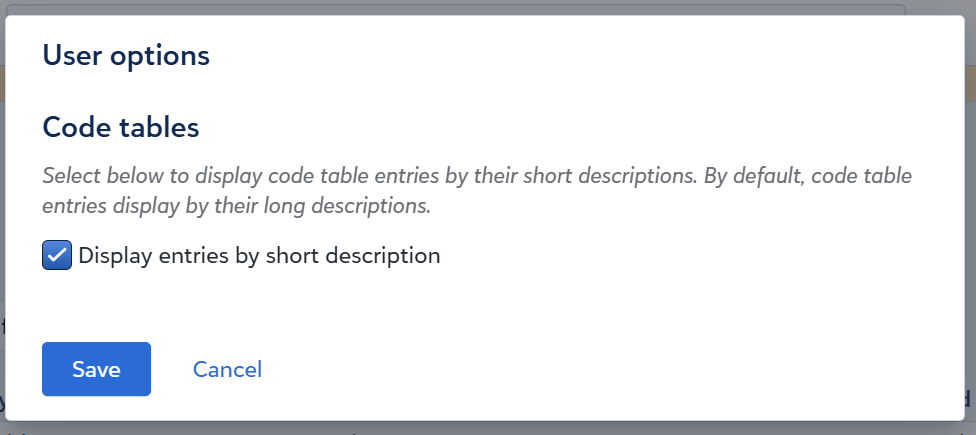
Well written article, thank you. My question and I apologize if addressed previously. How do you change, in WebView query, the name of a state from the long description to a short description, eg. Connecticut to CT. This is easily done in database view in the Tools drop down, User Options, Code Table, but I can't seem to figure out how to do in WebView, any help will be appreciated.
1 -
0
-
@Barbara Moran On the main Query page, in the upper right corner, there is a large, light gray, subtle gear icon. That's how you change it:
 1
1 -
Thank you Bill Connors for your guidance, much appreciated.
0 -
This is awesome, @Marie Stark! :)
1

















Categories
- All Categories
- New YourCause Community TEST
- New SKY Community TEST
- New Grantmaking TEST Community
- New Altru Test Community
- New bbcon Community - TEST
- 12 Blackbaud Agents for Good™
- New Raiser's Edge NXT Community
- 7 Blackbaud Community Help
- 218 bbcon®
- 1.4K Blackbaud Altru®
- 409 Blackbaud Award Management™ and Blackbaud Stewardship Management™
- 1.2K Blackbaud CRM™ and Blackbaud Internet Solutions™
- 16 donorCentrics®
- 361 Blackbaud eTapestry®
- 2.7K Blackbaud Financial Edge NXT®
- 680 Blackbaud Grantmaking™
- 598 Blackbaud Education Management Solutions for Higher Education
- 3.3K Blackbaud Education Management Solutions for K-12 Schools
- 952 Blackbaud Luminate Online® and Blackbaud TeamRaiser®
- 85 JustGiving® from Blackbaud®
- 7K Blackbaud Raiser's Edge NXT®
- 3.9K SKY Developer
- 257 ResearchPoint™
- 123 Blackbaud Tuition Management™
- 165 Organizational Best Practices
- 247 Member Lounge (Just for Fun)
- 40 Blackbaud Community Challenges
- 37 PowerUp Challenges
- 3 (Closed) PowerUp Challenge: Grid View Batch
- 3 (Closed) PowerUp Challenge: Chat for Blackbaud AI
- 3 (Closed) PowerUp Challenge: Data Health
- 3 (Closed) Raiser's Edge NXT PowerUp Challenge: Product Update Briefing
- 3 (Closed) Raiser's Edge NXT PowerUp Challenge: Standard Reports+
- 3 (Closed) Raiser's Edge NXT PowerUp Challenge: Email Marketing
- 3 (Closed) Raiser's Edge NXT PowerUp Challenge: Gift Management
- 4 (Closed) Raiser's Edge NXT PowerUp Challenge: Event Management
- 3 (Closed) Raiser's Edge NXT PowerUp Challenge: Home Page
- 4 (Closed) Raiser's Edge NXT PowerUp Challenge: Standard Reports
- 4 (Closed) Raiser's Edge NXT PowerUp Challenge: Query
- 822 Community News
- 3.1K Jobs Board
- 57 Blackbaud SKY® Reporting Announcements
- 47 Blackbaud CRM Higher Ed Product Advisory Group (HE PAG)
- 19 Blackbaud CRM Product Advisory Group (BBCRM PAG)