⏰ 8 Timesavers for Teachers in the LMS





Hi all! Ben from the LMS team here. With the holidays approaching and grading underway, we know time is precious for teachers.
With this in mind, I wanted to share eight recent updates designed to save teachers time and clicks. Check them out:
| 1. See student work right from the Gradebook. Teachers can now save time and clicks by accessing student work directly from the Gradebook. Watch this video to learn how. | 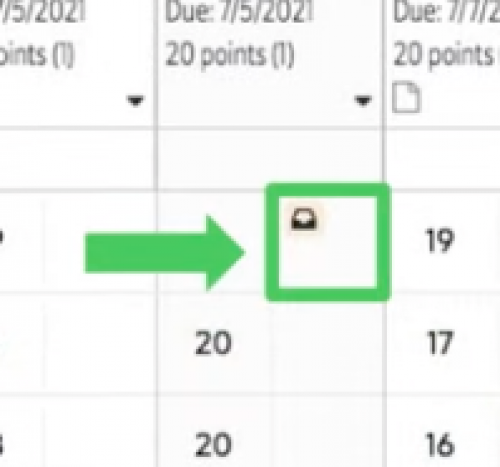 |
| 2. Open more room for student work. Use Hide student list on assignments to open more room for submitted assignments. Easily show the list by selecting Show student list. |  |
| 3. Use previous and next for faster navigation. Also on assignments, you can use Previous student and Next student to cycle through students when grading. |  |
| 4. See the student view for assignments right from the assignment page. Teachers can now launch the student preview view of an assignment directly from the assignment page. Look for the button with the eye to try it out. |  |
5. Turn off Google Drive notification emails.* Teachers whose emails are associated with Google accounts can now turn off email notifications for student submissions. From the Assignment center, under More followed by Preferences, use the Google Drive tab to set your preference. *Note that this preference is only functional for users whose emails are associated with Google accounts. Google requires notification emails to be sent to non-Google users. | 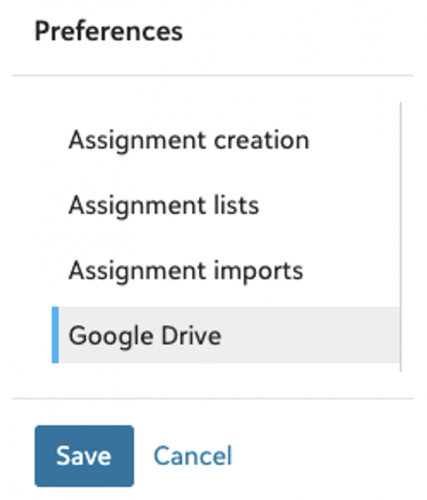 |
| 6. Prevent empty assignment submissions. To reduce confusion and promote academic integrity, students now must add a file, Google Drive link, or text to submit an assignment. |  |
| 7. Quickly clear rubrics. Teachers who use rubrics will note the return of the Clear button, allowing teacher to start from scratch when evaluating with a rubric. |  |
| 8. See rubrics when adding assignments. When creating or editing an assignment, teachers can preview their selected rubric to make sure they’ve picked the right one right from the start. |  |
Comments
-
This is fantastic- forwarding to my teachers immediately!
 4
4 -
Many thanks for this nice summary, Ben. We are all impressed by how many continued improvements are being made each week. You and your team have exceeded our expectations!
4





Categories
- All Categories
- New K-12 Community Home (TEST)
- New Higher Education Home Page (Test)
- New Impact Edge Community TEST
- New YourCause Community TEST
- New SKY Community TEST
- New Grantmaking TEST Community
- New Altru Test Community
- New bbcon Community - TEST
- 12 Blackbaud Agents for Good™
- New Raiser's Edge NXT Community
- 8 Blackbaud Community Help
- 222 bbcon®
- 1.4K Blackbaud Altru®
- 411 Blackbaud Award Management™ and Blackbaud Stewardship Management™
- 1.2K Blackbaud CRM™ and Blackbaud Internet Solutions™
- 16 donorCentrics®
- 361 Blackbaud eTapestry®
- 2.7K Blackbaud Financial Edge NXT®
- 688 Blackbaud Grantmaking™
- 604 Blackbaud Education Management Solutions for Higher Education
- 3.3K Blackbaud Education Management Solutions for K-12 Schools
- 954 Blackbaud Luminate Online® and Blackbaud TeamRaiser®
- 85 JustGiving® from Blackbaud®
- 7.1K Blackbaud Raiser's Edge NXT®
- 4K SKY Developer
- 258 ResearchPoint™
- 123 Blackbaud Tuition Management™
- 165 Organizational Best Practices
- 249 Member Lounge (Just for Fun)
- 40 Blackbaud Community Challenges
- 37 PowerUp Challenges
- 3 (Closed) PowerUp Challenge: Grid View Batch
- 3 (Closed) PowerUp Challenge: Chat for Blackbaud AI
- 3 (Closed) PowerUp Challenge: Data Health
- 3 (Closed) Raiser's Edge NXT PowerUp Challenge: Product Update Briefing
- 3 (Closed) Raiser's Edge NXT PowerUp Challenge: Standard Reports+
- 3 (Closed) Raiser's Edge NXT PowerUp Challenge: Email Marketing
- 3 (Closed) Raiser's Edge NXT PowerUp Challenge: Gift Management
- 4 (Closed) Raiser's Edge NXT PowerUp Challenge: Event Management
- 3 (Closed) Raiser's Edge NXT PowerUp Challenge: Home Page
- 4 (Closed) Raiser's Edge NXT PowerUp Challenge: Standard Reports
- 4 (Closed) Raiser's Edge NXT PowerUp Challenge: Query
- 829 Community News
- 3.1K Jobs Board
- 57 Blackbaud SKY® Reporting Announcements
- 47 Blackbaud CRM Higher Ed Product Advisory Group (HE PAG)
- 19 Blackbaud CRM Product Advisory Group (BBCRM PAG)