Mailing labels





Hi, I'm trying to create mailing labels in Core with create Mail Merge but having a hard time figuring out how to set it up.
Would anyone be able to share your set up on how you create a mail merge for mailing labels? In particular looking to be able to do it by separate grades/school level, but any template setup for a label would be appreciated to see how it looks like.
Thank you!
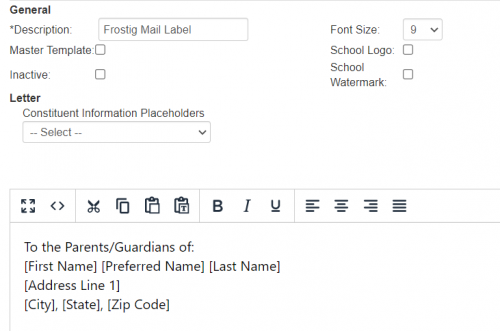
Edit - I was able to successfully create a mailing list, but it's not listing the greeting:
“To the parents/guardians of:”
I click on Mailing Labels and it creates a pdf or word doc of the labels, and lists everything but not the text.

Template set up (maybe it's a different setting or something else?)
Comments
-
@Nathan Ong
I'd like to hear the solution to this, as well! It would be helpful to be able to have an easy way to run Back to School rosters/mailing labels. Thanks!0 -
@Nathan Ong & @Heidi Offel if you want both the mail labels and the mail merge letter, then you have to go all the way through the Add mail merge job function to create the batch of letters and create the list of recipients. Once the letter and list are created, then you'll be able to run the Mail labels for the recipients upon Save. The screenshot in Nathan's post is strictly for the letter/template; next you'll go to the Mail merge tab and click Add to create the job.
If you need the mail labels only, then going straight to an Advanced list (Reporting>Manage Lists>Manage basic and advanced lists) will be faster since you can skip the letter template and Add job function. For any Advanced list you own, you can run Mail labels. Mail labels are entirely based on the list setup - the more specific you are with address filters (like by selecting specific address types), the better.
2






Categories
- All Categories
- New eTapestry Home Community
- New K-12 Community Home (TEST)
- New Higher Education Home Page (Test)
- New Impact Edge Community TEST
- New YourCause Community TEST
- New SKY Community TEST
- New Grantmaking TEST Community
- New Altru Test Community
- New bbcon Community - TEST
- 12 Blackbaud Agents for Good™
- New Raiser's Edge NXT Community
- 8 Blackbaud Community Help
- 223 bbcon®
- 1.4K Blackbaud Altru®
- 411 Blackbaud Award Management™ and Blackbaud Stewardship Management™
- 1.2K Blackbaud CRM™ and Blackbaud Internet Solutions™
- 16 donorCentrics®
- 361 Blackbaud eTapestry®
- 2.7K Blackbaud Financial Edge NXT®
- 688 Blackbaud Grantmaking™
- 604 Blackbaud Education Management Solutions for Higher Education
- 3.3K Blackbaud Education Management Solutions for K-12 Schools
- 954 Blackbaud Luminate Online® and Blackbaud TeamRaiser®
- 85 JustGiving® from Blackbaud®
- 7.1K Blackbaud Raiser's Edge NXT®
- 4K SKY Developer
- 258 ResearchPoint™
- 124 Blackbaud Tuition Management™
- 165 Organizational Best Practices
- 249 Member Lounge (Just for Fun)
- 40 Blackbaud Community Challenges
- 37 PowerUp Challenges
- 3 (Closed) PowerUp Challenge: Grid View Batch
- 3 (Closed) PowerUp Challenge: Chat for Blackbaud AI
- 3 (Closed) PowerUp Challenge: Data Health
- 3 (Closed) Raiser's Edge NXT PowerUp Challenge: Product Update Briefing
- 3 (Closed) Raiser's Edge NXT PowerUp Challenge: Standard Reports+
- 3 (Closed) Raiser's Edge NXT PowerUp Challenge: Email Marketing
- 3 (Closed) Raiser's Edge NXT PowerUp Challenge: Gift Management
- 4 (Closed) Raiser's Edge NXT PowerUp Challenge: Event Management
- 3 (Closed) Raiser's Edge NXT PowerUp Challenge: Home Page
- 4 (Closed) Raiser's Edge NXT PowerUp Challenge: Standard Reports
- 4 (Closed) Raiser's Edge NXT PowerUp Challenge: Query
- 829 Community News
- 3.1K Jobs Board
- 57 Blackbaud SKY® Reporting Announcements
- 47 Blackbaud CRM Higher Ed Product Advisory Group (HE PAG)
- 19 Blackbaud CRM Product Advisory Group (BBCRM PAG)