Emails sent to a constituent

My company sends emails through Luminate. I am investigating a specific set of contacts and I'm curious which emails they have received, which they opened, clicked on, which links they've clicked etc. I'm used to this being standard in reporting for marketing email systems.
Found this documentation:
Tracking the Emails Sent to a Constituent - Luminate Online Help
I am not able to follow the enclosed instructions as there is no "interactions" tab for me to investigate. What should I do?
Answers
-
@Alan Yaspan I am checking with my team on this. Thanks!
0 -
Hey there, @Alan Yaspan
I am a consultant on Luminate Online in Professional Services here at Blackbaud.
To answer your question, please log in as an administrator and go to Constituent360 > Constituents and then search for the constituent in question. Then, once you have found it, click on the "View" link. Then, click on the "Interactions" tab of the constituent record. If you are unable to see this tab when viewing a constituent record, it may likely be due to a permissions issue that may need to be sorted out. If you are added as an admin record to the "Site Administrators" group or the "Constituent360 Administrators" group found inside fo the "Sub-Administrators" group type/folder, you should be able to see it. Once you are there on the "Interactions" tab of the constituent record, about halfway down the page you will see "Emails Sent" as a link. If you click on that, it will show you which emails were sent to this constituent, what they opened, and if they clicked on a link in the message.
Now, if you are seeking to get information on more than one constituent at the same time, I would use the "Reports" tab on the "Classic" side of the Email Campaigns area when you are inside of the campaign after you have clicked on the "Manage" link to get inside of the campaign. If you have this "set of contacts" in their own group, you can use the "Group Performance Report" and it will show you that information for everyone in that group, even if the messages sent target groups were not the same as the group you are looking at. If anyone in the target audience was in this group, it will provide details on their interactions with the messages sent from that email campaign. Below is a screenshot of which report I am referring to when you are inside of an email campaign after clicking the "Manage" link to get into the campaign.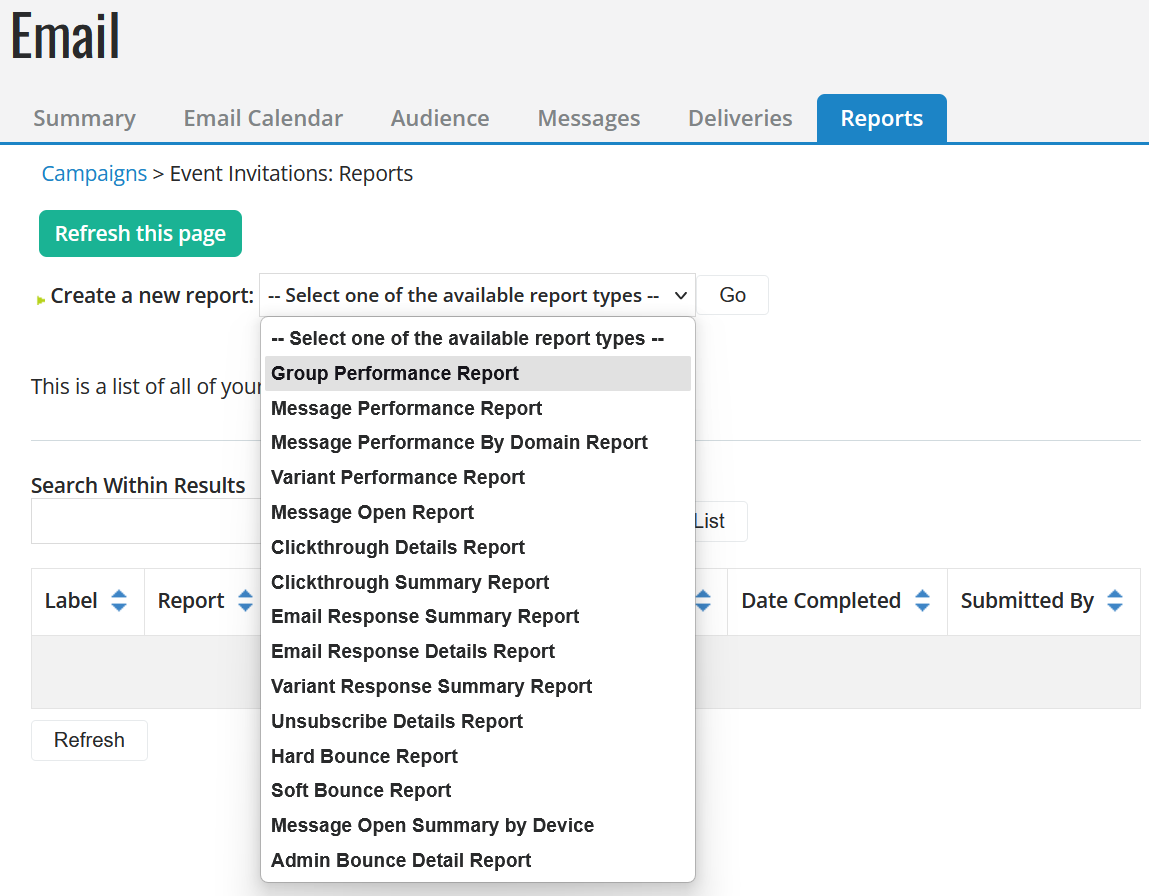
Other reports that might be helpful here:- The Message Performance Report which does not show individualized data and also doesn't filter down to the group, but it shows opens, clicks, unsubscribes, etc.
- The Message Open Report will show individualized data on who opened a message from the campaign.
- The Clickthrough Summary Report shows an aggregate for each link in each message selected of clicks on all links in the message.
- The Clickthrough Details Report shows each individual and which links that they clicked on
- Admin Bounce Details Report shows both hard and soft bounces for the message and response codes to have a greater idea of your email deliverability/inbox placement with given domains and servers
- Any "variant" report is good if you are building and sending an A/B test with your message to glean information that can be used with future messages on recipient audience behaviors (e.g. best time of day to send, what colors work well on buttons, length of the message, from name, subject line, etc.) or if you are seeking to identify which of your message variants to send to the remaining target audience when conducting an A/B test.
For some reports, there is more data when you download the .csv of the report results rather than looking at the online view of the report, so please be sure to click on the "Download" link once the report result is available either on the Reports tab of the Email Campaign or under Data Management > Reports > Report Results tab. Also, all reports expire after 200 hours (~8 days), so please be sure to download them if you feel you may need access to the report longer than that period of time or run the report again to get the latest numbers on that report's results that you are looking at.
I hope this helps answer your question you have above. Please use the @ to tag me in your response so that it sends me an email if you reply with any additional questions or a response.
Thanks,
Will Hull
Blackbaud Professional Services, Principal Consultant, Luminate Online
—--Bonus——Here are some upcoming free webinars related to Luminate Online below that you might be interested in attending:
- July 28, 2026, 11AM – 12PM EDT: Increase Giving with Optimized Donation Forms in Luminate Online
- August 25, 2026, 11AM – 12PM EDT: Reach More, Engage Faster: SMS, MMS, and RCS Messaging with Luminate Online and TeamRaiser
Register for BBCon, Blackbaud's annual conference September 29 - October 1, 2026, in Columbus, OH: https://www.bbconference.com.
CC: @Crystal Bruce
1 -
I've been asking for years to add clickthrough details to the API/Web Services. So for to no avail…
0












Categories
- All Categories
- New K-12 Community Home (TEST)
- New Higher Education Home Page (Test)
- New Impact Edge Community TEST
- New YourCause Community TEST
- New SKY Community TEST
- New Grantmaking TEST Community
- New Altru Test Community
- New bbcon Community - TEST
- 12 Blackbaud Agents for Good™
- New Raiser's Edge NXT Community
- 8 Blackbaud Community Help
- 222 bbcon®
- 1.4K Blackbaud Altru®
- 410 Blackbaud Award Management™ and Blackbaud Stewardship Management™
- 1.2K Blackbaud CRM™ and Blackbaud Internet Solutions™
- 16 donorCentrics®
- 361 Blackbaud eTapestry®
- 2.7K Blackbaud Financial Edge NXT®
- 687 Blackbaud Grantmaking™
- 603 Blackbaud Education Management Solutions for Higher Education
- 3.3K Blackbaud Education Management Solutions for K-12 Schools
- 954 Blackbaud Luminate Online® and Blackbaud TeamRaiser®
- 85 JustGiving® from Blackbaud®
- 7K Blackbaud Raiser's Edge NXT®
- 4K SKY Developer
- 258 ResearchPoint™
- 123 Blackbaud Tuition Management™
- 165 Organizational Best Practices
- 248 Member Lounge (Just for Fun)
- 40 Blackbaud Community Challenges
- 37 PowerUp Challenges
- 3 (Closed) PowerUp Challenge: Grid View Batch
- 3 (Closed) PowerUp Challenge: Chat for Blackbaud AI
- 3 (Closed) PowerUp Challenge: Data Health
- 3 (Closed) Raiser's Edge NXT PowerUp Challenge: Product Update Briefing
- 3 (Closed) Raiser's Edge NXT PowerUp Challenge: Standard Reports+
- 3 (Closed) Raiser's Edge NXT PowerUp Challenge: Email Marketing
- 3 (Closed) Raiser's Edge NXT PowerUp Challenge: Gift Management
- 4 (Closed) Raiser's Edge NXT PowerUp Challenge: Event Management
- 3 (Closed) Raiser's Edge NXT PowerUp Challenge: Home Page
- 4 (Closed) Raiser's Edge NXT PowerUp Challenge: Standard Reports
- 4 (Closed) Raiser's Edge NXT PowerUp Challenge: Query
- 829 Community News
- 3.1K Jobs Board
- 57 Blackbaud SKY® Reporting Announcements
- 47 Blackbaud CRM Higher Ed Product Advisory Group (HE PAG)
- 19 Blackbaud CRM Product Advisory Group (BBCRM PAG)