Sharing my Power Automate template: RE NXT Gift Digest Email (CFAP+Fundraiser+Soft Credit+Tribute)





Description
This Power Automate template generates a consolidated gift digest email from Blackbaud Raiser's Edge NXT gift data. Instead of sending one notification per gift, the flow compiles all gifts returned by the configured gift filter into a single email, making it ideal for daily or weekly gift reporting. The template includes built-in support for conditionally displaying Assigned Fundraiser, Campaign, Fund, Appeal, Package, Fundraiser, Soft Credit, and Tribute information with configurable field-level display controls.
Displaying Columns
Bold = Default showing columns
Italic = Conditionally showing columns using Field Control
- Constituent ID
- Name
- Gift Date
- Gift Type
- Gift Amount
- Assigned Fundraiser
- Campaign
- Fund
- Appeal
- Package
- Fundraiser - this is the gift fundraiser(s)
- Soft Credit
- Tribute
Required Connections
- Blackbaud RENXT Gifts
- Blackbaud Raisers Edge NXT Constituents
- Blackbaud Raisers Edge NXT Fundraising
- Office 365 Outlook
Suggested Skill Level Required to Use This Template
Intermediate
Users should be familiar with importing Power Automate flows, updating connection references, and editing variable values.
Configuration Details
After importing the flow, update the following variables:
1. Email to Notify
Update the Email to Notify variable with a semicolon-separated list of email addresses that should receive the digest.
2. Field Control
The template includes a configurable Field Control object variable that determines:
- Whether a column is displayed.
- Whether lookup IDs or Description are displayed (applicable to Campaign, Fund, Appeal, and Package).
- Whether applicable amounts are displayed (applicable to CFAP Gift Split, Fundraiser, and Soft Credit).
Modify the object as needed to match your reporting requirements.
Default Configuration
{
  "assignedfundraiser": {
    "display": true
  },

  "campaign": {

    "display": true,

    "lookupid": false,

    "amount": false

  },

  "fund": {

    "display": true,

    "lookupid": false,

    "amount": true

  },

  "appeal": {

    "display": true,

    "lookupid": true,

    "amount": false

  },

  "package": {

    "display": true,

    "lookupid": false,

    "amount": false

  },


  "fundraiser": {

    "display": true,

    "amount": true

  },

  "softcredit": {

    "display": true,

    "amount": true

  },

  "tribute": {

    "display": true

  }

}
Field Options
Field/Column | Display | Lookup ID | Amount |
|---|---|---|---|
Assigned Fundraiser | ✅ | N/A | N/A |
Campaign | ✅ | ✅ | ✅ |
Fund | ✅ | ✅ | ✅ |
Appeal | ✅ | ✅ | ✅ |
Package | ✅ | ✅ | ✅ |
Fundraiser | ✅ | N/A | ✅ |
Soft Credit | ✅ | N/A | ✅ |
Tribute | ✅ | N/A | N/A |
Setting "display": false removes that section from the digest output.
Category
Automation and Notification
Instructions
Import the Flow
- Download the attached ZIP package.
- Import the flow into your Power Automate environment.
- Configure all required connection.
- Complete the import process.
Configure Recipients
- Open the flow.
- Locate the Email to Notify variable.
- Replace the sample values with the recipient email addresses separated by semicolons.
Configure Display Fields
- Locate the Field Control object variable.
- Modify display settings as desired:
- Set
"display": trueto show a section. - Set
"display": falseto hide a section. - Enable or disable
"lookupid"and"amount"options where supported.
- Set
Configure Gift Filter
- Update the gift filter criteria used by the flow.
- Common use cases include:
- Gifts received today
- Gifts received yesterday
- Current week gifts
- Previous week gifts
- Custom campaign or fund-specific gift reporting
Schedule the Flow
- Configure the recurrence trigger.
- Recommended schedules:
- Daily morning gift digest
- Daily end-of-day summary
- Weekly fundraising recap
Example Email Digest

Additional Customization
- Add additional columns that are "one to one" relationship with gift (i.e. Gift Reference, Constituent Primary Addressee, etc)
- if columns to add is not available as dynamic content yet (i.e. Constituent Primary Addressee), you will need to add actions (i.e. Get constituent name format summary) before Set VAR Temp Gift Object action
- add the additional column(s) as new property into Set VAR Temp Gift Object action in the order you want them to appear in the table
- While default columns will always show before conditional columns, you can make some configuration change to the order of the default columns and the order of the conditional columns
- To change the order of the default columns, rearrange the order of the properties in Set VAR Temp Gift Object action
- To change the order of the conditional columns, reorder the order of the Condition actions.

Answers
-
This is amazing - worked perfectly! I appreciate the notes about how to hide/display columns. My team loves this digest and so do I. THANK YOU!!!!
0 -
This is magic! Thanks as always for sharing @Alex Wong.
0 -
this is really great @Alex Wong! how/where would we add the gift reference field into this table?
0 -
@Alex Wong - I would love to use a gift digest like this, but we serve five different foundations in our database, and I would need to filter on the gift's fund "Fund Category" (foundation) to determine where each gift notification should go. Is it safe to assume this is not an easy add on to your existing gift digest? Would love any suggestions you can provide!
0 -
not that hard to add, 2 choices:
- Create 1 Gift Digest array variable for each Foundation. Then in the getting of Fund information, condition on which foundation's Gift Digest variable to add the gift into, then in the sending of email, check if there's any gift in the Gift Digest variable before sending to the right email addresses.
- Use the same ONE Gift Digest array variable. Then in the getting of Fund information, condition on adding another property that indicate the foundation. before sending email, filter array on Gift Digest variable on the foundation property, if any gift is in the filtered array (5 filter array one for each foundation), then send the email accordingly, you can have email address to send to in a SharePoint list, or just hard coded if they are "distribution list" email address.
1 -
Update:
- Added active Assigned Fundraiser as a conditional display option
- Added info to post on what are defaults columns vs conditional columns
- Added info on how to make additional customization
0 -
Hi @Alex Wong,
Thank you for the template!
I was able to get campaigns, funds, appeals but not sure how I can add fundraisers attached to the gift record. I used 'Get campaign' to initialize campaigns, etc. But I don't see 'Get fundraisers' option to in order to initialize the variable.
I also need to include packages but not sure how to add them in the Field Control Conditions. I would appreciate your help.
0 -
@Durdona Djalilova this template handles all variable initiation, append and reset for field that it supports: Assigned Fundraiser (constituent level), Campaign, Fund, Appeal, Gift Fundraiser (gift level), Soft Credit, and Tribute.
for gift fundraiser, you just need to turn the
fundraiserproperty'sdisplayfield totrue.{
"assignedfundraiser": {
"display": true
},
"campaign": {
"display": true,
"lookupid": false,
"amount": false
},
"fund": {
"display": true,
"lookupid": false,
"amount": true
},
"appeal": {
"display": true,
"lookupid": true,
"amount": false
},
"fundraiser": {
"display": true,
"amount": true
},
"softcredit": {
"display": true,
"amount": true
},
"tribute": {
"display": true
}
}To add package, you will need another variable to store the potential multiple package per gift, and use Get a Package in the Apply to each loop for gift split and provide the gift split package system id, and then add the property into the temp object. a little too much to explain it all, so try on your own if you want. But I will create a new template that add the package option in.
0 -
@Durdona Djalilova New template uploaded that will to Package too. Updated title and description
1 -
Alex, thank you for sharing this amazing flow! It's exactly what my team needs and I was able to easily hide and rearrange the columns.
Is it possible to sort the table by gift amount? I'm using a saved gift list where the filter is set to sort by gift amount, but the table is still sorting by name. I would appreciate any help you could provide. Thanks again!
0 -
Thank you so much, @Alex Wong! Love the updates. You are my hero!
0 -
@Alex Wong, I'm also trying to add the 'Letter code'. Even though I added an 'Acknowledgement letter' dynamically, the column is showing up empty. I'm guessing it may be because the gifts have not been acknowledged yet. Is there a way to get the letter code, no matter if the gifts have been acknowledged or not?
0 -
@Durdona Djalilova adding letter code is a little bit complex b/c it lives inside an array of "Acknowledgement". This is an issue many faces, even though a single gift only has ONE acknowledgement related info, API returns an array. So we need to just "target" the first acknowledgement item in the array to get letter code.
In the Set VAR Temp Gift Object action, you can add
"Letter Code": "@{first(items('For_Each_Gift')?['acknowledgements'])?['letter']}"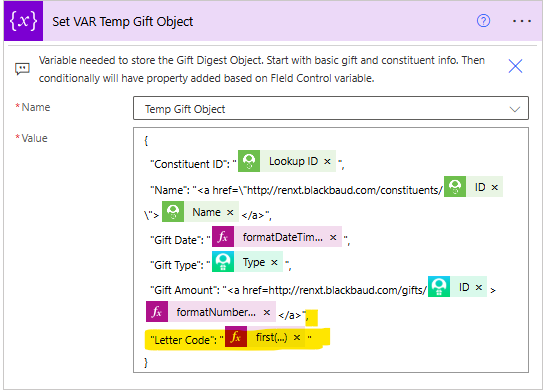
Don't forget to add a comma as highlighted above.
0 -
Anyone else is having issue with their flow? I have not touch mine since I build it but fundraisers have reported and I also see that when I click on the Constituent Name, the hyperlink is taking me to the Blackbaud Home page and not to the Const. record. So strange since I did not modify my flow.
0 -
in the email, mouse over the donor name to copy the URL and paste here to check.
ANother way is to get to the flow run history, and then check the email for the link.
The link should work as I just tried it
0 -
When I mouse over one of the name this is the URL I get: "http://renxt.blackbaud.com/constituents/A00749697". I know this is so strange it worked for weeks and now stopped working and is taking me to the RE Home Page.
0 -
constituent system record id is number only, given you have an alpha, means it is likely your Constituent Lookup ID (or Constituent ID as you know it from dbview).
in Power Automate, this dynamic content will show as "ID"
0 -
Is there a way to adjust this flow to display only specific appeals and the gift amount to not show the full amount of the gift but rather the gift amount to equal that of only the included appeals?
0 -
@Taylor Brown it can be done, but there are quite a few actions that will need some changes along with adding some conditions.
- the gift list you used can be filtered to only show by certain appeal, so start there
- meaning all the gift returned by gift list is a gift with the appeal(s) you want to dispaly, no need to do additional filtering in flow as every gift will be a row to display
- you will need another variable for storing the sum of split amount for gift that may have the appeal(s) split multiple times
- in the gift split apply to each, you will need to add condition on checking if the appeal is what you want, if so, increment the sum varaible and store the appeal info, otherwise, don't do anything
- in the Set VAR Temp Gift Object, you need to get rid of the property line for Gift Amount
- in the condition where appeal will added, you will need to add another property of the sum of amount variable
- you will need to reset the sum variable before next gift (where you see all the reset variable)
0 - the gift list you used can be filtered to only show by certain appeal, so start there



















Categories
- All Categories
- New K-12 Community Home (TEST)
- New Higher Education Home Page (Test)
- New Impact Edge Community TEST
- New YourCause Community TEST
- New SKY Community TEST
- New Grantmaking TEST Community
- New Altru Test Community
- New bbcon Community - TEST
- 12 Blackbaud Agents for Good™
- New Raiser's Edge NXT Community
- 8 Blackbaud Community Help
- 222 bbcon®
- 1.4K Blackbaud Altru®
- 410 Blackbaud Award Management™ and Blackbaud Stewardship Management™
- 1.2K Blackbaud CRM™ and Blackbaud Internet Solutions™
- 16 donorCentrics®
- 361 Blackbaud eTapestry®
- 2.7K Blackbaud Financial Edge NXT®
- 687 Blackbaud Grantmaking™
- 603 Blackbaud Education Management Solutions for Higher Education
- 3.3K Blackbaud Education Management Solutions for K-12 Schools
- 954 Blackbaud Luminate Online® and Blackbaud TeamRaiser®
- 85 JustGiving® from Blackbaud®
- 7K Blackbaud Raiser's Edge NXT®
- 4K SKY Developer
- 258 ResearchPoint™
- 123 Blackbaud Tuition Management™
- 165 Organizational Best Practices
- 248 Member Lounge (Just for Fun)
- 40 Blackbaud Community Challenges
- 37 PowerUp Challenges
- 3 (Closed) PowerUp Challenge: Grid View Batch
- 3 (Closed) PowerUp Challenge: Chat for Blackbaud AI
- 3 (Closed) PowerUp Challenge: Data Health
- 3 (Closed) Raiser's Edge NXT PowerUp Challenge: Product Update Briefing
- 3 (Closed) Raiser's Edge NXT PowerUp Challenge: Standard Reports+
- 3 (Closed) Raiser's Edge NXT PowerUp Challenge: Email Marketing
- 3 (Closed) Raiser's Edge NXT PowerUp Challenge: Gift Management
- 4 (Closed) Raiser's Edge NXT PowerUp Challenge: Event Management
- 3 (Closed) Raiser's Edge NXT PowerUp Challenge: Home Page
- 4 (Closed) Raiser's Edge NXT PowerUp Challenge: Standard Reports
- 4 (Closed) Raiser's Edge NXT PowerUp Challenge: Query
- 829 Community News
- 3.1K Jobs Board
- 57 Blackbaud SKY® Reporting Announcements
- 47 Blackbaud CRM Higher Ed Product Advisory Group (HE PAG)
- 19 Blackbaud CRM Product Advisory Group (BBCRM PAG)